
Is your SViCloud TV Box (xiaoyun tv box/小雲電視盒/小云电视盒) not working properly, freezing on the home screen, failing to update, or becoming unusually slow? A restart may solve minor problems, but in some situations you may need to reset the device or restore it to factory settings.
The good news is that resetting a SViCloud TV box is relatively straightforward when you can still access the Settings menu. There are also recovery options to consider when the box cannot reach the normal home screen.
In this guide, we’ll explain how to reset SViCloud TV box, when a factory reset is actually necessary, what gets deleted, what to try before resetting, and what to do after the reset is complete.
重要提醒: A factory reset erases personal settings, installed apps, saved network information, and other local data on the device. Do not perform a factory reset unless you understand what will be removed.
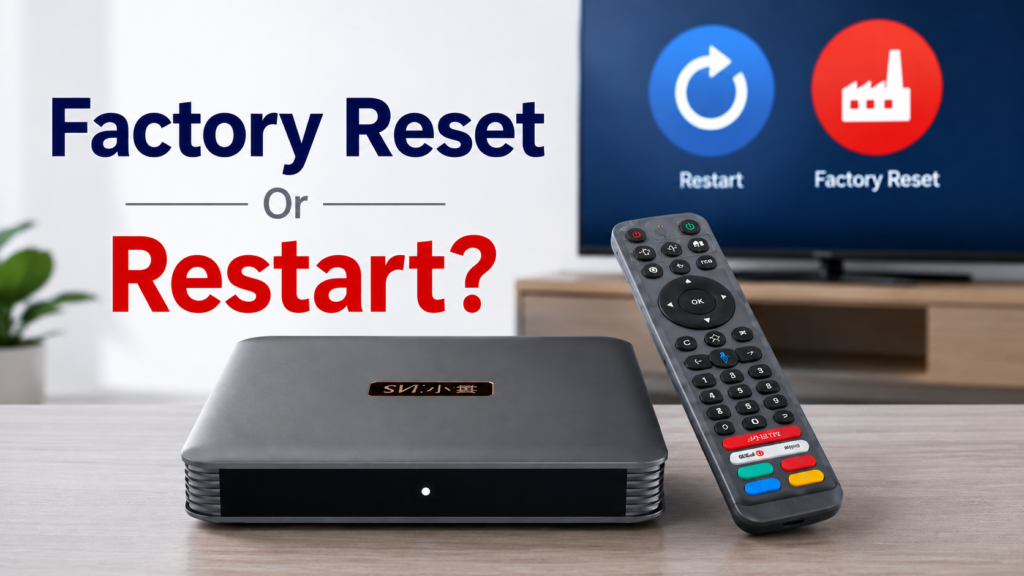
Restart vs. Factory Reset: What’s the Difference?
Before resetting your SViCloud TV box, it is important to understand the difference between a normal restart and a factory reset.
Restart
A restart simply turns the system off and starts it again. It is useful for temporary problems such as:
- A frozen app
- Slow menus
- Temporary Wi-Fi problems
- Remote response delays
- Minor playback or system glitches
A restart normally does not erase your apps or personal settings.
Factory Reset
A SViCloud factory reset returns the device to its original system state and removes locally stored settings and data.
This is a much more significant troubleshooting step. A factory reset may remove:
- Installed apps
- Saved Wi-Fi networks
- Account information
- App preferences
- System preferences
- Other locally stored personal data
For that reason, always try a restart and basic troubleshooting before performing a full factory reset.
When Should You Reset a SViCloud TV Box?
You should not factory reset your box every time something goes wrong. Consider a reset when basic troubleshooting has failed, and the problem appears to be related to the system rather than your TV, HDMI cable, router, or a single application.
Common situations include:
SViCloud TV box keeps freezing
If the interface repeatedly freezes even after restarting the device, a factory reset may help eliminate corrupted settings or persistent software problems.
SViCloud is stuck on the loading screen
A box that repeatedly stops at the startup screen may require additional recovery troubleshooting. However, try a complete power cycle before resetting it.
Apps repeatedly crash
If several applications are failing—not just one specific app—the problem may be related to the device’s software environment.
If only one app is affected, try clearing its cache or reinstalling that app before resetting the entire box.
System update repeatedly fails
SViCloud support information recommends restoring factory settings as one troubleshooting option when system updates repeatedly fail before trying the network update again.
You are giving the box to another person
A factory reset is also useful when transferring ownership because it removes your personal settings and locally stored account information.
What to Try Before Factory Resetting Your SViCloud TV Box
A factory reset should not be your first troubleshooting step. Try these checks first.
1. Restart the SViCloud TV Box
Turn the device off and disconnect it from power. Wait approximately 60 seconds before reconnecting it. This clears many temporary system problems without deleting your settings.
2. Restart Your Router
If your problem involves:
- Buffering
- Apps not loading
- Network errors
- Wi-Fi disconnecting
Restart your router before resetting the TV box. A factory reset cannot repair a weak or unstable internet connection.
3. Check the HDMI Connection
If your television displays “No Signal” or a completely black screen, check the HDMI connection first.
Make sure:
- The HDMI cable is connected securely.
- Your television is using the correct HDMI input.
- The SViCloud power adapter is connected.
- Test another HDMI port if necessary.
A display connection problem usually does not require a factory reset.
4. Troubleshoot Individual Apps
If only one application is causing problems, try:
Settings → Apps → Select the App
Then consider:
- Force Stop
- Clear Cache
- Reinstalling the application from its official source
Resetting the entire SViCloud TV box because one app is malfunctioning is usually unnecessary.
How to Reset SViCloud TV Box Through Settings
If your SViCloud TV box can still reach the home screen and Settings menu, this is generally the simplest way to perform a factory reset. The exact wording may vary slightly depending on your SViCloud model and system version.
Step 1: Open SettingsTurn on your SViCloud TV Box and go to the main home screen. Using your remote control, open 「設定」
Step 2: Open Device PreferencesInside Settings, locate: Device Preferences
Depending on the software version, the menu name or position may look slightly different.
Step 3: Select ResetNavigate to: Settings → Device Preferences → Reset
This is the factory reset path documented for SViCloud TV box devices.
Step 4: Review the WarningThe device should display a warning explaining that resetting will erase data from the TV box. Read this carefully. Do not continue if there is information or settings you still need to save.
Step 5: Confirm Factory ResetSelect the option to confirm the reset and erase the device data. Once confirmed, do not:
- Disconnect the power
- Unplug the HDMI cable unnecessarily
- Press random remote buttons
- Interrupt the reset process
Allow this Android TV box to complete the reset.
Step 6: Wait for the SViCloud TV Box to RestartThe smart TV box should restart after the factory reset is completed. The first startup may take longer than a normal reboot. Be patient and allow the system to finish loading.
How to Reset a SViCloud TV Box When You Cannot Access Settings
This situation is different.
If your SViCloud TV box is stuck on the logo or loading screen, or cannot reach the Settings menu, you may need to use its recovery function instead of the normal Settings method.
SViCloud documentation for some devices describes a recovery process involving disconnecting and reconnecting power and using the remote during startup to enter a recovery screen.
Other SViCloud troubleshooting documentation describes a physical reset/recovery button on some hardware.
Because recovery procedures can vary by model and generation, do not assume that every SViCloud model uses the same recovery method.
If your box cannot access Settings:
- Disconnect the power.
- Wait at least 60 seconds.
- Remove unnecessary USB devices or accessories.
- Reconnect only the power and HDMI connections.
- Try starting the device again.
- If it still cannot boot normally, use the recovery procedure specified for your exact SViCloud model.
When the recovery menu becomes available, you may see an option similar to:
Wipe data/factory reset
Selecting this option will erase device data.
If you are unsure about the correct recovery procedure for your specific SViCloud model, contact your seller or SViCloud support before proceeding.
What Happens After You Reset a SViCloud TV Box?
After completing the SViCloud factory reset, the box will behave more like a newly configured device. You may need to set up several things again.
Language
Choose your preferred system language.
Wi-Fi or Ethernet
Reconnect the device to your home network. If using Wi-Fi, you will normally need to enter your Wi-Fi password again.
Display Settings
Check that the resolution and display settings are appropriate for your television. If the screen does not fit correctly, review the display settings before changing unrelated options.
應用程式
Applications removed during the reset may need to be installed again. Whenever possible, download applications from trusted or official sources.
Accounts and Preferences
You may also need to sign back into services you personally use and restore your preferred system settings.
Need to configure everything again? Read our complete How to Set Up SViCloud TV Box guide for step-by-step installation, Wi-Fi, display and remote setup instructions.
SViCloud TV Box Still Not Working After Factory Reset?
A factory reset does not solve every problem. If your SViCloud TV box still does not work after a successful reset, determine what type of problem remains.
No Power
Check:
- Wall outlet
- Power adapter
- Power cable
- Device power connection
A factory reset cannot fix a hardware power problem.
No Signal
Check:
- HDMI cable
- HDMI port
- TV input/source selection
- Display compatibility
No Internet
Check:
- Router
- Wi-Fi password
- Ethernet cable
- Network availability
Try connecting another device to the same network to determine whether the issue is with your internet connection or the TV box.
One App Still Does Not Work
If the rest of the SViCloud TV box works normally but one application does not, the problem is more likely related to that application or service than the entire device.
Device Still Freezes or Reboots
If the SViCloud TV Box continues freezing, restarting, or failing to boot after a factory reset, stop repeatedly resetting it.
Contact customer support and provide:
- SViCloud model
- Serial number
- Purchase information
- Country or region
- Description of the problem
- Photos or a short video of the error
This gives the support team more useful information for diagnosing the problem.
For more information about Svicloud not working, go and read the article Complete Troubleshooting Guide & Solutions (2026) for reference.
How to Avoid Needing Another SViCloud Factory Reset
A few basic habits can help keep your SViCloud TV box running more smoothly.
- Keep enough free storage: Remove applications you no longer use and periodically clear unnecessary app cache.
- Keep the box ventilated: Avoid placing the device inside a tightly enclosed cabinet or directly on top of another hot electronic device.
- Use a stable network: For streaming and other network-intensive tasks, use a strong Wi-Fi connection or Ethernet when appropriate.
- Install apps carefully: Avoid installing unknown APK files simply because a website claims they will improve performance.
- Restart occasionally: A normal restart is much less disruptive than repeatedly performing factory resets.
Frequently Asked Questions About Resetting SViCloud TV Box
How do I reset my SViCloud TV Box?
If you can access the system normally, go to: Settings → Device Preferences → Reset
Follow the on-screen instructions to restore factory settings.
Does resetting a SViCloud TV Box delete everything?
A factory reset removes personal data, installed applications, and settings stored locally on the device. Always assume that locally stored information may be erased before confirming the reset.
Will a factory reset fix SViCloud buffering?
Not necessarily. Buffering can be caused by your internet connection, Wi-Fi signal, router, application, server conditions, or other network factors. Test your network before factory resetting the device.
Should I reset SViCloud if the TV says “No Signal”?
Usually not. “No Signal” commonly indicates an HDMI input, HDMI cable, power, or display connection problem. Check those connections first.
How do I reset SViCloud if it is stuck on the logo?
First, perform a full power cycle. If the box still cannot reach the home screen, you may need to use the recovery procedure available for your specific SViCloud model and select the factory reset option. Because recovery methods can differ between models, confirm the correct procedure before proceeding.
How long does a SViCloud factory reset take?
The exact time varies by model and software condition. Do not disconnect the power while the reset is running, and allow additional time for the first startup after the reset.
Do I need to set up my SViCloud TV box again after resetting it?
Yes. After a factory reset, you may need to configure your language, internet connection, display preferences, applications, and accounts again.
Final Thoughts: Reset Your SViCloud TV Box Only When Necessary
Learning how to reset a SViCloud TV box is useful, but a factory reset should not be the first solution to every problem.
Start with the simplest troubleshooting steps:
- Restart the SViCloud TV box.
- Check the power and HDMI connections.
- Restart your router if the problem is network-related.
- Troubleshoot individual applications.
- Perform a factory reset only when the problem continues, and a reset is appropriate.
If your SViCloud TV box can access Settings, the standard reset path is:
Settings → Device Preferences → Reset
If the box cannot reach Settings, use the recovery procedure appropriate for your specific model or contact support before attempting unfamiliar recovery steps.
After resetting the TV box, complete the initial setup again and test the device before reinstalling every application. This makes it easier to determine whether the original problem has actually been resolved.