
Seeing “No Signal” or a completely black screen on your SviCloud 15P does not automatically mean the box has failed. In many cases, the TV is on the wrong HDMI input, the cable is loose, or the box needs a full power restart. Follow this SviCloud 15P troubleshooting guide in order so you can identify the cause without erasing your apps and settings.
If you are setting up a new SviCloud 小雲電視盒, check the SviCloud 15P 電視盒 listing for the correct accessories and connection requirements.
目錄
Start with this 60-second check
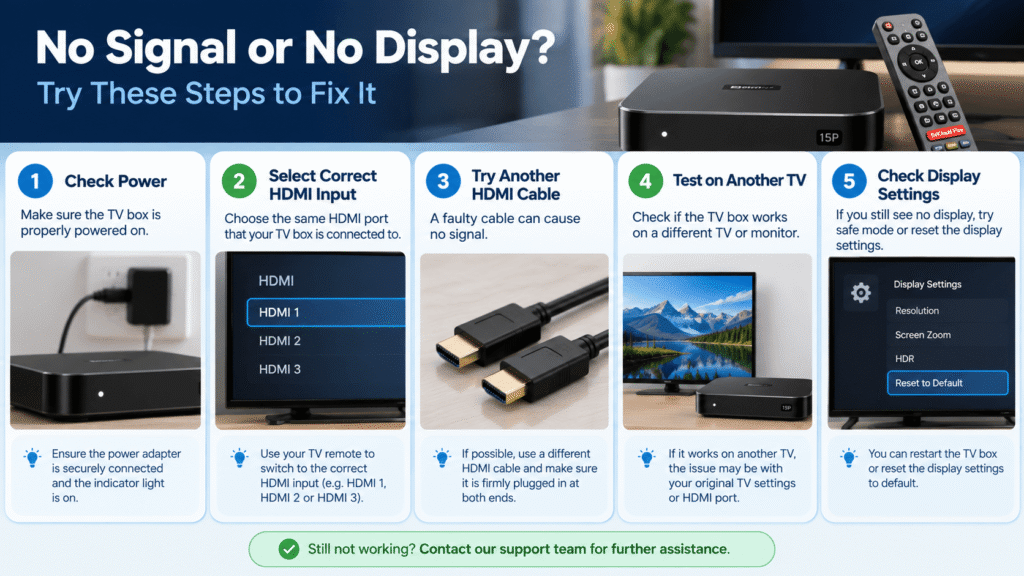
First: confirm the TV is fully on, select the HDMI port used by the SviCloud 15P, reseat both ends of the HDMI cable, and unplug the TV box for 15 seconds before reconnecting it.
If the TV displays a SviCloud logo and then goes black, continue to the display and startup checks below. If it never detects a signal, focus on HDMI, power, and the TV input before changing software settings.
- Turn on the television and press its Input, Source, or TV/AV button.
- Cycle through HDMI 1, HDMI 2, HDMI 3, and any other connected port.
- Unplug the SviCloud 15P power adapter for 15 seconds, then reconnect it.
- Wait up to two minutes on a first boot or after an update.
- Test another HDMI device on the same TV port to separate a TV problem from a box problem.
The broader SviCloud TV box troubleshooting guide uses the same symptom-first approach: check simple physical causes before considering a factory reset. Google’s official no-signal troubleshooting steps also recommend checking power, the selected HDMI input, and restarting the streaming device.
Fix the HDMI input and cable
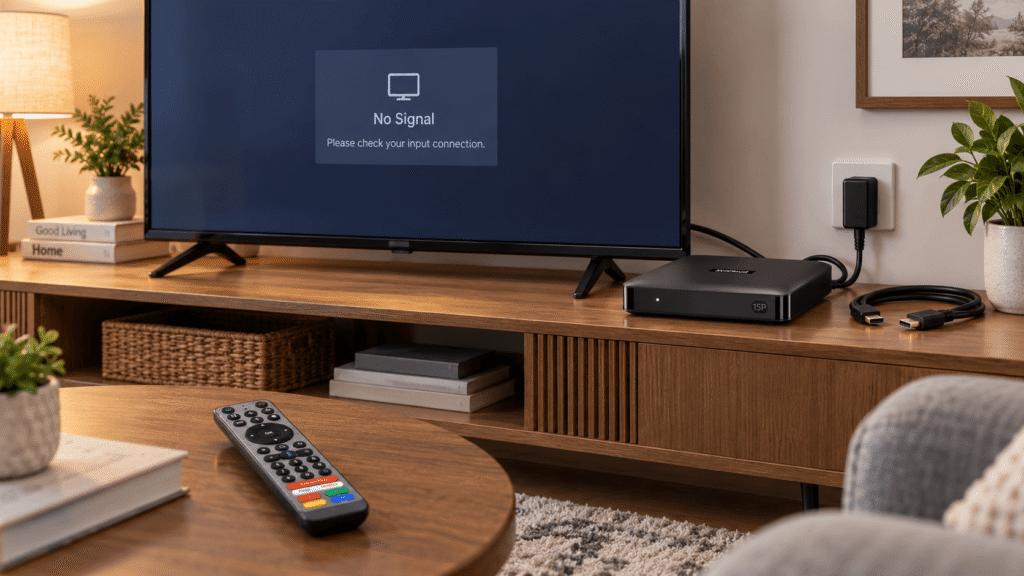
The most common SviCloud 15P no signal cause is a mismatch between the cable and the input selected on the TV. If the cable is plugged into HDMI 2 but the TV is viewing HDMI 1, the screen can remain black even though the box is powered on.
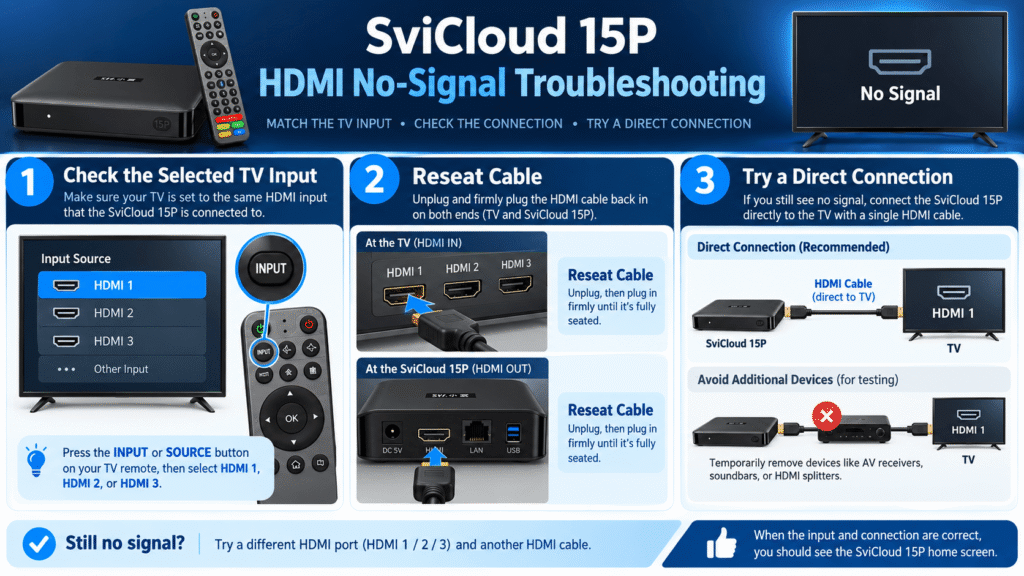
- Remove the HDMI cable from both the SviCloud 15P and the television.
- Check the connectors for dust, bent metal, or visible damage.
- Reconnect both ends firmly without forcing the plug.
- Select the exact HDMI input used by the cable.
- Try a different HDMI port and, if available, a known-good high-speed HDMI cable.
Connect the SviCloud 15P directly to the television while testing. Temporarily remove an AV receiver, HDMI switch, soundbar pass-through, or capture device from the chain. Extra equipment can introduce a handshake problem that looks like a failed Android TV box. Sony’s HDMI no-picture support guide similarly recommends checking the input, cable connection, and another HDMI port.
Check power and startup
A black screen can occur when the box is not receiving stable power. Use the supplied adapter and make sure the Type-C connector is fully seated. Avoid testing with an unknown phone charger simply because it fits; output requirements can differ.
| What you see | Likely area to check | Next action |
|---|---|---|
| No indicator or response | Power adapter, outlet, connector | Try a working outlet and the supplied adapter. |
| Indicator on, no picture | HDMI input or cable | Cycle inputs and test another cable. |
| Logo then black screen | Boot or display handshake | Wait two minutes, then try another TV port. |
| Picture returns after restart | Temporary software state | Install pending updates and monitor the next boot. |
Keep the SviCloud 15P in an open, ventilated position while testing. Heat buildup inside a sealed cabinet can cause intermittent restarts or a screen that drops out after the device warms up.
Try display and TV settings
If the SviCloud logo appears but the interface disappears, the output mode may not match the television or intermediary equipment. Use the TV’s own menu to confirm that the selected HDMI port is enabled and that the television is not applying an unusual picture mode.
- Connect the box directly to the TV and remove HDMI splitters.
- Try another HDMI input that supports the television’s normal 4K or HD mode.
- Turn off the TV and SviCloud 15P, power the TV on first, then start the box.
- If the screen works on another television, review the original TV’s HDMI compatibility and input settings.
- Once the picture returns, choose a stable display setting instead of repeatedly switching resolutions.
Do not factory-reset the SviCloud 15P as your first response to a black screen. A reset removes installed apps, accounts, and preferences, but it cannot repair a wrong HDMI input or a damaged cable.
Check the remote and input source
Sometimes the SviCloud 15P is working, but the remote is not sending commands, so the TV remains on the wrong source. Replace both AAA batteries and press the TV’s physical or original remote Input button if the SviCloud remote is not yet paired.
Once a picture appears, pair the Bluetooth remote and test Home, Back, OK, and volume. If the screen is visible but the remote stops responding, the SviCloud 15P 測評 explains the remote’s Bluetooth, voice, and air-mouse features. This separates a display fault from a control problem.
When to try advanced fixes
Only move to advanced steps after you have tested the TV input, cable, power, and a second HDMI port:
- Disconnect USB drives, keyboards, and other accessories, then restart with only HDMI and power connected.
- Remove the power connection for one minute, reconnect it, and allow the box to complete startup.
- Test the SviCloud 15P on a second television if one is available.
- Record whether the indicator changes, whether a logo appears, and how long the screen stays visible.
- Contact support before attempting a factory reset or installing firmware from an unofficial source.
Do not download random firmware files advertised as a “black screen fix.” An incorrect firmware image can create a larger problem and may affect warranty support.
For a complete first-time connection sequence, use the SviCloud 15P 設定指南. It covers HDMI, power, remote pairing, WiFi, and Ethernet in the order the box expects.
When should you contact SviCloud support?
Contact support when the box shows no indicator with the supplied adapter, fails on multiple known-good HDMI cables and televisions, has visible physical damage, or repeatedly loses its picture after the basic checks. Include your order number, model name, plug type, TV model, a photo of the connections, and a short description of what appears on screen.
小雲電視盒 小雲盒子 電視 常見問題解答 can answer common compatibility questions. For order-specific help, use SviCloud customer support so the team can match the issue to your purchase.
Quick decision: is your SviCloud 15P actually broken?
Probably a setup issue
The TV works with another device, the SviCloud indicator is on, or the picture returns after selecting the correct HDMI source or reseating the cable.
Needs support review
There is no power response, no picture on multiple TVs and cables, or visible damage remains after the documented checks.
Most SviCloud 15P no signal cases are resolved faster by checking the physical connection than by changing apps or wiping the system. Work through the list once, document the result, and then choose the next step based on evidence.
常見問題
Why does my SviCloud 15P say No Signal?
Check that the TV is using the HDMI port connected to the box, reseat both ends of the cable, try another HDMI port, and restart the SviCloud 15P.
What should I do when the SviCloud 15P screen is completely black?
Confirm power, wait for a full startup, test a different HDMI cable and television input, and remove intermediary HDMI equipment while diagnosing.
Can a bad HDMI cable make SviCloud 15P stop working?
Yes. A damaged or poorly seated HDMI cable can prevent the TV from receiving a picture even when the box is powered on.
Should I factory-reset the SviCloud 15P for a black screen?
No. A factory reset should be a last resort after physical connections, power, display compatibility, and support checks. It will erase your setup.
When should I contact SviCloud support?
Contact support if the box has no power response or fails on multiple known-good cables and TVs. Provide your model, order details, photos, and troubleshooting results.