
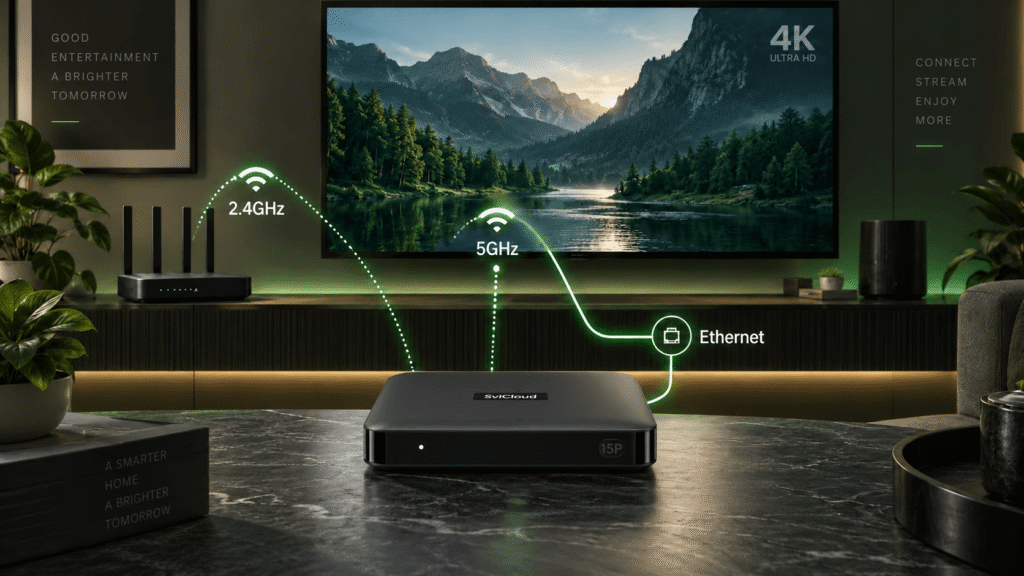
The SviCloud 15P supports WiFi 6, dual-band 2.4GHz and 5GHz wireless networking, plus Ethernet. The best connection depends on the distance between your TV and router, wall construction, local interference, and whether you prioritize convenience or consistency. This guide explains which option to try first and how to reduce SviCloud buffering without automatically upgrading your internet plan.
If you are choosing the hardware now, compare the SviCloud 電視盒系列 and check the current SviCloud 15P 電視盒 specifications before deciding where it will sit in your home.
目錄
- Quick answer: which connection is best?
- What SviCloud 15P WiFi 6 actually changes
- 2.4GHz vs 5GHz vs Ethernet comparison
- Choose the right connection for your room
- Fix SviCloud buffering step by step
- SviCloud 15P network setup
- 常見問題
Quick answer: which connection is best?
Use Ethernet when your router is close enough to run a cable. A wired connection usually delivers the most consistent performance for long live streams, large downloads, and a busy household.
Use 5GHz WiFi 6 when the SviCloud 15P is in the same room or only a short distance from a modern router. It can provide higher wireless throughput with less congestion, but its signal weakens more quickly through walls.
Use 2.4GHz when the TV box is farther away, separated by several walls, or positioned where 5GHz drops out. It is slower in ideal conditions, yet often more dependable at range.
There is no single “fastest” answer for every home. The right SviCloud 15P WiFi choice is the one that stays stable during the exact content you watch.
What SviCloud 15P WiFi 6 actually changes
WiFi 6 is a newer wireless standard, but it does not magically remove weak signals or an overloaded broadband connection. Its practical value is better efficiency when several devices share the network, improved handling of heavy traffic, and a more modern link between a compatible router and the SviCloud 15P.
The SviCloud 15P specification includes dual-band WiFi 6, so you can select either 2.4GHz or 5GHz from your router. Your router must also support WiFi 6 to use the latest features; otherwise, the box can still connect via the compatible WiFi mode the router offers.
For a deeper look at real-world stability, see the existing SviCloud Wi-Fi vs Ethernet guide. It reaches the same practical conclusion: wireless is convenient, while Ethernet is usually the first test when buffering appears during live viewing.
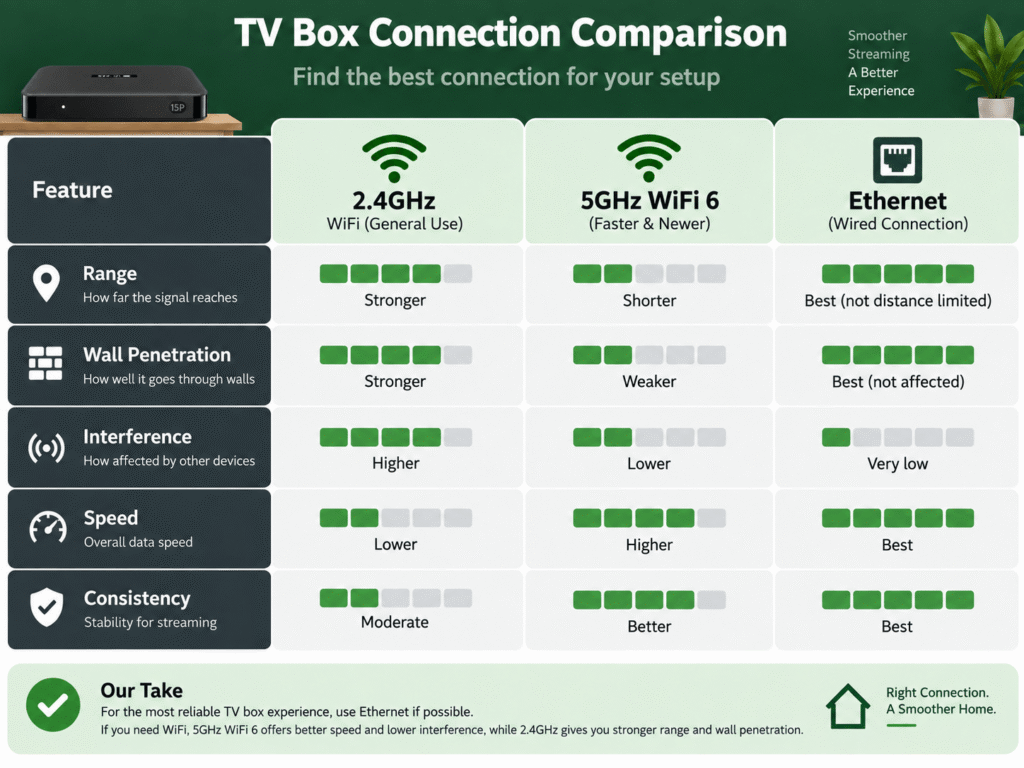
2.4GHz vs 5GHz vs Ethernet on SviCloud 15P
| Connection | Main strength | Limit | Best SviCloud 15P use |
|---|---|---|---|
| 2.4GHz WiFi | Longer reach and better wall penetration | More interference and lower peak speed | TV box far from the router or across multiple rooms |
| 5GHz WiFi 6 | Higher wireless speed and cleaner local spectrum | Shorter range; walls reduce performance quickly | Nearby router, 4K streaming, app downloads |
| Ethernet | Consistent latency and fewer radio interruptions | Requires a cable and suitable router position | Long live streams, congested WiFi, or persistent buffering |
2.4GHz: reach first
Choose 2.4 GHz when the SviCloud 15P is at the far end of your home or behind thick walls. It can be the better option for a stable connection even though a nearby 5GHz network reports a higher speed on the test.
5GHz WiFi 6: speed nearby
Choose 5GHz when the router is close, the channel is not crowded, and the signal remains strong at the TV. This is often the most convenient choice for a SviCloud 15P WiFi 6 setup in a modern apartment or open-plan room.
Ethernet: consistency first
Choose Ethernet when you want fewer variables. A cable avoids competing wireless devices, neighboring networks, and sudden signal changes. It is especially useful if SviCloud buffering happens at the same time every evening.
Choose the right connection for your room
Walk through these three questions before changing settings:
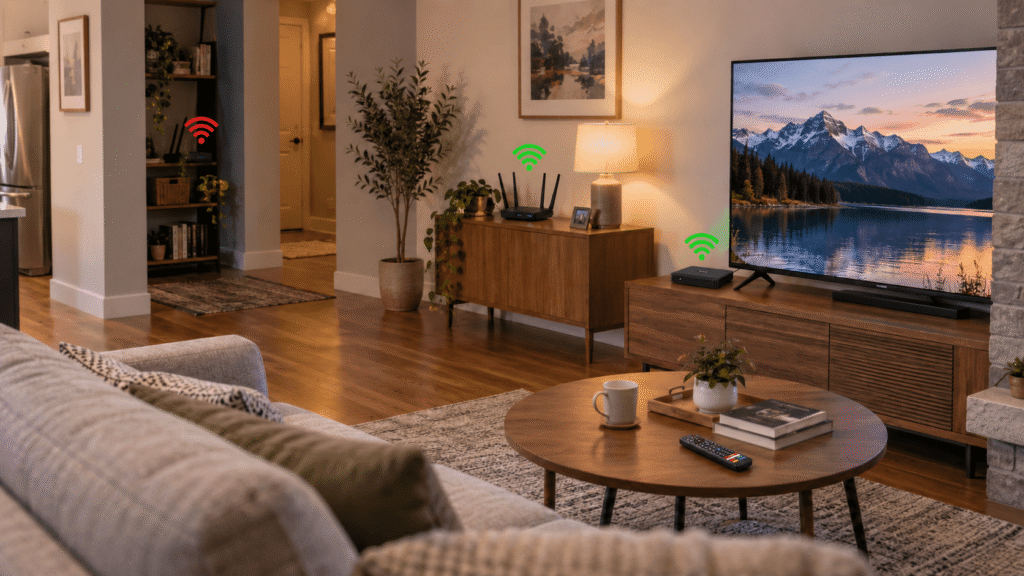
- How far is the router? The same room, or one with an open wall, usually favors 5GHz. Several walls or a different floor usually favors 2.4GHz or Ethernet.
- What else uses WiFi? Video calls, game consoles, cameras, and smart-home devices can consume airtime. A nearby Ethernet cable removes the SviCloud 15P from that wireless competition.
- When does buffering occur? Buffering on every app suggests a network path problem. Buffering in one app only may be an app, account, or service issue rather than SviCloud 15P WiFi.
Keep the box in an open, ventilated position rather than inside a closed cabinet. Placement affects both wireless reception and heat. If you are still planning the first installation, the SviCloud 15P 設定指南 covers HDMI, remote pairing, WiFi, and Ethernet basics.
Fix SviCloud buffering step by step
Use a controlled test, so you change one variable at a time:
- Restart the router and SviCloud 15P, then test the same app again.
- Run a speed test near the TV and compare it to one beside the router.
- Switch from 5GHz to 2.4GHz if the box is far away, or move to 5GHz if it is nearby.
- Connect Ethernet temporarily. If the stream becomes stable, the issue is likely wireless placement or interference.
- Pause large downloads and cloud backups during live video testing.
- Update the SviCloud 15P system and the affected app from a trusted source.
- If only one service buffers, check that provider’s account, regional availability, and server status.
A faster internet plan cannot repair a weak connection between the router and the TV box. Test Ethernet or relocate the router before paying for more bandwidth.
For the app installation and trusted download steps, refer to the SviCloud 15P 應用程式指南. If the problem remains after testing both WiFi bands and Ethernet, record the app name, time, error message, router distance, and connection type before contacting support.
Complete SviCloud 15P network setup
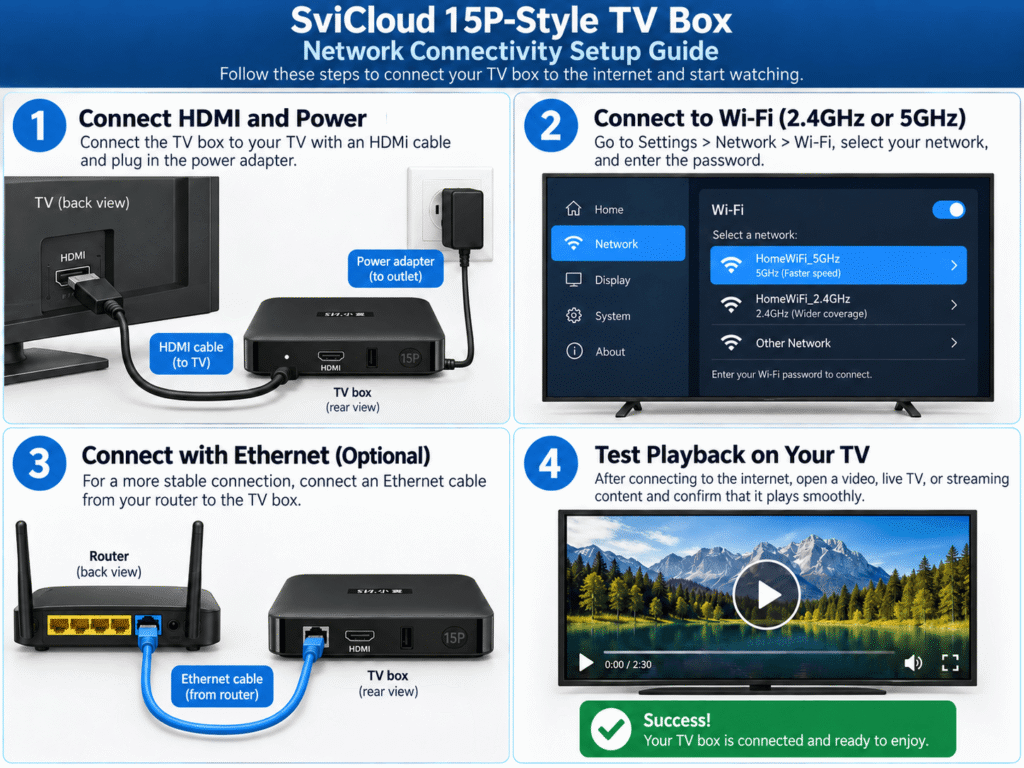
- Connect HDMI and the supplied power adapter, then select the correct TV input.
- Open Network settings and select your 2.4 GHz or 5 GHz WiFi network.
- Enter the password and wait for the connection confirmation.
- For Ethernet, connect the cable from the router to the SviCloud 15P and disable WiFi if the firmware does not switch automatically.
- Play the same high-resolution video for several minutes and note loading time, quality, and stability.
Use the connection that performs best in your room, not the one that sounds most advanced. The SviCloud 15P WiFi 6 hardware gives you options; good placement and a clean network path turn those options into a better viewing experience.
Is SviCloud 15P WiFi 6 worth it?
Choose SviCloud 15P when…
You want a current Android 14 TV box with dual-band WiFi 6, 4K HDR10, AV1 decoding, and the option to use Ethernet when wireless conditions are difficult.
Plan Ethernet when…
Your router is close to the TV, your home has crowded WiFi, or stable live playback matters more than avoiding one cable.
Before ordering, review the current model details and delivery terms on the latest SviCloud 15P model listing. For compatibility questions, the 小雲盒子 電視 常見問題解答 is a useful next step.
常見問題
Does SviCloud 15P support WiFi 6?
Yes. The current SviCloud 15P listing describes dual-band WiFi 6 with support for 2.4GHz and 5GHz. A compatible WiFi 6 router is required to use the latest WiFi 6 features.
Should SviCloud 15P use 2.4 GHz or 5 GHz?
Use 5GHz when the box is close to the router, and 2.4GHz when distance or walls weaken the higher-frequency signal. Test both in the actual TV location.
Is Ethernet better than WiFi for SviCloud 15P?
Ethernet is usually more consistent because it avoids wireless interference. WiFi is still convenient and can work very well when the router is nearby.
Why is my SviCloud buffering with fast internet?
The local WiFi path may be weak, crowded, or poorly placed. Restart both devices, test 2.4 GHz and 5 GHz, then try Ethernet before changing your internet plan.
Can I use WiFi and Ethernet at the same time?
Normally, you should choose one active connection. Connect Ethernet when you want a wired test or a more consistent path.
Ready to improve your connection? Visit the SviCloud Android TV boxes page, confirm the latest specifications, and check the SviCloud 15P price and availability before ordering.