
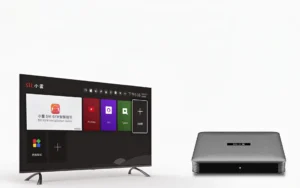
Cherry TV Default Password: 898989
If you encounter a password prompt when installing or entering the Cherry TV app, please refer to the following steps:
- Default Password: The current universal unlock Cherry TV password is usually 898989.
- Confirmation: After entering the password, make sure to use the remote to move the cursor to the “OK” or “Confirm” button next to the input box and click it. Otherwise, the system may not recognize the input.
- Content Restriction: This type of app typically contains 18+ adult content or specific live channels, which is why a parental control password is set. Ensure your usage environment complies with local laws and your family situation.
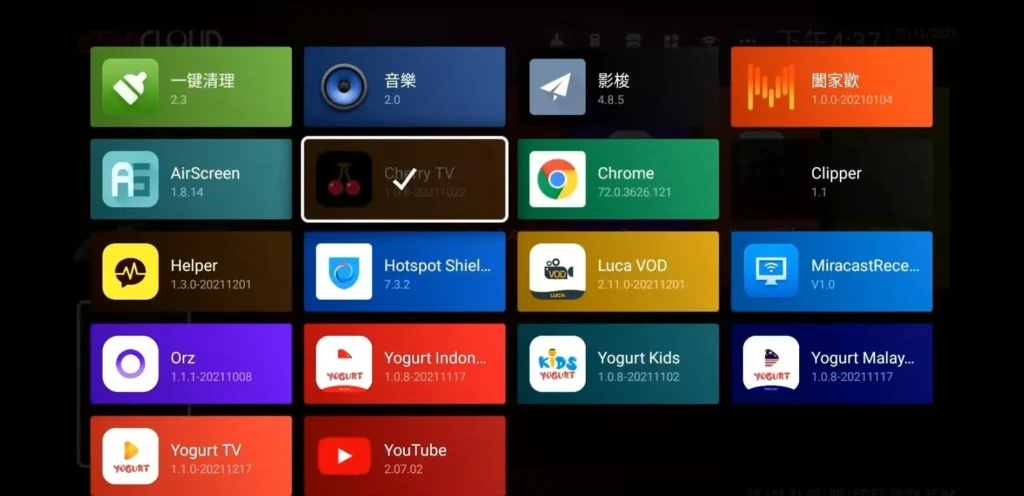
How to Change Cherry TV Default Password
- Launch Cherry TV: Enter the main interface of the app.
- Enter Settings: Use the remote to find the “Settings” option (usually a gear icon).
- Find Password Options: Look for “Change Password” or “Parental Control” in the settings list.
- Verification: The system will prompt you for the current password. Enter the default password 898989.
- Set New Password:
- Enter your custom 6-digit code in the “New Password” field.
- Re-enter the same digits in the “Confirm Password” field.
- Save and Exit: Click “OK” or “Confirm” to save. You will need the new password to access restricted channels next time.
How to Force Reset Cherry TV if You Forgot Your Password
If the master code does not work, you can reset the app to its initial state via the Android system settings:
- Go to Settings on the TV box main interface.
- Select Apps or “Application Management.”
- Find Cherry TV in the list and click it.
- Select Clear Data and confirm the action.
- Restart the app. The password will now be restored to the default value mentioned above.
Alternative Ways to Modify the Default Password
1. Within the Cherry TV App (Most Common)
- Open Cherry TV.
- Look for the “Settings” or “Parental Control / Adult Lock” icon on the bottom or sidebar.
- Enter the current password: 898989.
- Select Change Password and follow the prompts (Old > New > Confirm).
2. Via SviCloud System Settings (Certain Versions)
If the app interface lacks a modification option, it may follow the system-wide parental lock:
- Return to the TV box home screen.
- Go to System Settings.
- Find Security & Permissions or “Parental Lock.”
- Modify the global system password here; some versions of Cherry TV will synchronize with this setting.
3. Completely Disabling the Password
In the “Parental Control” menu mentioned in Step 1, there is usually a toggle for “Enable/Disable Password Protection.” Turning this off will allow you to enter categories without a prompt.