
Your SViCloud TV box was working yesterday. Today it’s frozen on a black screen, or the remote’s stopped responding, or your favourite show is buffering every 30 seconds. Before you factory-reset the whole thing or start Googling in a panic — most SViCloud problems aren’t actually about the box.
After hundreds of support conversations, one pattern is unmistakable: 90% of “SViCloud TV box not working” messages turn out to be a network hiccup, a loose cable, a flat battery, or an app that needs restarting. Real hardware faults are rare. The problem is that panic makes people try the most dramatic fix first (factory reset), when the actual solution is usually the least dramatic one.
This guide is different from a standard FAQ. Instead of listing every possible question, we’re going to teach you to diagnose like a technician — a 60-second self-check that solves most issues before you even reach the specific fix. If that doesn’t work, we’ll walk you through the real problems by symptom, in the order they actually happen.
Before Setup: A Quick 60-Second Check
Before you do anything else — before you unplug things, factory reset, or fill out a support form — run these six checks. On any SViCloud model (10P+, 10S, older 9-series), they solve most issues in under a minute.
⏱ The 60-second checklist
- Restart the box. Unplug the power for 15 seconds, then plug it back in. This alone fixes maybe 40% of everything.
- Restart your router. Same drill — power off for 15 seconds, back on. Wait 2 minutes for it to fully come up.
- Check the HDMI cable. Push firmly at both ends. Try a different HDMI port on the TV.
- Test a different app. Is only one thing broken, or is everything broken? This tells you if it’s the app or the box.
- Check the remote batteries. Old batteries mimic hardware failure. Swap them, don’t just remove them.
- Try Ethernet if you have a cable handy. If Wi-Fi problems disappear when wired, it’s not the box — it’s the Wi-Fi.
Nine times out of ten, the problem is now solved. If it isn’t, keep reading — the checklist just told you where the real problem is.
Common Issues and Quick Fixes
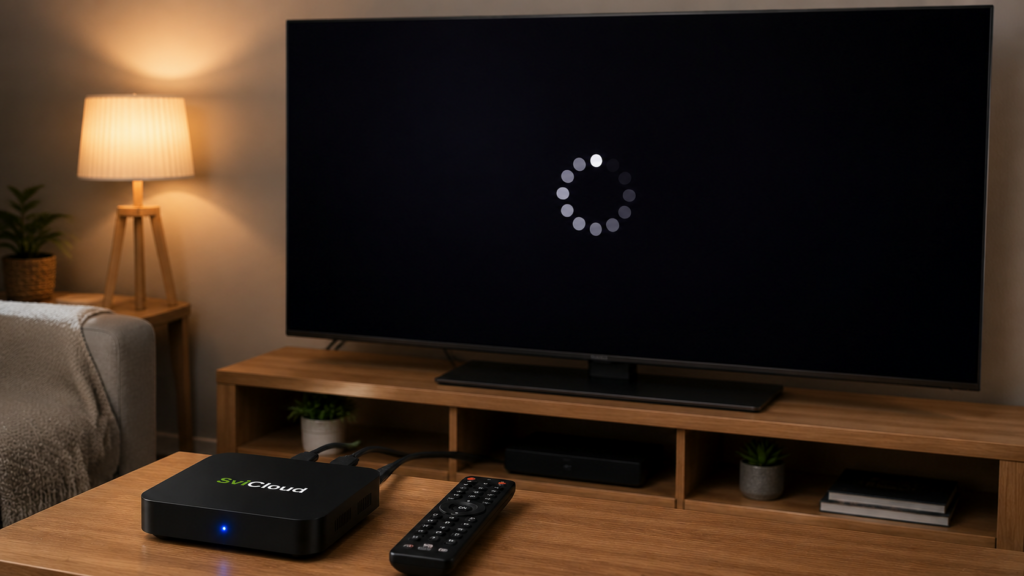
Symptom 1 — “The screen is black / says No Signal”
This looks scary, but it’s almost always the simplest to fix. In our experience, the causes rank like this:
- Wrong HDMI input selected on the TV (~50% of cases). Cycle through HDMI 1, 2, 3 on your TV remote’s Input/Source button until the SViCloud home screen appears.
- Loose HDMI cable (~30%). Unplug both ends, wait 10 seconds, plug back in firmly. Cheap or bent HDMI cables also cause this — try a known-good one if available.
- Box didn’t fully boot (~10%). Power indicator on but no picture? Wait a full 2 minutes on first startup — SViCloud can take longer than you expect.
- TV is on standby, not fully on (~5%). Sounds silly, happens more than you’d think.
- Genuine hardware fault (~5%). Only conclude this after everything else is ruled out.
What NOT to do: Don’t factory-reset for a black-screen problem. Factory reset erases your settings and apps — and it won’t fix a bad HDMI input selection anyway.

Symptom 2 — “The remote isn’t responding”
Second most common symptom. Diagnose in this order:
- Replace the batteries. Not “remove and reinsert” — actually put in new AAAs. Old batteries lose voltage before they die completely, causing intermittent behaviour that mimics a failed remote.
- Get closer. Within 1 metre of the box, no obstructions.
- Re-pair the Bluetooth voice remote. The reliable method: remove the batteries, wait 10 seconds, reinsert them, then hold the box within 1 metre and press VOL− + VOL+ simultaneously for 3 seconds until the LED flashes and the pairing banner appears.
- Check for interference. Other Bluetooth devices, wireless speakers or Wi-Fi routers stacked on top of the box can degrade the signal. Move the box a foot away.
Voice search still not working after pairing succeeds? The remote is fine — check the box’s microphone permissions in Settings.
Symptom 3 — “It keeps buffering”
This is the most misdiagnosed symptom. Buffering feels like the box is broken, but buffering is almost always a network problem, not a device problem. Prove it in one minute:
🔍 The buffering diagnosis trick
Play the same content in two different apps. If both buffer, it’s your network. If only one buffers, it’s that app or its servers — not your SViCloud, not your network.
Once you’ve confirmed it’s the network, in order of effectiveness:
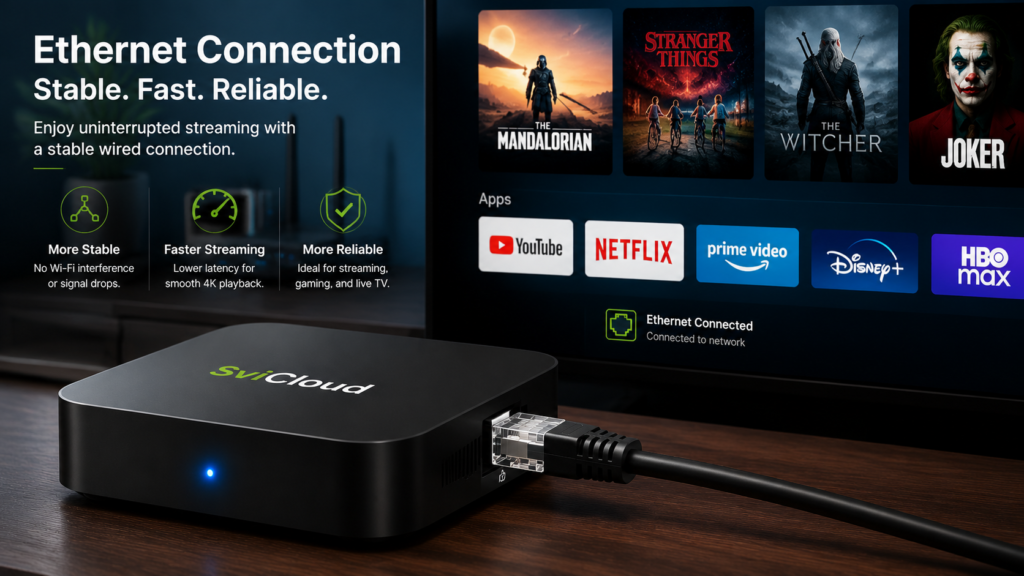
- Switch to Ethernet. A wired connection is the single biggest anti-buffering upgrade you can make. Minimum 15 Mbps recommended for smooth 4K playback, though 25+ Mbps is more comfortable.
- If Wi-Fi only, use the 5 GHz band. Faster and less crowded than 2.4 GHz for streaming. Move the box closer to the router — behind the TV is one of the worst locations for a signal.
- Restart the router. Really restart — unplug for a full minute, not just a quick power-cycle.
- Check other people on the network. Someone downloading a large file or on a 4K video call will kill your bandwidth.
Symptom 4 — “No sound, or sound out of sync”
Two different problems, two different fixes.
No sound at all:
- Check mute status on both the SViCloud remote and your TV/soundbar remote. Missing this is embarrassingly common.
- Turn up volume on both devices.
- Restart the box.
- Go to Settings → Sound and try switching the Audio output between PCM and Auto. If you’re using an AV receiver or soundbar, this fixes about half the “silent picture” cases.
Audio out of sync with picture:
- Pause for 5 seconds, then resume. This alone re-syncs a lot of streams.
- Restart the box.
- If you’re using a soundbar or receiver, try connecting the SViCloud directly to the TV and see if the problem goes away. HDMI-ARC pass-through is a common culprit.
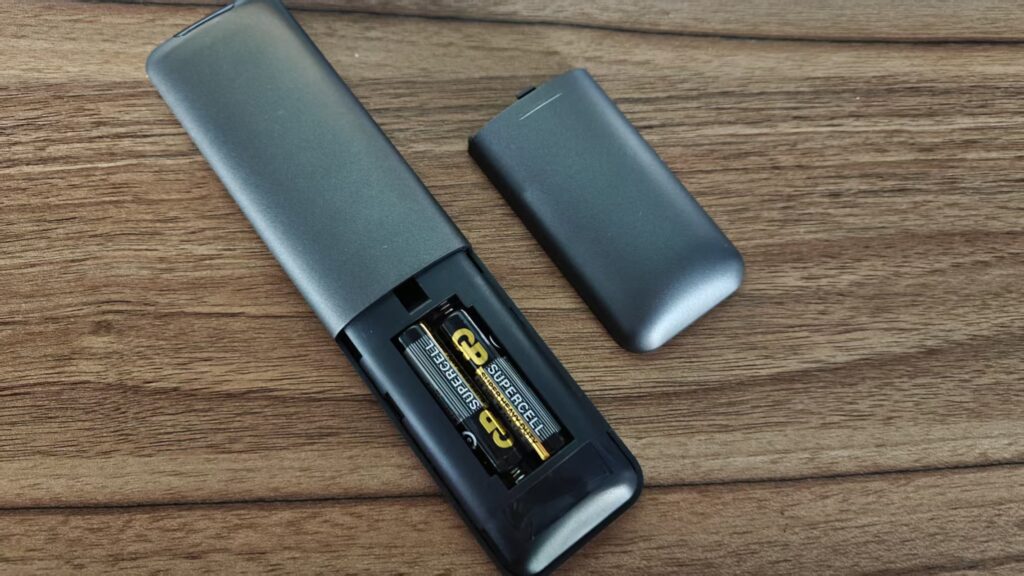
Old batteries are the single most common cause of “my remote is broken.” Swap them, don’t just remove them.
Symptom 5 — “It won’t connect to Wi-Fi”
Runs the same route every time:
- Confirm it’s the box, not the Wi-Fi. Does your phone connect to the same network in the same room? If not, you already know where to look.
- Forget and re-add the network. Settings → Network → forget the current Wi-Fi → reconnect and re-enter the password. Typos on the remote are more common than most people admit.
- Use the 5 GHz band if your router broadcasts both — it’s less congested.
- Restart the router — full 60-second unplug.
- Try Ethernet temporarily. If wired works, the SViCloud is fine; your Wi-Fi setup needs attention.
Symptom 6 — “An app keeps crashing”
This one is scoped: it’s about the app, not the box.
- Confirm the app is from a legitimate, licensed source. Third-party unofficial apps crash more often, and their issues are outside SViCloud’s support scope.
- Clear the app cache via Settings → Apps → [app name] → Clear cache. Solves most repeat crashes.
- Uninstall and reinstall if the crash keeps coming back.
- Check the app provider’s status page. If their servers are down, no amount of troubleshooting on your end will help.
Restart First: The Quick Fix Hierarchy
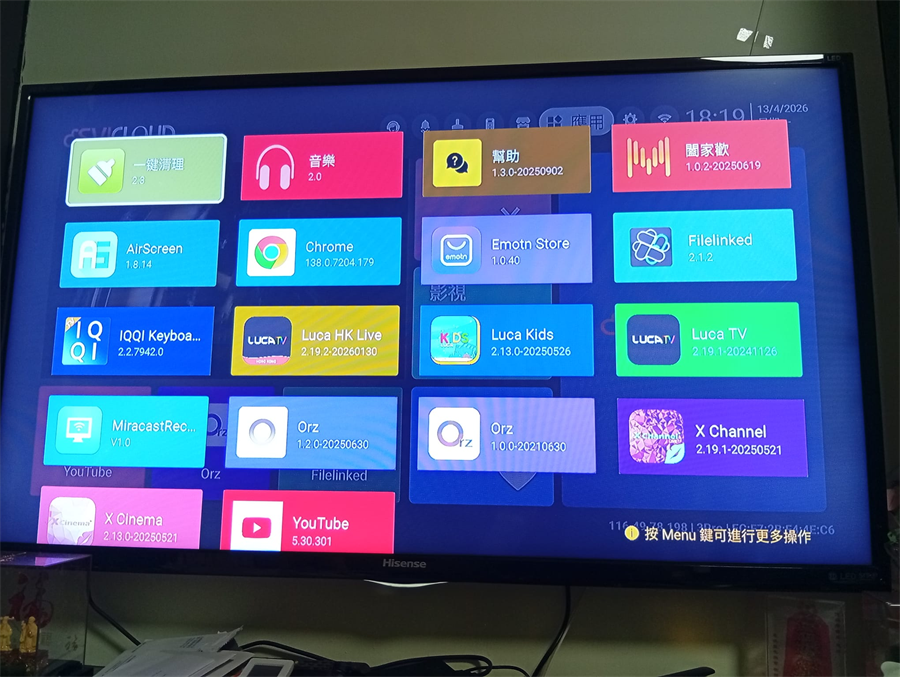
Restarting things is the single most effective troubleshooting tool. But the order matters — and factory reset is at the bottom of the list, not the top. Try in this order:
Level 1 — Restart the app. Close and reopen the misbehaving app. Fixes app-specific issues without touching the rest of the box.
Level 2 — Restart the box. Unplug for 15 seconds, then plug back in. Fixes most system-wide oddities.
Level 3 — Restart the router. Unplug for 60 seconds. Fix most connectivity problems.
Level 4 — Clear app cache. Settings → Apps → Clear cache. For a specific app that keeps misbehaving.
Level 5 — Reinstall the problem app. When cache-clearing doesn’t work.
Level 6 — Factory reset the box. Only as a last resort. This erases everything: settings, apps, accounts. Use only after everything above has failed, and only if you’re prepared to set up from scratch.
The mistake to avoid: jumping to Level 6 because the problem feels serious. Factory reset is dramatic, but for most SViCloud problems, it’s the wrong tool. It fixes about the same things Level 2 fixes, but takes an hour longer and loses all your setup.
Before Contacting Support: What to Check First
Some problems really do need help. Contact SViCloud support when:
- The 60-second checklist and symptom fixes haven’t worked
- The box won’t power on at all (no indicator light, nothing on any input)
- You see visible physical damage or hear unusual sounds
- Something changed after a firmware update, and you want to roll back or confirm expected behaviour
To make the support call three times shorter, have this ready before you contact them:
- Your SViCloud model (10P+, 10S, or older — check the label on the box)
- The exact symptom — what happens, what should happen instead, when it started
- A list of what you’ve already tried (this alone saves 5–10 minutes on any call)
- Your order number if it’s a warranty question

Prevention Beats Troubleshooting
Most of the problems in this guide can be prevented with three habits:
- Keep the box ventilated. Not stacked on a receiver, not sealed in a cabinet. Overheating causes intermittent problems that look like software bugs.
- Use Ethernet when possible. It doesn’t just help streaming — it eliminates a whole category of “is it the Wi-Fi or is it the box” confusion.
- Update firmware when prompted. Don’t ignore OTA update notifications. Newer firmware fixes bugs that would otherwise become your problem.
Also worth knowing: if you’re setting up a new box for a family member (especially a parent), write down the Wi-Fi password on paper next to the TV. About 20% of “my box is broken” calls turn out to be a router change or forgotten password. That single piece of paper saves hours of phone support.
Related Guides
Still setting up? Start with our SViCloud TV box installation guide or the model-specific how to set up SViCloud 10P walkthrough.
Deciding whether to upgrade? See our SViCloud 10S vs 10P comparison and 10P review. For a broader look, our best TV box guide covers the range.
Worried you have a counterfeit? Read how to buy a genuine SViCloud TV box — some “unfixable” faults turn out to be grey-market units without proper warranty coverage.
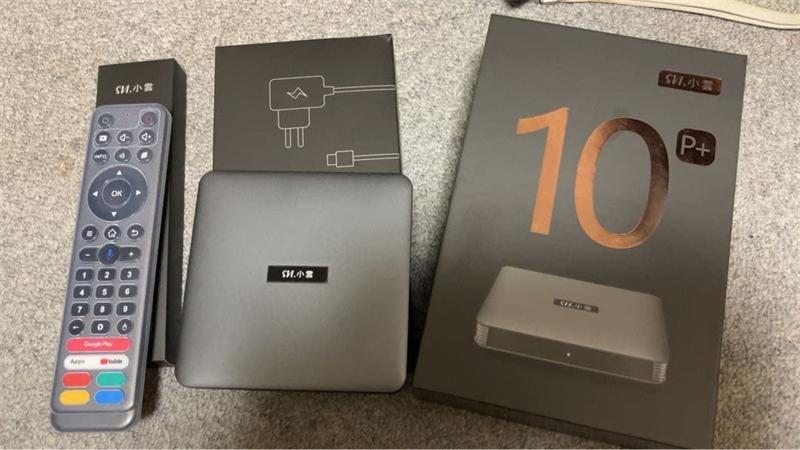
Quick Answers
Should I factory-reset my SViCloud when it acts up?
Almost never as a first step. Factory reset erases your setup and rarely solves problems that a simple power-cycle wouldn’t. Try Level 1–5 in the restart hierarchy first; keep reset for genuine last resorts.
Why does my SViCloud buffer so much?
In most cases it’s the network, not the box. Test by playing the same content in a different app — if both buffer, it’s your Wi-Fi or internet. Switching to Ethernet solves the majority of buffering complaints.
My SViCloud remote stopped working — is it broken?
Almost certainly not. In order: replace both AAA batteries with new ones (not just remove/reinsert), move within 1 metre of the box, and re-pair by pressing VOL− + VOL+ together for 3 seconds until the LED flashes.
Why does my SViCloud say “no signal” on the TV?
Nine times out of ten it’s the TV’s HDMI input selection — press Source/Input on your TV remote and cycle through the HDMI ports. If that doesn’t work, reseat both ends of the HDMI cable firmly.
Is Ethernet really that much better than Wi-Fi for SViCloud?
Yes — dramatically, in most homes. A wired connection eliminates signal interference and bandwidth contention. If you’re on Wi-Fi and buffering, an Ethernet cable is the single most cost-effective fix you can make.
When should I actually call support?
After the 60-second checklist and the symptom-specific fixes haven’t worked, or if the box shows no signs of power at all. Have your model number, symptom description, list of what you’ve tried, and order number ready — it makes the call much faster.