
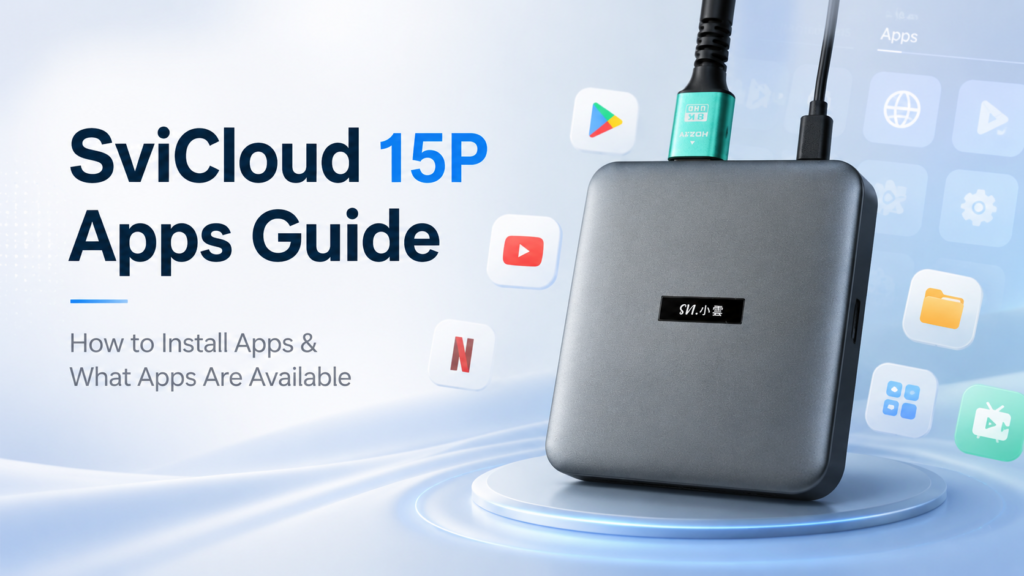
One of the biggest advantages of the SviCloud 15P TV Box is that it is more than a simple media player. Running on Android 14, the SviCloud 15P gives users access to a flexible app environment for TV entertainment, children’s content, karaoke, music, utilities, and other Android applications.
If you have just purchased the latest model, you may be wondering: What SviCloud 15P apps are available, and how do you install them?
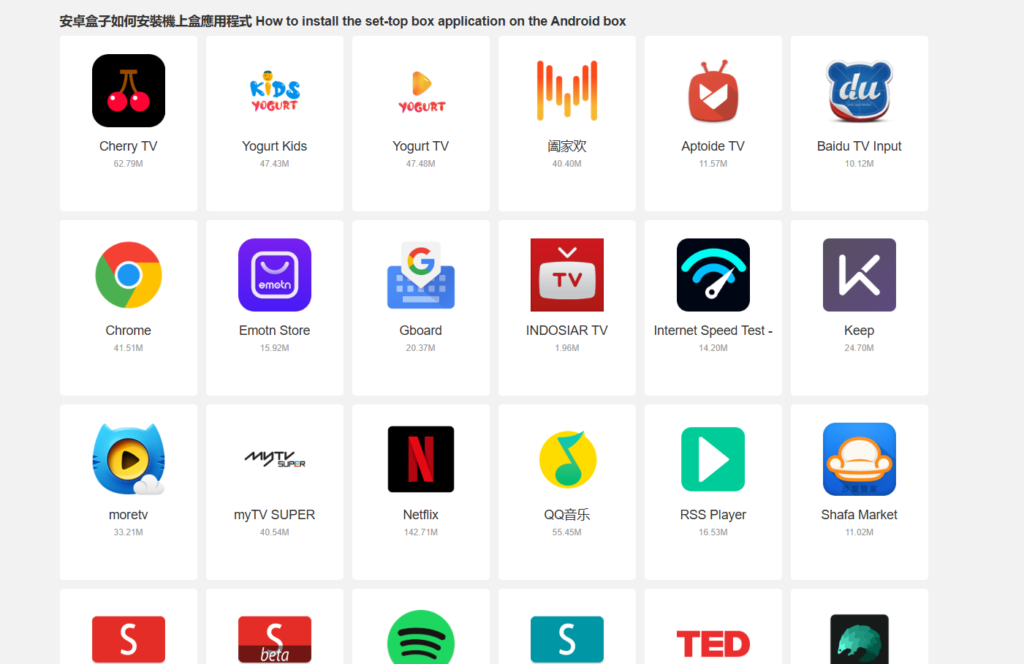
The process is actually quite simple. SviCloud users can open the Orz browser from the main interface, enter 8989c.cc, and access the app download page. From there, you can install the main SviCloud entertainment apps as well as other compatible third‑party Android applications displayed on the page.
This SviCloud 15P Apps Guide 2026 explains the entire process, introduces the four core SviCloud apps, and shows what other applications you can add to your TV box.
📱 What Apps Can You Install on SviCloud 15P?
The SviCloud 15P TV Box combines its core entertainment apps with the flexibility of an Android‑based TV box. When you open the SviCloud app download page, four main apps are prominently displayed:
- ✅ Yogurt TV
- ✅ Yogurt Kids
- ✅ Cherry TV
- ✅ WeFun / 閤家歡
These are the core apps associated with the SviCloud entertainment experience. The same download page also contains a variety of third‑party Android applications. This means the SviCloud 15P apps experience is not limited to only four programs. As long as an app is available on the download page and is compatible with the device, users can choose to download and install it.
📝 How to Install Apps on SviCloud 15P
Installing apps on the SviCloud 15P TV box only takes a few steps.
Step 1: Connect the SviCloud 15P to the Internet
Before downloading anything, make sure your XiaoYun 15P is connected to the internet through Wi‑Fi or Ethernet. A stable connection is important because the box needs internet access to open the app page and download installation files. If you are unsure which connection to use, see our SviCloud WiFi vs Ethernet guide to compare the convenience of wireless with the stability of a wired connection.
Step 2: Open Orz
Return to the SviCloud 15P main page and find the Orz browser. Open Orz using your remote control. Orz works as the entry point for accessing the SviCloud app download page. Existing SviCloud setup documentation also uses Orz as the standard method for installing the main entertainment applications.
Step 3: Enter the App Download Address
Inside Orz, enter 8989c.cc. Then press OK or Enter. The app download page should appear on your television.
Step 4: Choose an App
Use the SviCloud remote to browse the applications displayed on the page. Select the app you want and choose the download option.
The current 8989c.cc page includes the four main SviCloud apps along with a variety of other Android applications and utilities.
Step 5: Allow Installation If Required
Because some apps are downloaded directly through the app page rather than Google Play, Android may display a permission message asking whether Orz is allowed to install an application.
If prompted, follow the on‑screen instructions and allow installation from that source. Wait until the installation finishes before turning off or disconnecting the SviCloud 15P. Once complete, return to the Apps section and open the newly installed application.
🎯 The Four Core SviCloud 15P Apps
The four applications highlighted at the top of the download page serve different entertainment purposes.
1. Yogurt TV
Yogurt TV is one of the main applications associated with the SviCloud TV Box ecosystem and is designed around television and video entertainment, including TV programming, shows, and movie‑related content.
Yogurt TV also includes international categories such as news, movies, sports, documentaries, general entertainment, and lifestyle programming.
According to current SviCloud information, Yogurt TV provides access to a large selection of international live TV channels covering regions such as Mainland China, Hong Kong, Macau, Taiwan, Japan, South Korea, Singapore, Malaysia, Thailand, Indonesia, the Philippines, the United States, Canada, Australia, New Zealand, the UK, and other parts of Europe.
2. Yogurt Kids
Yogurt Kids provides a more child‑focused entertainment environment. SviCloud documentation describes it as a dedicated children’s application offering age‑appropriate entertainment and educational material, including cartoons, animated programs and interactive content.
This makes Yogurt Kids particularly useful for households where parents, grandparents and children share the same SviCloud 15P. Instead of searching through the same general entertainment interface used by adults, children can have a separate app designed around younger viewers.
For overseas families, this can also provide another way to make television part of a multilingual home entertainment environment.
3. Cherry TV
Cherry TV is another core application shown on the SviCloud app download page.
It is intended for adult users and is password‑protected in existing SviCloud documentation. This separation makes it easier for households to keep adult‑oriented content away from younger viewers. If Cherry TV is used in a family home, parents should keep access appropriately controlled.
Like the other SviCloud applications, Cherry TV can be accessed through the Orz download page when required.
4. WeFun / 閤家歡 Karaoke
The fourth main application is WeFun, also shown as 閤家歡. Unlike the television‑focused apps, WeFun is designed around karaoke entertainment.
SviCloud documentation describes the app as a home karaoke solution where family members can select songs and sing along while following lyrics on the television. This adds a different dimension to the SviCloud 15P.
Instead of using the TV box only for watching video, families can also use it as part of a living‑room karaoke setup. For households that enjoy home gatherings or family entertainment, this is one of the more distinctive SviCloud features.
📂 What Other Apps Can You Download on SviCloud 15P?
The SviCloud app download page is not limited to the four core applications. The 8989c.cc page also lists a range of third‑party Android apps and utilities. Examples currently shown include:
- 🔹 Aptoide TV
- 🔹 Chrome
- 🔹 Youtube
- 🔹 Emotn Store
- 🔹 Gboard
- 🔹 Internet Speed Test
- 🔹 Baidu TV Input
- 🔹 myTV SUPER
- 🔹 Netflix
- 🔹 QQ Music
- 🔹 RSS Player
- 🔹 Shafa Market
- 🔹 Other media and utility applications
This gives SviCloud 15P TV Box users much more flexibility than relying only on the four core entertainment apps.
Third‑party app availability, account requirements, compatibility and features can vary by app and region, so users should follow the requirements of each service.
🎞️ Can You Install Netflix and Other Android Apps?
Because the SviCloud 15P is based on Android 14, it can work with a range of compatible Android applications. Its product specifications also position the device as an Android entertainment player designed for supported apps, online entertainment, and local media playback.
The current app page displays Netflix among its available third‑party applications. However, an important distinction is that installing an app does not automatically provide a subscription.
Apps such as Netflix or other paid platforms still require the user’s own valid account and subscription where applicable.
🔄 How to Update SviCloud 15P Apps
Keeping apps updated is useful for improving compatibility and resolving loading problems.
Some applications may update automatically when a newer version is available.
If an app needs to be manually updated, you can return to Orz, open 8989c.cc, locate the application, and download the current version.
SviCloud installation documentation also recommends using the correct app source because similarly named versions downloaded elsewhere may behave differently.
❓ SviCloud 15P Apps FAQ
Q: How do I download apps on SviCloud 15P?
A: Open Orz from the SviCloud 15P main interface, enter 8989c.cc, select the app you want and follow the on‑screen installation instructions.
Q: What are the main SviCloud 15P apps?
A: The four core apps shown on the SviCloud download page are Yogurt TV, Yogurt Kids, Cherry TV and WeFun / 閤家歡.
Q: What is Yogurt TV on SviCloud?
A: Yogurt TV is one of SviCloud’s main television and video entertainment applications and is commonly used across SviCloud TV Box models.
Q: Does SviCloud 15P have a kids app?
A: Yes. Yogurt Kids provides a dedicated child‑oriented entertainment environment.
Q: Does SviCloud 15P support karaoke?
A: Yes. The WeFun / 閤家歡 application provides karaoke functionality for compatible SviCloud models.
Q: Can I install third‑party apps on SviCloud 15P?
A: Yes. In addition to the core SviCloud applications, the app download page provides a range of third‑party Android apps.
Q: Can I install Netflix on SviCloud 15P?
A: Netflix is currently displayed on the app download page. A valid Netflix account and subscription are still required.
💡 Final Thoughts
The SviCloud 15P Apps system is designed to be relatively straightforward.
Instead of requiring complicated manual APK transfers, users can open Orz, enter 8989c.cc, and browse the available applications directly on the television.
The four core apps — Yogurt TV, Yogurt Kids, Cherry TV and WeFun — cover general television entertainment, children’s content, adult‑only content and karaoke.
Beyond these main apps, the SviCloud 15P can also take advantage of a wider Android ecosystem through compatible third‑party applications listed on the download page.
Combined with Android 14, 4GB RAM, 64GB storage, Wi‑Fi 6 and the broader media capabilities of the SviCloud 15P, this flexible app environment helps turn the box into a more complete home entertainment platform rather than simply a basic streaming player.