
Most people start using their SviCloud 15P by opening their favorite entertainment apps, browsing live TV channels, or choosing a movie for the evening. But once you become familiar with the main interface, there is much more you can do to make the experience faster, easier, and more personalized. The SviCloud 15P runs Android 14 and combines a Bluetooth voice remote, customizable shortcuts, local media playback, and several entertainment applications. Some of its most useful features are not immediately obvious from the home screen. For example, did you know you can assign applications to the colored remote buttons, manage automatic app startup, organize your own movie collection with Filmax, or connect Yogurt TV to a compatible phone?
In this guide, we explore 11 practical SviCloud 15P tips and tricks that can help you make better use of your TV box, whether you watch Chinese-language entertainment, international programs, family movies, or your own media files. These tips are intended for users who have already completed the basic installation. If your device is brand new and you still need to connect HDMI, configure Wi-Fi, or complete the first-time settings, start with our SviCloud 15P Setup Guide before exploring the features below.
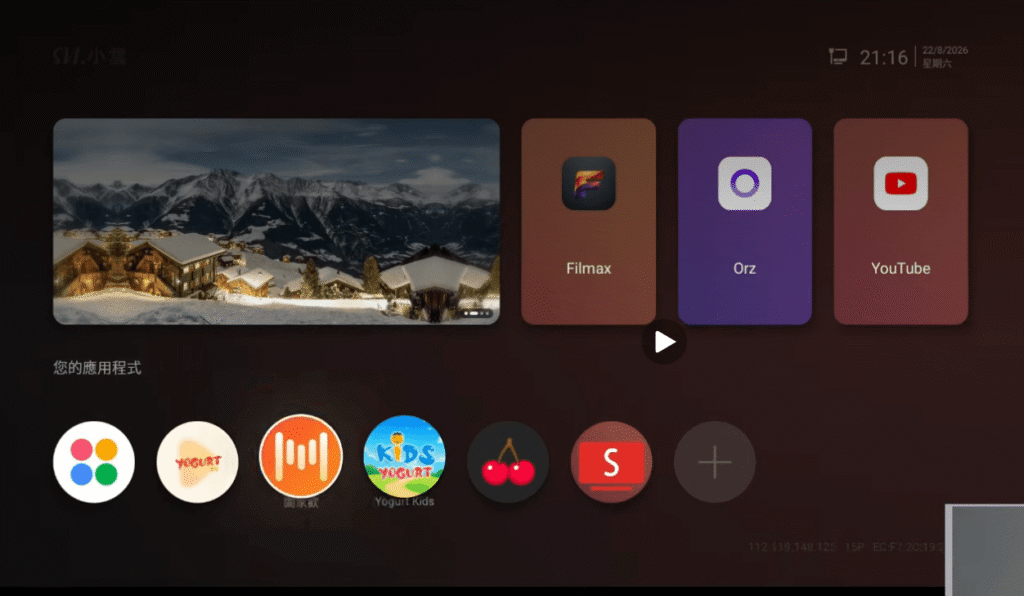
1. Customize Your SviCloud 15P Home Screen for Faster Access
One of the simplest ways to improve your everyday experience is to organize the home screen around the applications you actually use. The SviCloud 15P home interface provides access to entertainment applications, system tools, and a selection of app shortcuts. However, not every household uses the same apps.
Some families mainly watch live television, while others spend more time browsing movies, TV dramas, music, or children’s programs. Instead of navigating through the entire application list each time, you can place frequently used apps in a convenient position on the main screen.
How to Organize Your App Shortcuts
- Return to the SviCloud 15P home screen.
- Open the application area or shortcut-management section.
- Find the application you use regularly.
- Select the available option to add it to the home screen.
- Return to the main interface and check the shortcut.
Depending on the current firmware, the exact wording of the shortcut-management option may vary. For a household that frequently uses Yogurt TV, Cherry TV, and YouTube, keeping these applications accessible from the home screen can save several navigation steps.
Practical tip: Place the most frequently used app in the easiest position to reach. This can be especially helpful for parents or older family members who prefer a familiar, predictable layout.
2. Assign Your Favorite Apps to the Four Colored Remote Buttons
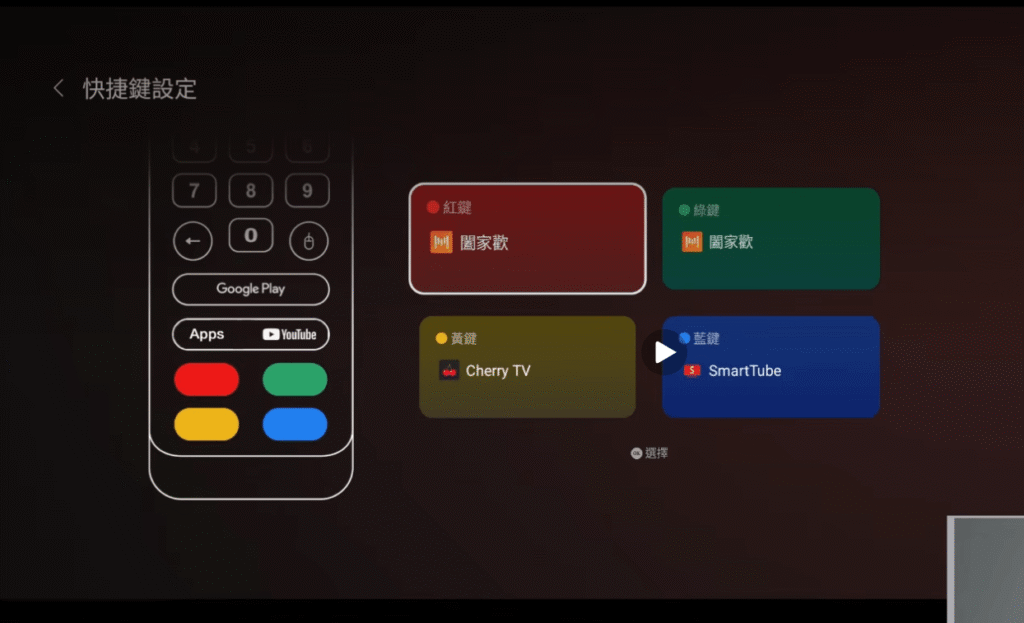
The SviCloud 15P remote includes four colored buttons: red, green, yellow, and blue. Many users overlook these buttons because they are accustomed to navigating through menus with the directional pad. However, the SviCloud 15P provides a shortcut-key configuration feature that allows supported applications to be assigned to these buttons. This is one of the most useful advanced features for everyday operation.
How to Customize the Colored Buttons
Open the shortcut-key settings available on your SviCloud 15P. You should see the colored buttons represented in the configuration interface. Select a button, choose the application you want to associate with it, and confirm the assignment. For example, you could arrange your shortcuts as follows:
| Remote Button | Suggested Application |
|---|---|
| Red | Yogurt TV |
| Green | Another frequently used app |
| Yellow | Cherry TV |
| Blue | A compatible media or utility app |
These are example assignments rather than fixed factory settings. Once configured, press the corresponding colored button to test whether the selected application opens correctly.
Why This Feature Is Useful
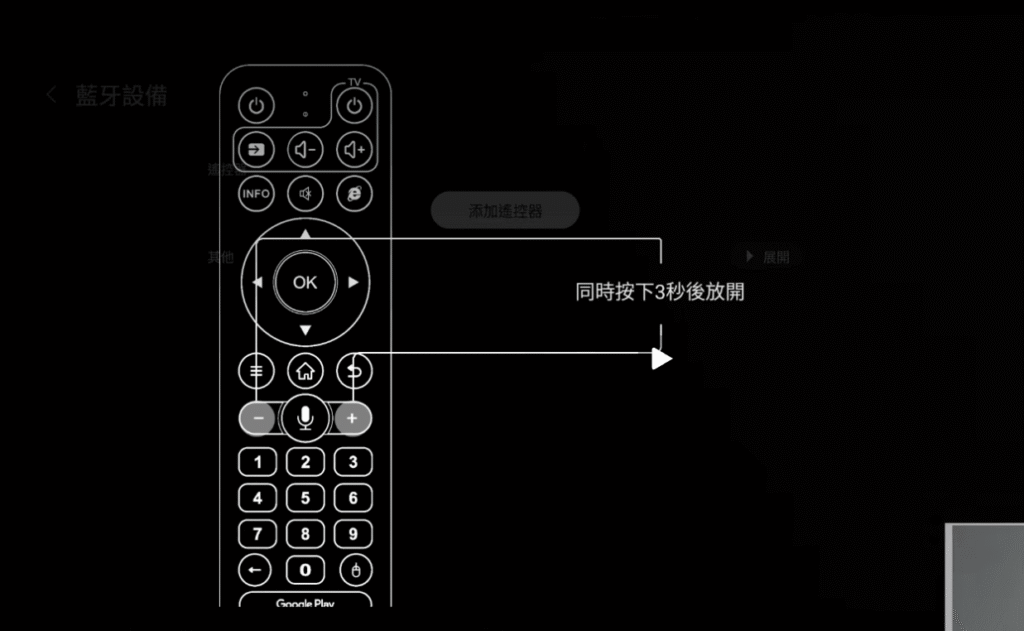
Imagine that you are watching a movie and want to switch to live television. Instead of returning to the home screen, opening the application list, and selecting Yogurt TV, a configured shortcut can make the process much quicker. For families sharing one television, assigning familiar apps to consistent buttons can also make the remote easier to learn. If you want to explore Bluetooth pairing, voice search, and air-mouse functions in more detail, our SviCloud 15P Remote Control Guide covers those topics separately.
3. Manage Auto-Start Apps to Personalize Your Viewing Routine
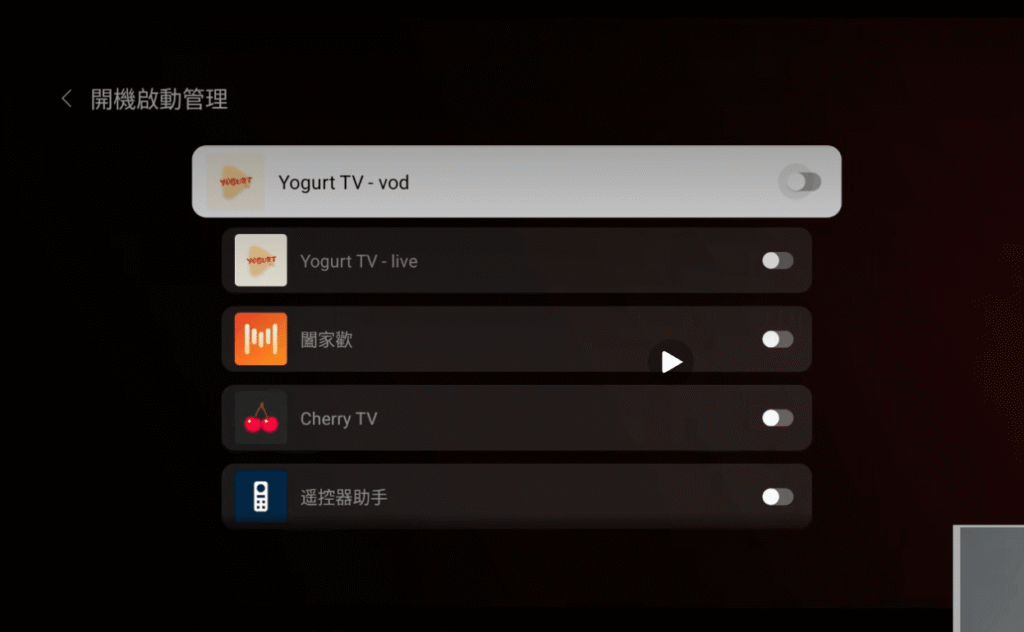
Another useful SviCloud 15P feature is application auto-start management. The available auto-start interface may include supported entertainment applications such as Yogurt TV Live, Yogurt TV VOD, and Cherry TV. Rather than opening every application manually, users can review which apps are allowed to launch automatically under supported startup conditions.
How to Manage Auto-Start Settings
- Open the system’s auto-start management section.
- Review the applications displayed in the list.
- Find the app you want to manage.
- Enable or disable its auto-start option.
- Test the behavior after restarting the device, if appropriate.
The exact behavior can depend on the app and firmware version. An enabled auto-start permission does not necessarily mean the app will always open directly into a particular channel or screen.
Should You Enable Auto-Start for Every App?
Not necessarily. If you mainly watch live TV, letting a frequently used TV app start automatically may be convenient. However, unnecessary background or startup activity isn’t always helpful. A better approach is to choose only the applications that support your daily viewing habits.
Practical tip: If several family members use the same TV box for different activities, a neutral home screen may be more convenient than automatically opening one person’s favorite application.
4. Use HDMI-CEC to Simplify TV and Device Control
HDMI-CEC is a useful feature that can make your entertainment setup feel more integrated. CEC stands for Consumer Electronics Control. It allows compatible devices connected through HDMI to exchange certain control commands. The SviCloud 15P supports HDMI-CEC, although the available functions depend on your television and its settings.
What Can HDMI-CEC Do?
On compatible equipment, HDMI-CEC may support functions such as coordinated power behavior or other basic control commands. This can reduce the need to switch between your television remote and the SviCloud remote for certain tasks.
How to Check HDMI-CEC Settings
Open the SviCloud 15P settings and locate the HDMI-CEC or related device-control options. Review the available controls and enable only those you want to use. You should also check the corresponding settings on your television.
Different TV brands may use different names for HDMI-CEC, so the option may not always be labeled simply as CEC. After enabling the feature, test whether the television and TV box respond as expected. If your television switches inputs unexpectedly or powers off when you do not want it to, review the CEC settings on both devices.
Practical tip: Change one CEC setting at a time. This makes it easier to identify which option is responsible for a particular behavior.
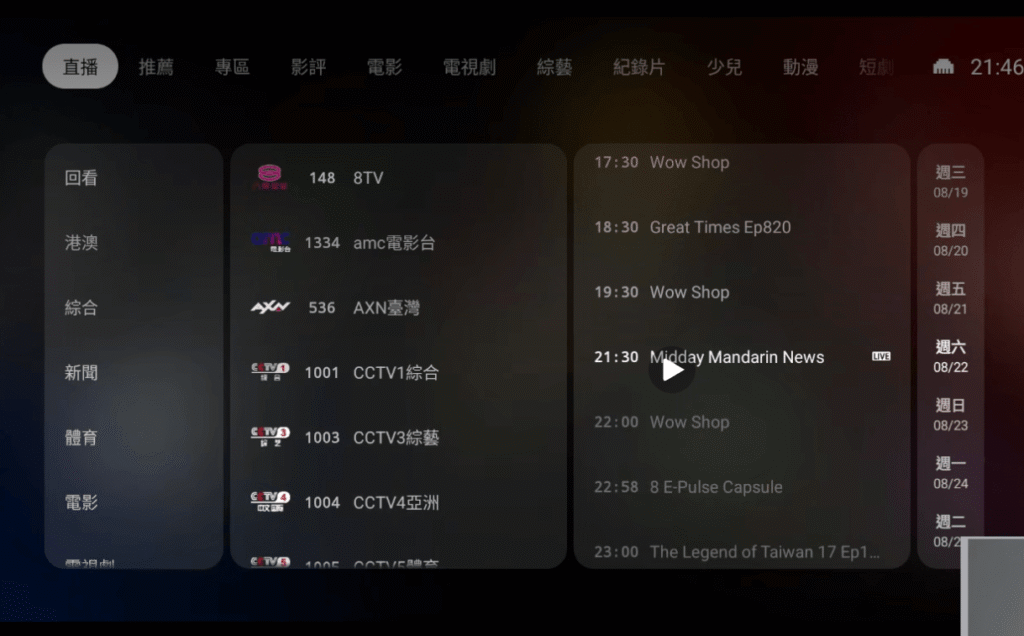
5. Make Better Use of Yogurt TV Live Channels and Replay
Yogurt TV is one of the main entertainment applications associated with the SviCloud TV Box experience. It provides access to supported live television and video-on-demand categories, helping users explore different kinds of entertainment through a TV-friendly interface.
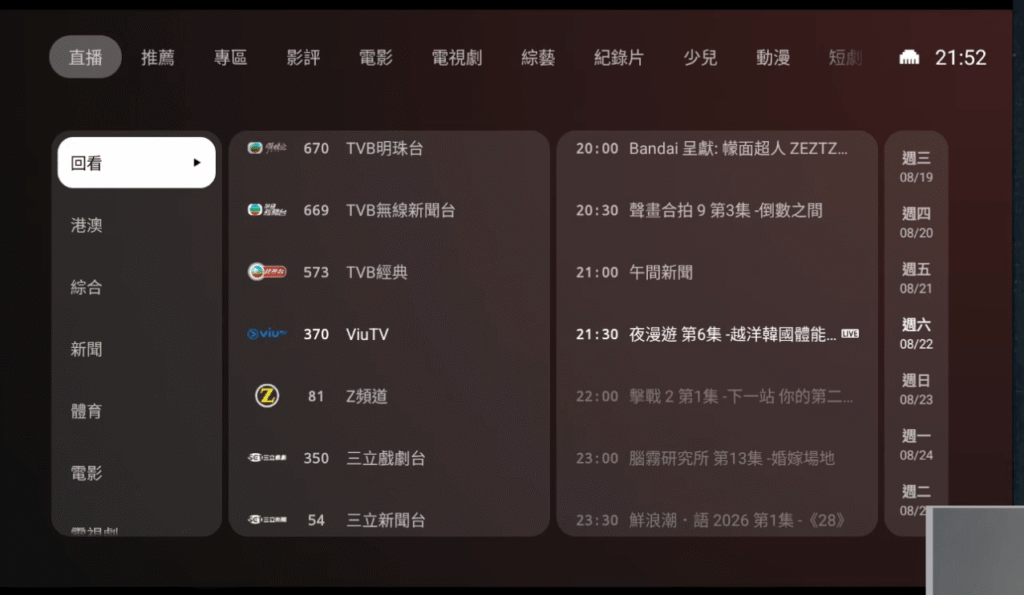
Depending on the available catalog, users may find news, movies, television dramas, variety programs, sports-related content, and other entertainment categories. One feature worth exploring is the replay function.
How Live TV Navigation Works
Open Yogurt TV and enter its live television area. The interface provides a channel list and, where available, program information. Use the remote control to browse the channels and select the one you want to watch. Some channels may display additional program information, making it easier to identify what is currently playing.
How to Find Replay Content
If you miss a program’s original broadcast, check whether the channel offers a replay or catch-up option. Where supported, you can browse available earlier programs and select the content you want to watch. For example, if you miss an evening news broadcast or a variety show, replay can be more convenient than waiting for another scheduled airing. However, not every channel or program supports replay. Available titles and replay periods can vary according to the service and content provider.
A Better Way to Browse Entertainment
Rather than scrolling through every channel, start with the category that matches what you want to watch. For instance, look for news when you want current affairs, drama categories when you want a television series, or movie sections when you prefer on-demand viewing. This approach makes the application easier to use, especially when several family members have different entertainment preferences.
6. Connect Yogurt TV to a Compatible Smartphone
Yogurt TV also includes mobile-related functionality, which is useful for users who want to explore supported features beyond the television interface. The mobile connection process may involve QR-code scanning and device binding.
How to Begin Mobile Pairing
- Open Yogurt TV on your SviCloud 15P.
- Find the mobile device or pairing section.
- Look for the QR code displayed on the television.
- Scan the code using your smartphone.
- Follow the instructions shown on the phone.
- Return to the television and complete any additional confirmation.
One important detail is that the binding process may not be finished immediately after scanning the QR code. Check the TV screen for a final confirmation prompt. If you skip this step, the phone may not be properly linked even though the mobile-side process appears complete.
What If Your Phone Does Not Connect?
First, confirm that you are following the instructions displayed by the current version of Yogurt TV. If the process stops midway, return to the pairing screen and check whether the television is waiting for approval. Also confirm that the required mobile application was obtained from a trusted source and that any necessary permissions have been granted. Avoid repeatedly installing different versions of similarly named apps without checking their compatibility.
How to Unbind a Phone
If you replace your smartphone or no longer want it linked, look for the device-management or unbinding option. Follow the application’s current instructions to disconnect the associated device. Uninstalling the mobile application alone may not be equivalent to removing a device binding.
7. Explore Yogurt TV VOD, Language Categories, and Playback Options
Beyond live channels, Yogurt TV includes on-demand entertainment. This makes it useful for households where people want to choose what to watch rather than follow a fixed television schedule. The available content may include movies, TV dramas, and other entertainment categories.
Browse by Content Type
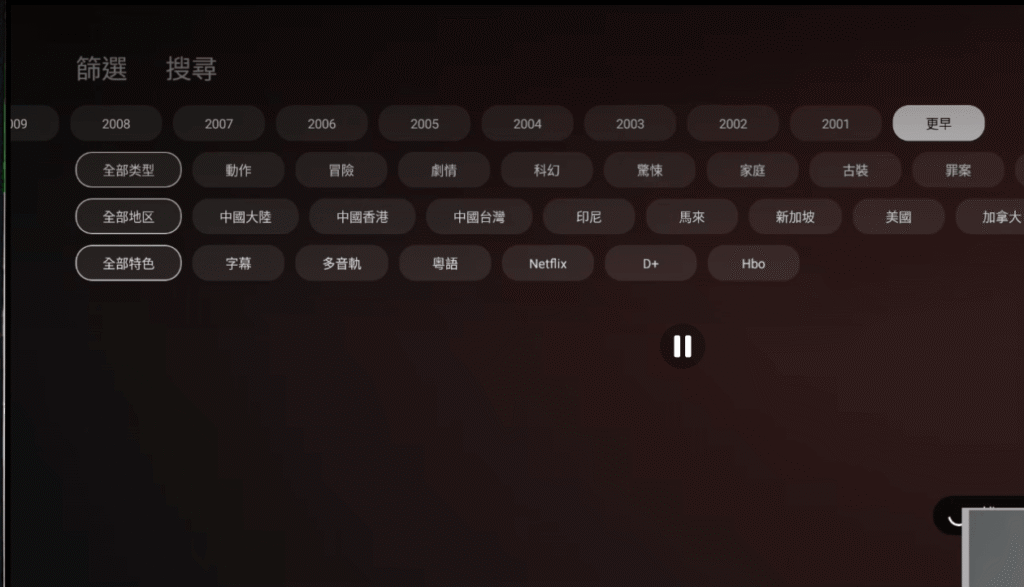
Start by selecting the appropriate category from the Yogurt TV interface. Movie sections are useful when you want a single title for the evening, while drama categories are better suited to viewers following an ongoing series. For families that enjoy Chinese-language entertainment, language and regional categories can help narrow the selection.
Explore Language Options
Depending on the current app catalog, the interface may include Chinese, English, Japanese, Korean, Malay, Indonesian, and other language-related selections. These categories can be particularly helpful for multilingual households. However, a language category does not guarantee that every title includes the same audio tracks or subtitle options.
Check Playback Settings
When playing a supported title, explore the available controls for playback and other viewing preferences. Some titles may provide additional language or playback choices, while others may offer fewer options. If you cannot find a particular feature, it may be unavailable for that title rather than a problem with your SviCloud 15P.
Practical tip: Familiarize yourself with the VOD interface before changing advanced settings. Many everyday viewing needs can be handled directly through the app’s built-in categories.
8. Turn Your Personal Movie Collection Into a Filmax Poster Wall
If you keep movies or other video files on local storage, Filmax is one of the most interesting SviCloud 15P advanced features. Filmax provides a media-browsing environment designed to help organize compatible personal video collections. Instead of relying entirely on folder names and file lists, the poster-wall interface can present supported movies in a more visual format.
What Is the Filmax Poster Wall?
A poster wall displays media artwork and related information, making it easier to recognize a movie at a glance. For users with large collections, this can be much more convenient than scrolling through filenames such as Movie_001.mkv or Video_Final_2.mp4. The SviCloud 15P also supports compatible BDMV and ISO playback, making local media management a valuable part of its feature set.
How to Get Started With Filmax
- Open Filmax from the SviCloud 15P home screen.
- Navigate to its media-source or file-browsing area.
- Select the location containing your personal media.
- Confirm that the storage device or network source is accessible.
- Browse the detected files or available library options.
- Open a compatible title to test playback.
The available menu labels may vary with the Filmax version.
Tips for Organizing Your Movie Library
Keep movie files in clearly named folders and avoid using ambiguous filenames. If you use a network storage device, make sure the device is powered on and accessible from your home network. Poster artwork and title recognition depend on the information available for the media files. Some titles may require additional organization or may not display complete artwork.
Who Should Use Filmax?
Filmax is especially useful for people who have their own movie collections and want a dedicated interface for browsing them. If you mainly watch online television, you may not need to configure Filmax immediately. But if you frequently play local video files, spending time organizing the library can make the SviCloud 15P feel much more like a dedicated home media center.
9. Understand Cherry TV Password Settings and Access Control
Cherry TV is another application available within the SviCloud entertainment ecosystem. Unlike a general-purpose home screen shortcut, Cherry TV includes password-related access controls that deserve attention, particularly in shared households.
Why Password Management Matters
When multiple people use the same television, access controls can help separate certain types of content from general family entertainment. If you use Cherry TV, familiarize yourself with its password interface before you need to change or recover access.
How to Manage Your Password
Open Cherry TV and locate its password-related interface. Depending on the current app version, you may be able to enter, configure, or change a password through the available prompts. Follow the instructions displayed by the application rather than assuming the process matches the main Android system password. The default password of the Cherry TV app is 898989.
What If You Forget the Password?
Look for recovery guidance or support information within Cherry TV. Some versions may display support-related contact options, including QR codes. If you cannot recover access through the available interface, use the appropriate support channel. Avoid performing a factory reset of the entire SviCloud 15P just to resolve one application’s password issue. A reset can affect other settings and locally stored information.
Practical tip: Keep the password in a secure place, especially if the application is used infrequently.
10. Create a More Family-Friendly Entertainment Experience
The SviCloud 15P is not limited to one type of viewer. A household might include adults who enjoy live news, family members who prefer Chinese-language dramas, children who watch cartoons, and people who enjoy music or karaoke. Rather than treating every entertainment app as interchangeable, it helps to understand what each one is designed to do.
Yogurt Kids for Children’s Entertainment
Yogurt Kids offers a child-oriented interface with colorful visuals and content categories designed for younger audiences. Its separate presentation makes it easier to distinguish from general entertainment applications. Parents should still review the available content and supervise viewing according to the child’s age. Do not assume that a child-focused interface automatically replaces parental supervision or comprehensive content restrictions.
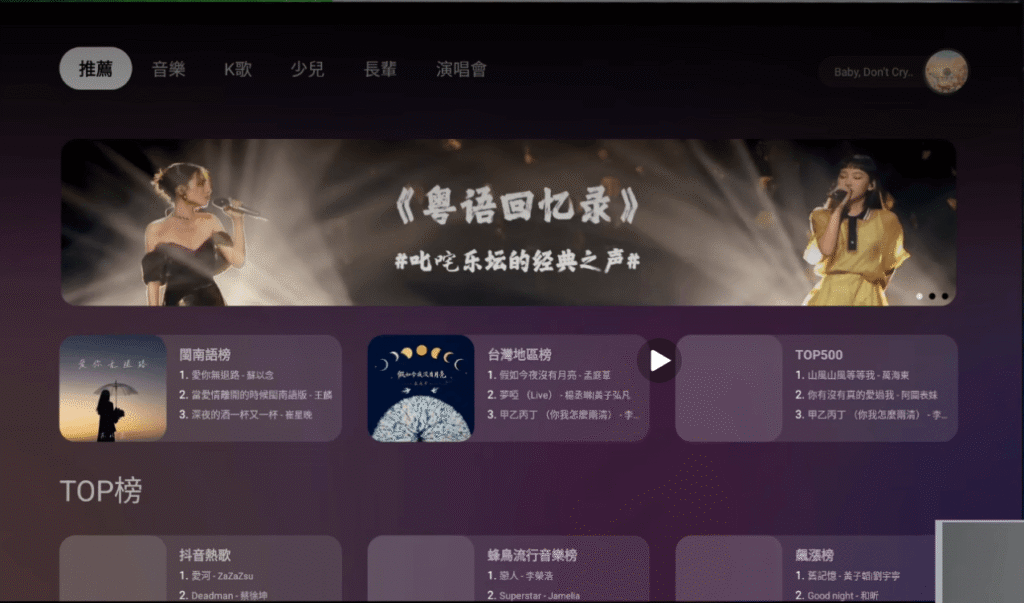
WeFun for Music and Karaoke
WeFun is the music and karaoke-oriented application in the SviCloud ecosystem. It offers another way to use your television during family gatherings, celebrations, or relaxed evenings at home. With compatible audio equipment and available content, the living room can become a casual karaoke space without requiring a completely separate entertainment system.
Organize Apps Around the People Using Them
For a shared household, consider placing the most frequently used general entertainment apps in easy-to-reach positions. Keep less frequently used applications in the main app list, and use appropriate password controls where available. This helps create a simpler interface without limiting the TV box to just one person’s preferences. If you want to explore the main entertainment apps and additional Android options, our SviCloud 15P Apps Guide explains the app ecosystem and installation options in more detail.
11. Explore Compatible Games and Third-Party Android Apps
The SviCloud 15P can also be used for activities beyond television and movies. Its Android-based environment allows users to explore compatible applications, while some gaming interfaces can provide access to supported games and controller-based navigation.
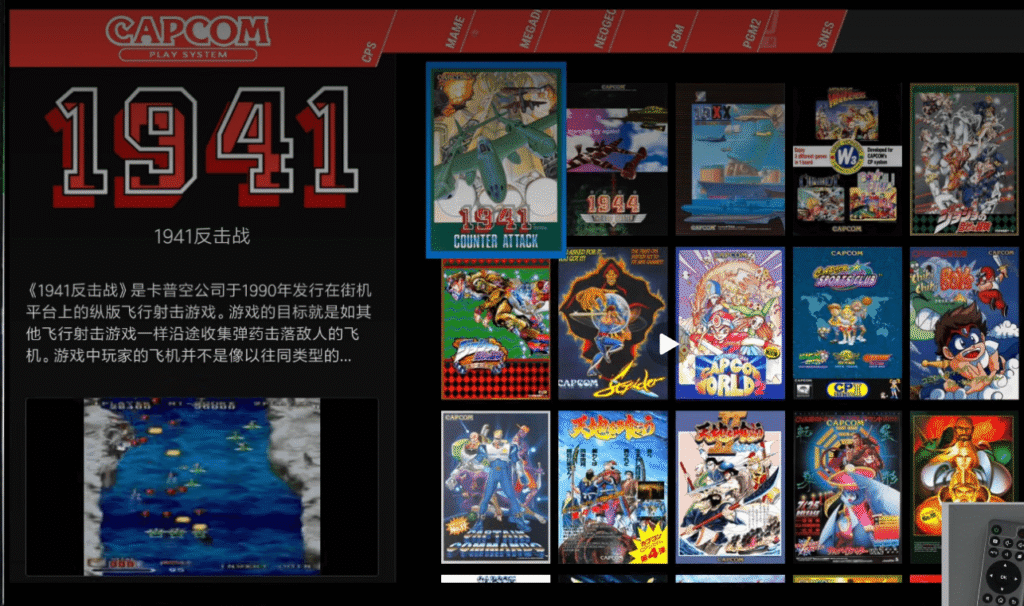
Pegasus Gaming Interface
Pegasus is a game-library frontend that can organize compatible games in a visual interface. When properly configured, users can browse game entries and launch supported titles. The experience depends on the game software, controller compatibility, and available system resources. The SviCloud 15P should not be treated as a replacement for a dedicated modern gaming console, but compatible casual or retro-style gaming can provide an additional entertainment option. Use only games and software you are authorized to access.
Check App Compatibility Before Installing
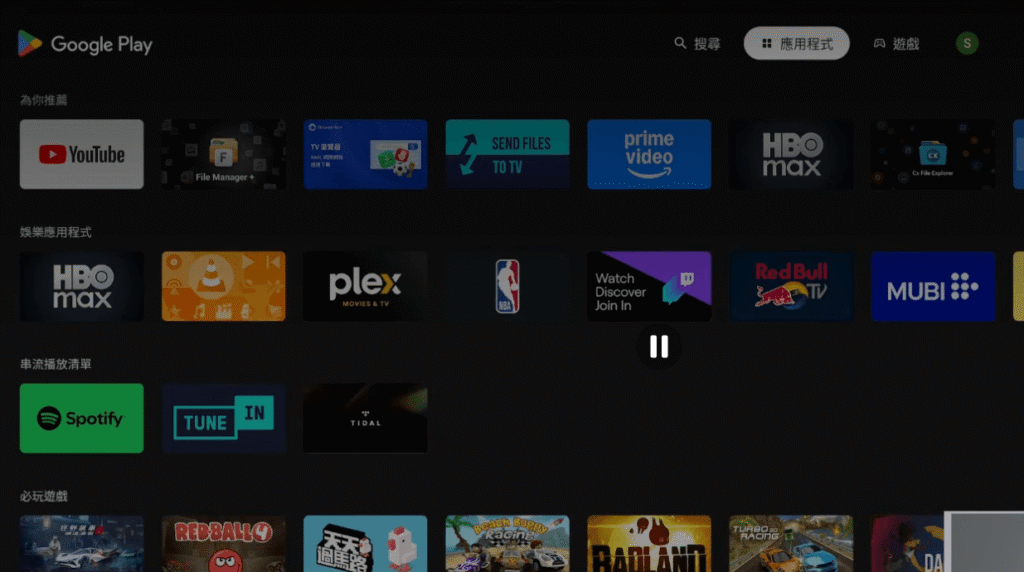
Google Play and other trusted app sources can provide access to compatible Android applications. Before installing an app, check whether it supports Android TV-style navigation or requires touchscreen input. Some apps may work better with the air mouse, while others may not be optimized for a television. Paid streaming services can also require their own subscriptions, accounts, device certification, or regional access. Installing an app does not automatically include its paid content.
Which SviCloud 15P Features Should You Try First?
With so many options, you do not need to customize everything at once. The best approach is to choose features based on your viewing habits.
| Your Main Interest | Feature to Explore |
|---|---|
| Faster everyday navigation | Home screen shortcuts |
| One-button access to favorite apps | Colored remote buttons |
| A personalized startup routine | Auto-start management |
| Simpler television controls | HDMI-CEC |
| Live channels and missed programs | Yogurt TV Live and Replay |
| Phone-related entertainment features | Yogurt TV mobile pairing |
| Movies and drama series | Yogurt TV VOD |
| Personal movie collections | Filmax poster wall |
| Application access management | Cherry TV password controls |
| Children’s entertainment and karaoke | Yogurt Kids and WeFun |
| Additional Android entertainment | Compatible apps and games |
For most users, home screen customization and remote shortcuts are the best starting points because they improve the way you use the device every day. If you enjoy exploring more advanced functions, move on to Yogurt TV mobile pairing, Filmax, and HDMI-CEC.
Is the SviCloud 15P Worth Exploring Beyond Basic Streaming?
Absolutely—especially if you already own one. The SviCloud 15P combines Android 14, 4GB RAM, 64GB storage, Wi-Fi 6, Bluetooth 5.4, and 4K HDR10 support with a range of software features designed for different entertainment habits. Its real value is not simply the number of applications it can run. It is the flexibility to make the television experience suit your household.
For someone who watches live channels every day, remote shortcuts and replay controls may be the most useful features.
For a movie enthusiast, Filmax and on-demand browsing can be more important.
For a family, separate entertainment categories, music, and child-oriented applications may make the device more versatile.
If you are considering the device rather than already owning it, explore the SviCloud 15P TV Box to review its current specifications, package contents, and available purchasing options.
Frequently Asked Questions About SviCloud 15P Advanced Features
Can I change what the colored buttons do on the SviCloud 15P remote?
Yes. The SviCloud 15P includes a shortcut-key configuration feature that allows supported applications to be assigned to the colored buttons. Available choices may vary by firmware and installed apps.
Can SviCloud 15P automatically open an app?
The device provides auto-start management options for supported applications. Actual launch behavior depends on the app and system version.
How do I connect Yogurt TV to my phone?
Open the mobile pairing section in Yogurt TV, scan the displayed QR code, and follow the phone instructions. Remember to check the television for any additional confirmation required to complete binding.
Does Yogurt TV support replay?
Replay may be available for supported live channels and programs. The content and replay period depend on the service’s current availability.
What is Filmax used for on SviCloud 15P?
Filmax helps users browse and manage compatible personal media files through a media-library interface that can include poster artwork and other movie information.
Can I use HDMI-CEC with any television?
HDMI-CEC requires compatible devices and appropriate settings. Not every television supports the same commands, so functionality can vary.
Can I install games and other Android apps?
You can explore compatible applications, but installation and performance depend on app requirements, device compatibility, and the software version.
Final Thoughts
Getting more from your SviCloud 15P does not require complicated modifications or technical expertise. A few useful adjustments—such as organizing your home screen, assigning colored remote shortcuts, and choosing appropriate auto-start settings—can make everyday viewing noticeably more convenient.
Once you are comfortable with those basics, explore Yogurt TV’s mobile features and replay options, organize personal movies with Filmax, manage Cherry TV access, or try the family entertainment applications. The most useful SviCloud 15P tips and tricks are the ones that make the device easier for you and your family to enjoy.
To explore the wider range of SviCloud devices, accessories, and product information, visit the SviCloud TV Box Official Store.
Feature availability, application interfaces, channel catalogs, and compatibility may change with software updates, service conditions, and regional restrictions.
Use SviCloud 15P Coupon Code svi8 at checkout can save you 8% off your order.