
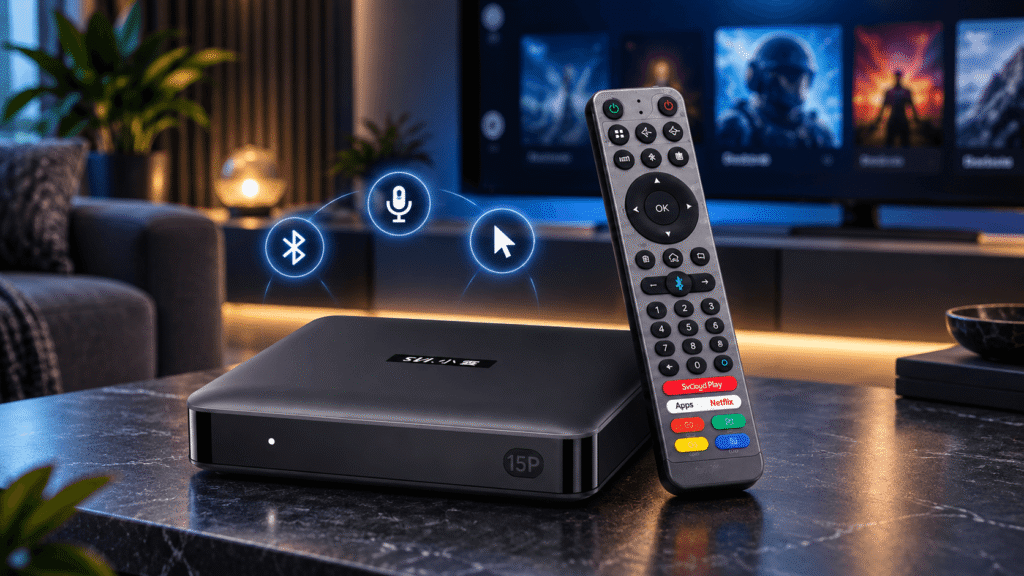
The SviCloud 15P remote is more than a basic channel changer. Its Bluetooth connection enables voice search and air-mouse navigation, while the standard buttons keep everyday TV control familiar. This guide shows how to pair the SviCloud 15P remote control, use its air mouse, set up voice commands, program TV power, and fix the problems that make a new Android TV box feel unresponsive.
If you are replacing an older box, review the SviCloud Smart TV Boxes and confirm the current bundle on the SviCloud 15P TV Box before ordering.
Contents
Quick start: pair the SviCloud 15P remote
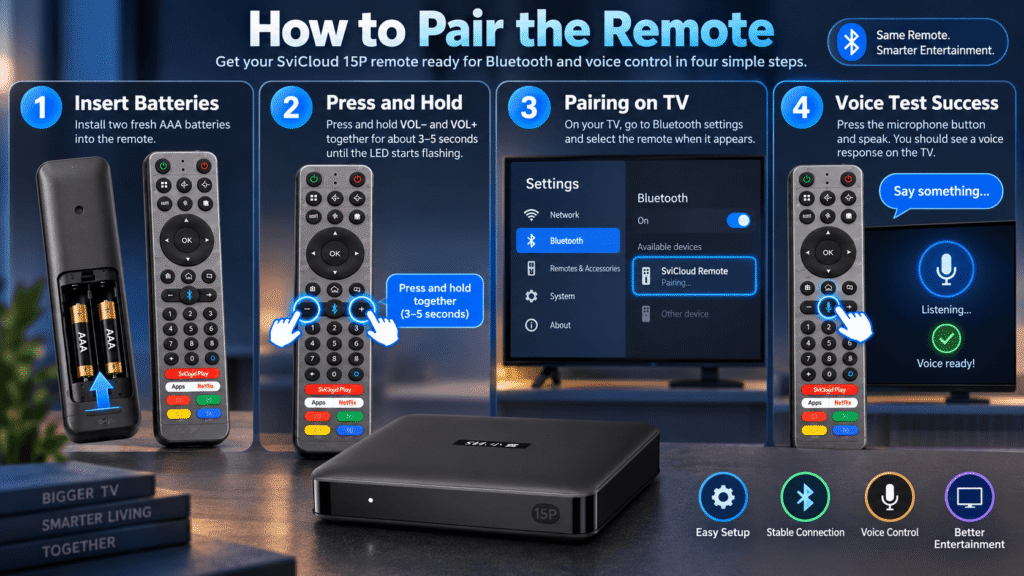
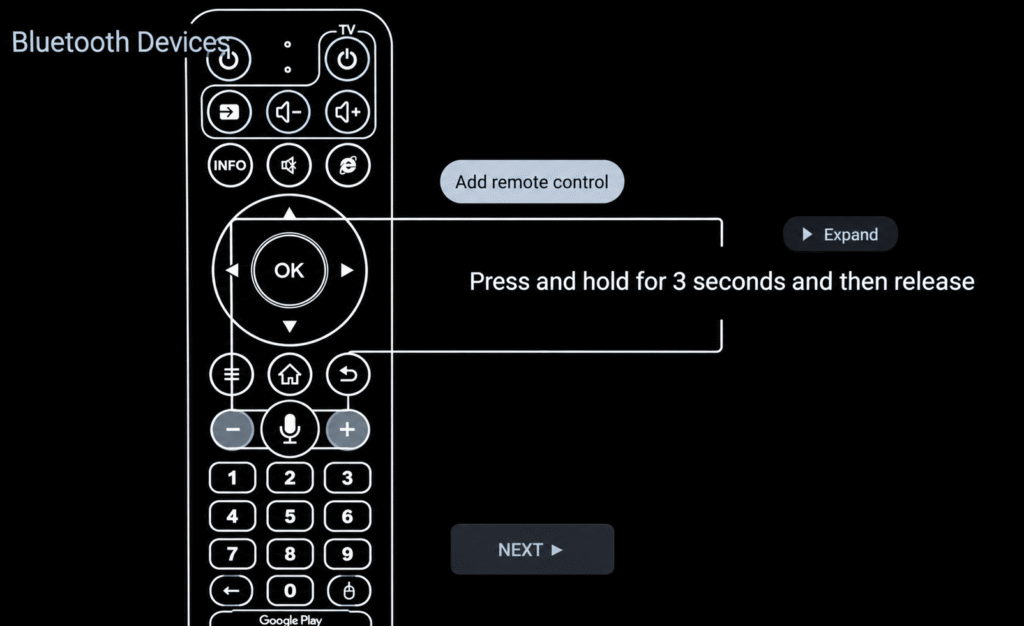
Insert two fresh AAA batteries, keep the remote within about 1–2 feet of the SviCloud 15P, and hold VOL− and VOL+ together for roughly 3–5 seconds. Wait for the pairing banner or connection message on the TV.
Basic infrared buttons may work before Bluetooth pairing. Voice search and pointer-style air-mouse control normally require the Bluetooth connection to finish successfully.
The exact on-screen wording can vary with firmware, but the pairing sequence is consistent across the current SviCloud 15P TV box setup. The official SviCloud installation guide also documents remote pairing alongside HDMI, power, and network setup.
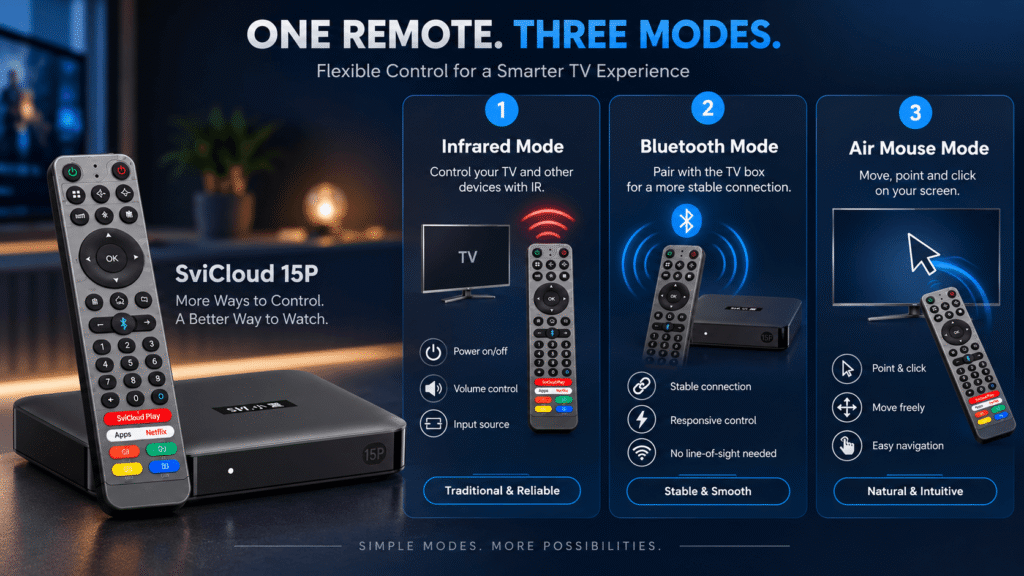
Understand the three SviCloud 15P remote modes
Knowing which mode you are using makes troubleshooting much easier:
Infrared control
Infrared sends a signal directly toward the box. It is useful for basic navigation and power when Bluetooth has not yet been paired, but you need a clear line of sight.
Bluetooth control
Bluetooth lets you operate the SviCloud 15P without pointing precisely at the device. It is the mode needed for voice input and more comfortable sofa-distance navigation.
Air mouse
Air-mouse mode turns hand movement into a pointer on compatible screens. It can be quicker than repeated arrow presses inside browsers or Android apps.
How to pair the SviCloud 15P remote control
- Turn on the SviCloud 15P and leave the TV on its home screen.
- Install two new AAA batteries and check the polarity marks.
- Hold the SviCloud 15P remote close to the box, ideally within 1–2 feet.
- Press and hold VOL− and VOL+ simultaneously for 3–5 seconds.
- Release when the indicator flashes or a Bluetooth pairing prompt appears.
- Wait for the TV to show Connected, Paired, or an equivalent confirmation.
- Test the directional pad, OK, Home, Back, volume, microphone, and pointer.
Keep other Bluetooth accessories away during the first attempt. A soundbar, game controller, or wireless keyboard placed directly beside the box can make the process less predictable.
If the prompt disappears, remove the batteries for 10 seconds, reinstall them, and repeat the pairing sequence with the remote closer to the SviCloud 15P.
How to use SviCloud 15P voice control
Once Bluetooth pairing succeeds, press the microphone button and speak a short supported search or command. Voice input is useful for movie titles, app names, settings, and long words that are slow to type with an on-screen keyboard.
Speak after the listening indicator appears, and keep the microphone area unobstructed. A quiet room improves recognition. Voice features may depend on the active app, language, account, firmware, and regional service availability.
- Confirm the remote shows as connected in Bluetooth settings.
- Open a compatible search field or voice-enabled app.
- Press and hold, or tap, the microphone button according to the prompt.
- Speak clearly, then release and wait for the result.
- Try a shorter phrase if the first search is misunderstood.
The SviCloud 15P review notes multilingual voice support and a Bluetooth voice air mouse remote, making this feature especially useful in multilingual homes.
How to use the SviCloud 15P air mouse
The official SviCloud 15P product information confirms that the included remote supports air-mouse navigation, but it does not publish one universal activation button for every remote revision. On a compatible screen, use the pointer or air-mouse key marked on your remote if present, then move your wrist slowly. Small movements are easier to control than large arm swings.
| Task | Best input | Practical tip |
|---|---|---|
| Home-screen navigation | Directional pad | Use arrows for predictable focus movement. |
| Typing a long title | Voice search or air mouse | Voice is faster; pointer mode helps with small keys. |
| Browser or download page | Air mouse | Move slowly and click with OK. |
| Volume and power | Dedicated buttons | Point toward the TV if infrared is being used. |
If the pointer drifts, place the remote flat for a moment, exit air-mouse mode, and reactivate it. Avoid shaking the remote while pressing OK because a moving pointer can select the wrong item.
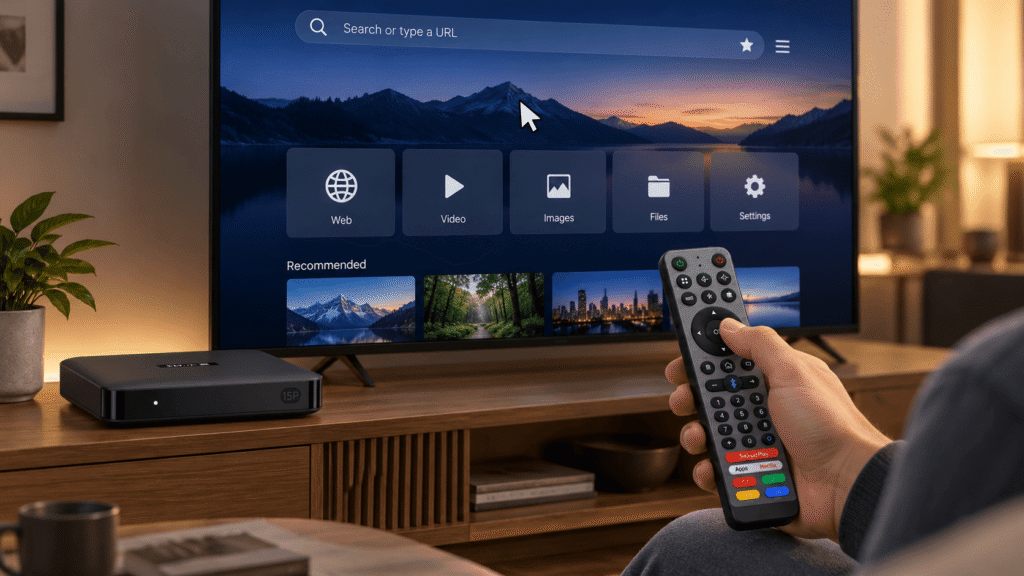
Set up the SviCloud 15P remote to control your TV
On compatible remote versions, the red TV button can copy basic commands from your television remote, such as TV power. This setup is separate from connecting the SviCloud 15P remote to the TV box through Bluetooth.
- Place the original TV remote and the SviCloud 15P remote opposite each other, with their front ends about 1–3 cm apart.
- Hold the SviCloud remote’s TV button or setup button until its indicator light stays on.
- Press the SviCloud button you want to use for your TV, such as the power button.
- Press and hold the matching button on the original TV remote for a few seconds.
- Wait for the indicator to flash or show a success signal, then press another button to save the setting.
The exact buttons and indicator pattern can vary by remote revision. If the command is not saved, install fresh batteries, repeat the process with the remotes closer together, and follow any on-screen or printed instructions supplied with your SviCloud 15P.
Fix common SviCloud 15P remote problems
Remote does not respond
- Replace both AAA batteries.
- Move within one metre of the box.
- Remove batteries for 10 seconds and re-pair.
- Move nearby Bluetooth devices or routers away.
Voice or air mouse fails
- Confirm Bluetooth shows Connected.
- Test the microphone in a compatible search field.
- Exit and reactivate pointer mode.
- Restart the SviCloud 15P if the interface is frozen.
When basic buttons work but voice does not, the remote may still be operating only in infrared mode. Pair Bluetooth again before assuming the microphone is defective. When the remote works but the box lags, check whether the issue is actually an app or network problem.
For a broader diagnosis, see the existing SviCloud TV box troubleshooting guide. If your order needs personal assistance, contact SviCloud support with the model, order number, and a short description of the fault.
Is the SviCloud 15P remote worth the upgrade?
For users moving from a basic infrared controller, the SviCloud 15P remote control is a meaningful convenience upgrade. Bluetooth removes the need to aim at the box, the air mouse makes pointer-based apps easier, and voice search reduces typing. The benefits are most obvious when the SviCloud 15P is used every day for multiple apps or by family members who prefer spoken searches.
Review the current SviCloud 15P availability and package details before ordering so you know which remote revision and accessories are included.
FAQ
How do I pair the SviCloud 15P remote?
Place it close to the box, insert fresh AAA batteries, then hold VOL− and VOL+ together for about 3–5 seconds until the pairing prompt appears.
Why does my SviCloud 15P remote work but voice search does not?
Basic buttons may be using infrared. Pair the remote through Bluetooth, confirm Connected status, and test the microphone in a compatible search field.
How do I turn on the SviCloud 15P air mouse?
Press the pointer or air-mouse button on your remote revision, then move your wrist slowly. Use the OK button to select an item.
Can the SviCloud 15P remote control my TV?
The red TV button may support basic functions such as TV power. Follow the remote’s learning sequence, and remember this is separate from Bluetooth pairing.
What should I do if the SviCloud 15P remote stops responding?
Replace the batteries, move closer, remove batteries for 10 seconds, re-pair Bluetooth, and move nearby wireless devices away. Contact support if the problem continues.