
A new TV box should not force you to decide on every account before you can watch anything. Yet the words “Android 14” often make shoppers assume they must sign in to Google on day one. For the SviCloud 15P TV Box, the useful question is more specific: which feature are you trying to use?
The published SviCloud setup instructions cover connecting the box, choosing a language, pairing the remote if prompted, and connecting to the internet. They do not list Google sign-in as a required step for reaching the home screen. The site’s documented app route uses its Orz browser and app download page. Google Play, if it is available and working on your particular device, is a separate service with its own sign-in requirements. You can explore the broader SviCloud TV box range while deciding which app ecosystem matters to you.
The short answer
You do not need to treat a Google account as a universal SviCloud 15P requirement. The site’s own first-time setup and Orz download instructions do not make Google sign-in a prerequisite. You may still need an account for a particular third-party service, and a usable Google Play experience normally involves signing in to Google. Check what your individual box actually offers before entering credentials.
This distinction matters because “Android TV box,” “Google TV,” “Google Play,” and a streaming app are not interchangeable labels. The SviCloud 15P product listing confirms Android 14 and compatible Android apps; it does not, by itself, establish that every Google service or every app is available on every firmware and in every region. A logo on a remote or an app list is not a substitute for checking the working software on the device you receive.
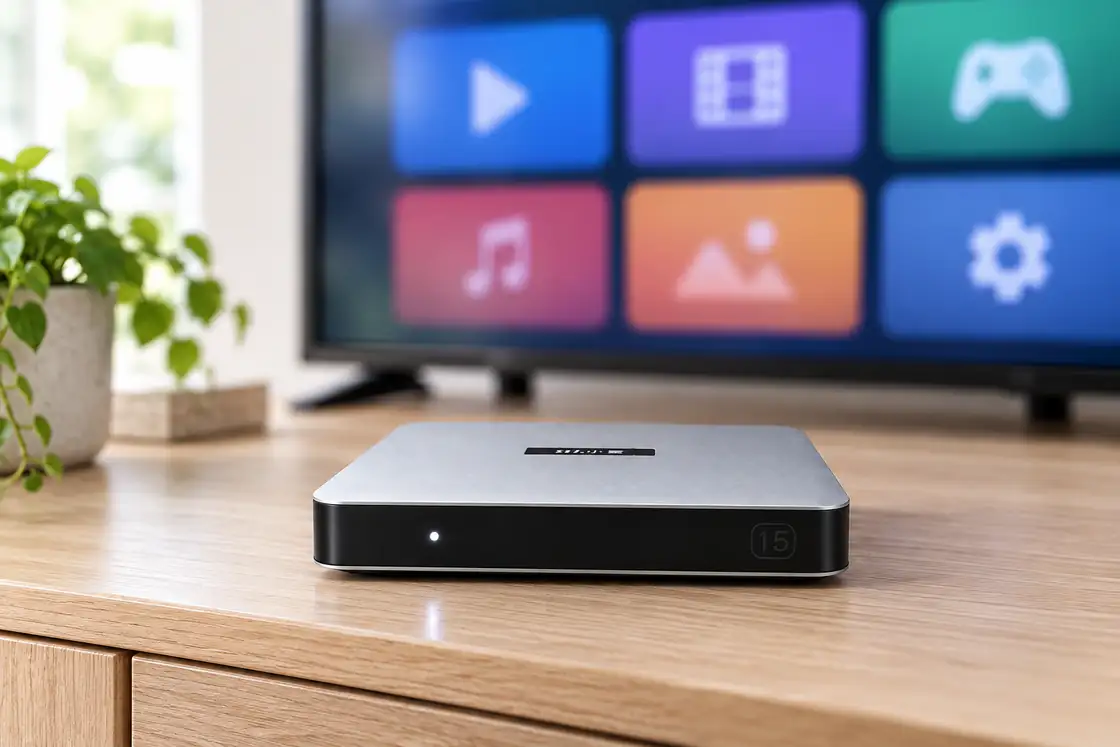
One TV box, three different account decisions
When an account prompt appears, pause long enough to identify who is asking. The box’s basic setup, an app marketplace, and a streaming provider are different things. Signing into one does not automatically sign you into the others.
| What you are doing | Possible account | What to check |
|---|---|---|
| Finishing the box’s initial setup | Follow the on-screen prompts; the published SviCloud guide does not list Google sign-in as mandatory | Language, network, remote and home-screen access |
| Using the documented SviCloud app download route | Follow the instructions on the SviCloud download page and the individual app | Correct source, permissions and app compatibility |
| Using Google Play, if available on your device | A Google account may be needed for store access and account-linked purchases | Whether Play opens and works on your exact unit |
| Watching through a third-party service | That provider’s account, and perhaps its own subscription | Service terms, region and device support |
The practical result is that a Google login is not a master key to every TV service. For example, a separate streaming provider can require its own credentials even when the app was installed from a store. Likewise, creating a Google account does not grant a paid streaming subscription.
What the SviCloud 15P setup instructions actually say
The site’s SviCloud 15P first-time setup guide starts with HDMI, power and the correct TV input. It then covers language, remote pairing where prompted, time and network connection before the home screen. Those are sensible steps to complete before you worry about optional accounts.
The exact prompts may change with firmware revisions or local settings. If your box displays an account screen, read its heading rather than assuming every prompt comes from Google. It may belong to an app you opened, an optional service, or the device’s software. If a step looks different from the published guide, use the on-screen wording for your unit and confirm the source before entering a password.
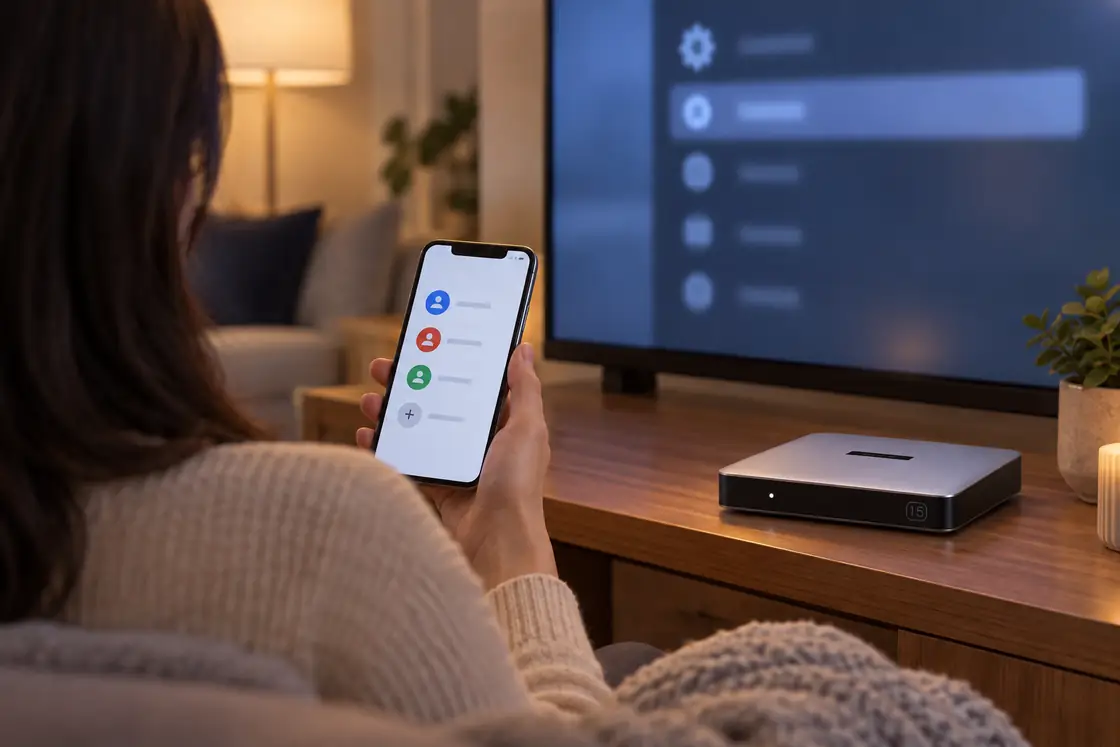
Buying check: Android 14 describes the operating-system version listed for the SviCloud 15P. It is not proof that the box is Google TV certified or that a particular Google app works. If access to a specific Google service is essential to your purchase, ask the seller to confirm that exact requirement for the current model and software.
How to think about SviCloud apps, Google Play and provider logins
The SviCloud download route
The site’s 15P app installation guide describes opening Orz from the box’s main interface and using the SviCloud app download page for the apps shown there. That is the documented route for the SviCloud-related applications discussed on the site. It does not say that you must first create a Google account to open Orz.
Even on this route, do not treat every file on the internet as equally trustworthy. Follow the address provided in the current SviCloud instructions, check the name of the app you selected, and read any Android installation prompt before allowing it. If the displayed page or requested permission differs from what you expected, stop and verify the source rather than trying random download links.
Google Play is a separate choice
Google’s own Android TV guidance explains how compatible apps are obtained through the Play Store, while Google Play ties installed and purchased content to a Google account. That explains why a Google sign-in may appear when you choose that ecosystem. It does not verify Play Store availability or certification on a SviCloud 15P. Check the installed software on your device instead of assuming that an Android version automatically includes every Google service.
For an overview of optional software that a household might want, the site’s 15P streaming and utility app guide discusses media players, music, browsers and other app categories. Treat each recommendation as a starting point: actual availability, sign-in, picture quality and support depend on the provider, region and device compatibility.
Some viewing requires no online account
Not every TV-box use begins with an app store. The product listing highlights Filmax and compatible local media playback. If you mainly organize your own files, the SviCloud 15P local movie guide explains file preparation, formats and poster browsing. Directly connected local storage can be a useful route for personal media without adding a streaming-provider account, although file compatibility still has to be checked.
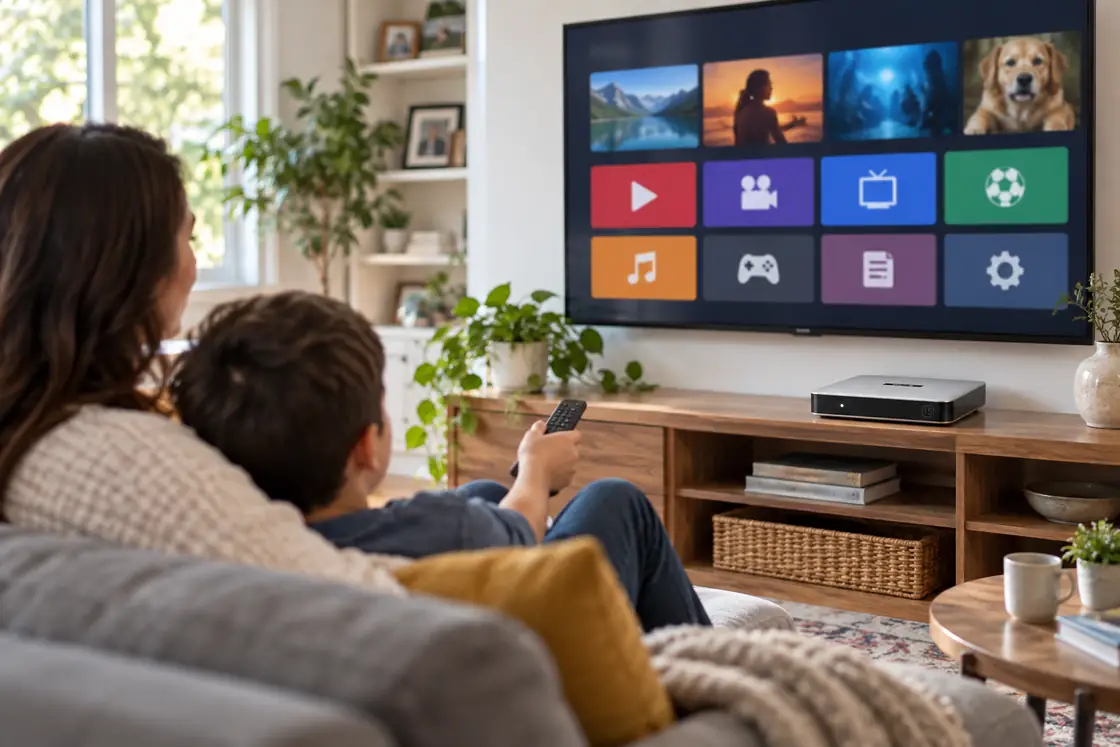
A sensible account plan for a shared family television
A living-room screen is different from a private phone. Children, guests and relatives may all hold the remote. Before adding any account, decide who should see purchase history, recommendations, saved passwords or personal photos. If you do not need a service, leaving it unsigned-in keeps the setup simpler.
- Finish the basic setup first. Confirm that the box reaches its home screen and connects to your network before adding optional services.
- Install only what the household will use. Too many app tiles and sign-ins make the screen harder to navigate, especially for less technical family members.
- Identify each login. A Google prompt, an app’s own sign-in and a streaming subscription serve different purposes. Enter credentials only into the service you intended to use.
- Protect shared access. Review any purchase controls, profiles or sign-out options offered by the individual app. Do not assume that one device-wide setting protects every third-party service.
- Keep a record of the source. If you later update or reinstall an app, return to the same trusted source and follow its current instructions.
If typing a long password with a remote is awkward, the site’s 15P remote-control guide explains the remote’s navigation and voice functions. Do not assume voice input is appropriate for passwords; use the service’s own secure sign-in method when one is offered.
Account decisions also affect cost expectations. The SviCloud 15P fee explanation separates the one-time device purchase from optional third-party services. A free Google account, a paid streaming membership and the price of the TV box are three separate matters. Check each provider’s current terms before subscribing.
FAQ
Can I finish SviCloud 15P setup without a Google account?
The published SviCloud setup guide does not list Google sign-in among the required first-time steps. Follow the prompts shown by your own box, because software screens can change.
Does Android 14 mean Google Play is guaranteed?
No. The Android version alone does not establish Google Play availability, certification or app compatibility. Verify the exact software and service you need on the current device.
Will a Google account unlock Netflix or another paid app?
No. A streaming provider can require its own account and payment plan. Google sign-in does not include a third-party subscription.
Can I use personal movie files instead of signing into a streaming service?
The 15P product information describes compatible local media playback. You can test your own files through supported storage and playback features; exact results depend on file format, storage and settings.
What if a sign-in screen appears unexpectedly?
Check the app name and page address, confirm whether the request comes from the intended service, and avoid entering credentials into an unfamiliar download page. For device-specific uncertainty, contact the seller with the screen wording and your software version.
Choose the accounts after you choose the experience
For most households, the cleanest order is basic setup, then the SviCloud features you actually want, followed by only the optional apps that add value. A Google account may make sense for a working Play Store or other Google services, but the site’s 15P setup instructions do not present it as a blanket requirement. Separate that question from individual app logins and paid subscriptions.
If this balance of Android 14 flexibility, SviCloud’s documented app route and local media options suits your family, browse the current SviCloud TV box lineup and confirm the latest model details before ordering.