
Want to watch a phone video on a much larger screen? The SviCloud TV Box makes it possible to share compatible photos, videos, and other phone content on your television through screen mirroring.
The SviCloud 15P TV Box supports mobile screen mirroring and combines Android 14, dual-band WiFi 6, 4GB RAM, 64GB storage, and modern wireless connectivity in one home entertainment device.
However, “casting” can mean several different things. An Android phone may use Cast, Smart View, or Screen Mirroring, while an iPhone normally uses Apple’s AirPlay system. Some streaming apps also include their own Cast button.
This guide explains the differences and shows you how to cast phone videos to the SviCloud 15P from both Android phones and iPhones.
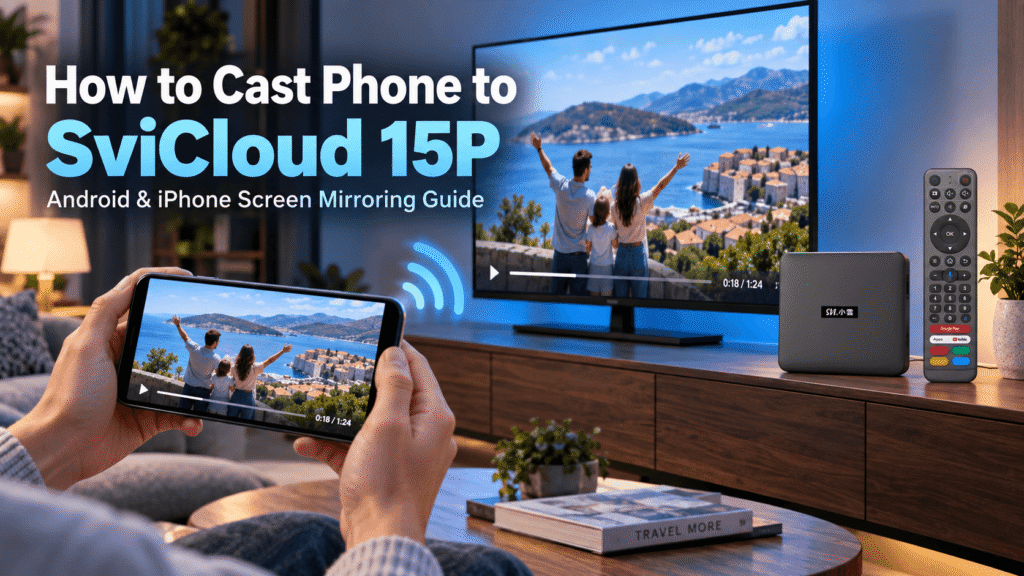
Can You Cast Your Phone to SviCloud 15P?
Yes. The SviCloud 15P supports screen mirroring from compatible mobile devices, allowing supported photos, videos, and other mirrorable content to appear on your television.
Before starting, it is useful to understand that there are two common ways people use the word “cast”:
- Screen mirroring: Your television shows almost exactly what appears on your phone screen.
- Direct app casting: A compatible video app sends content to a compatible receiver while your phone works mainly as a controller.
The first method is usually the simplest way to share personal videos, photos, webpages, presentations, and other phone content with the SviCloud 15P.
Direct casting from apps depends on the protocol supported by both the app and receiving device. Do not assume that every Cast button inside every mobile app will automatically detect an Android TV box.
Before You Start: Connect Everything to the Same WiFi
The most important step is to make sure your phone and SviCloud 15P are connected to the same home network.
For example:
Phone → Home WiFi → SviCloud 15P → HDMI → TV
If your phone is connected to mobile data while the SviCloud 15P is connected to your router, device discovery may fail.
The same principle applies to common casting technologies. Google’s official Google Cast instructions recommend connecting both devices to the same WiFi network before casting.
The SviCloud 15P supports dual-band WiFi 6 with 2T2R technology. A stable network can be especially helpful when mirroring high-resolution phone videos. If you want a deeper explanation of the wireless hardware, read our SviCloud 15P WiFi 6 guide.
How to Cast an Android Phone to SviCloud 15P
Android is generally the most straightforward option because many Android phones already include a screen-casting or screen-mirroring control.
The exact name varies by phone manufacturer.
| Phone Brand / Android Interface | Common Feature Name |
| Samsung Galaxy | Smart View |
| Google / Android devices | Cast or Screen Cast |
| Other Android phones | Screen Mirroring, Wireless Display, Cast, or Screencast |
Step 1: Turn On the SviCloud 15P
Turn on your television and SviCloud 15P and make sure the TV is displaying the correct HDMI input.
If you have only recently installed the box, complete the basic network and system configuration first. Our SviCloud 15P setup guide walks through HDMI, WiFi, remote pairing, language, and initial Android settings.
Step 2: Connect Your Phone and SviCloud to the Same Network
Open the WiFi settings on your Android phone and confirm that it is connected to the same router used by your SviCloud 15P.
Your phone and box do not necessarily have to show exactly the same wireless speed, but putting them on the same local network makes discovery much easier.
If your router separates guest devices or isolates different wireless networks, try placing both devices on the same WiFi name during setup.
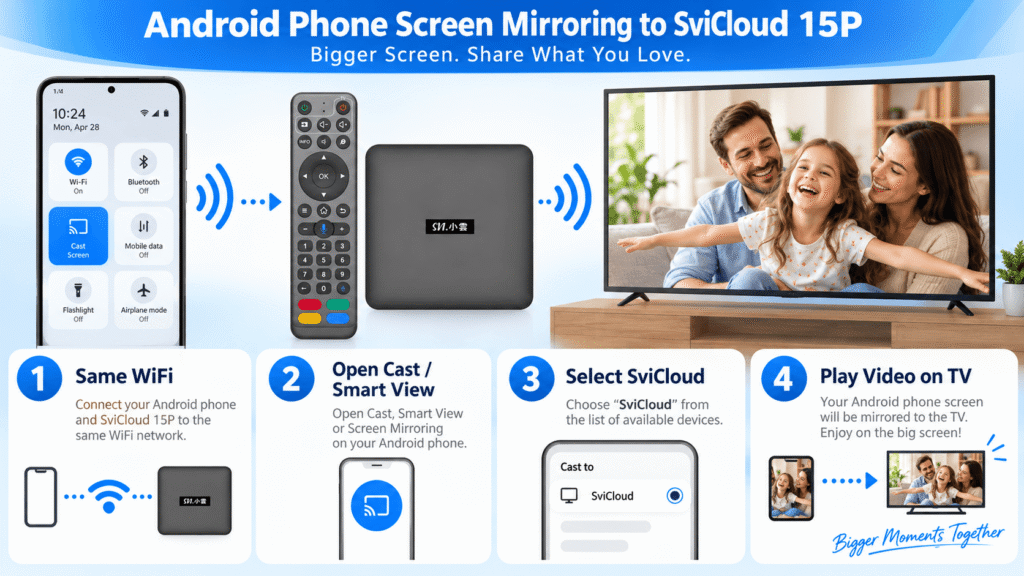
Step 3: Open Cast or Screen Mirroring on Your Android Phone
Swipe down from the top of your phone to open Quick Settings.
Look for a button named:
Cast, Screen Cast, Smart View, Screen Mirroring, Screencast, or Wireless Display.
If you cannot see it immediately, swipe to another Quick Settings page or edit your Quick Settings shortcuts.
Step 4: Select Your SviCloud Device
Tap the casting or mirroring function and wait for the phone to search for nearby compatible receivers.
Your SviCloud 15P TV box should appear in the available device list when the compatible receiver function is available, and both devices can discover each other.
Tap the SviCloud 15P device name. If a confirmation request appears on the television, approve the connection using the SviCloud remote.
Step 5: Play the Video on Your Phone
Once connected, open the video you want to watch. This may be a personal video from your gallery, vacation footage, family recordings, or other supported media.
Rotate the phone into landscape mode for a better television viewing experience. Your TV should now display the mirrored phone content.
You can continue controlling playback from your phone.
What About the Cast Button Inside YouTube or Other Apps?
This is where casting becomes slightly confusing.
A Cast button inside an app is not necessarily the same thing as Android screen mirroring. Google Cast requires a compatible Google Cast receiver. Google’s documentation explains that a supported Cast-enabled app searches for compatible Chromecast, Google TV, or Google Cast devices on the same network.
Therefore, if you open a mobile app and your SviCloud 15P does not appear after tapping the Cast button, this does not automatically mean the SviCloud screen-mirroring function is broken.
Instead, try the Android system-level Cast, Smart View, or Screen Mirroring option described above.
You may also use compatible receiver applications when a specific casting protocol is required.
How to Cast an iPhone or iPad to SviCloud 15P
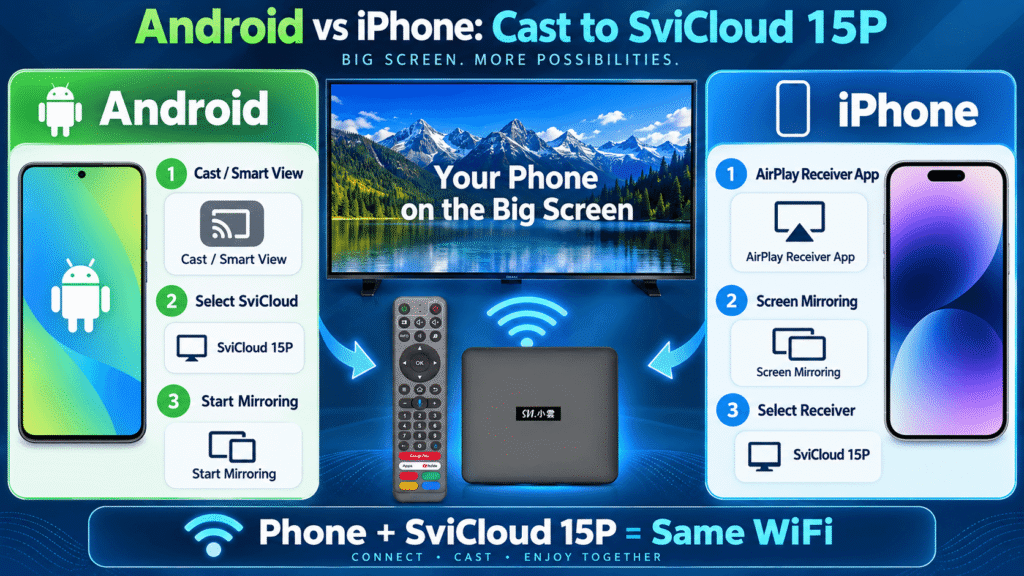
iPhone works differently from most Android phones because Apple uses AirPlay for native wireless screen sharing.
An Android TV box does not automatically become an AirPlay receiver simply because it supports Android screen mirroring. For iPhone or iPad use, you may therefore need a compatible AirPlay receiver application on the SviCloud 15P.
One commonly used option is an app such as AirScreen. App availability and interface details can change, so check the current app source on your SviCloud 15P TV box before installing.
Step 1: Install and Open an AirPlay Receiver App
On the SviCloud 15P, install a compatible AirPlay receiver app such as AirScreen when available.
Open the receiver application and follow its setup instructions until the box is ready to receive an AirPlay connection.
If you need help installing applications on the box, see our SviCloud 15P Apps Guide.
Step 2: Put Your iPhone and SviCloud on the Same WiFi
Check that the iPhone or iPad is using the same local WiFi network as the SviCloud 15P.
Apple’s official AirPlay and Screen Mirroring guide also recommends connecting the sending device and AirPlay-compatible receiver to the same WiFi network.
Step 3: Open Screen Mirroring on Your iPhone
On a recent iPhone, swipe down from the upper-right corner to open Control Center.
Tap Screen Mirroring.
The receiver name created by your AirPlay receiver app should appear in the device list.
Select it and wait for the connection. If a verification code appears on the TV, enter that code on the iPhone when requested.
Step 4: Play Your Video
Once the iPhone screen appears on the television, open Photos or another compatible application and start playing your video.
You can also rotate the phone horizontally to make better use of the television screen.
Screen Mirroring vs Direct Video Casting: Which Is Better?
For personal videos and photos, screen mirroring is usually the easiest method because it displays your phone screen directly on the television.
Direct app casting can be more efficient when both the application and receiver support the same casting technology. Instead of continuously duplicating your phone display, the receiving device may handle more of the playback itself.
However, compatibility matters. Different apps use different requirements, and some video services restrict mirroring or external playback. A video working perfectly on the phone does not guarantee that the same app will allow mirrored playback on every external screen.
If an app produces a black video window while menus are still visible, the application may be restricting external playback. In that situation, look for a compatible version of the application that can run directly on the TV box rather than mirroring the phone.
How to Get Smoother Phone Video Casting
The SviCloud 15P Wi-Fi 6 streaming box hardware is useful for wireless home entertainment, but casting quality depends on the complete network, not only the TV box.
Your phone, router, internet traffic, distance from the router, walls, interference, and video resolution can all affect performance.
For smoother playback, keep the SviCloud 15P TV box and phone reasonably close to the router, avoid heavily congested WiFi when possible, and use a stable 5GHz network when coverage is strong.
If the video repeatedly freezes, test a lower-resolution video. If that works smoothly, bandwidth or wireless interference may be the issue rather than the screen-mirroring feature itself.
SviCloud 15P Screen Mirroring Not Working? Try These Fixes
1. Make Sure Both Devices Are on the Same WiFi
This is the most common problem. Check the WiFi network name on both the SviCloud 15P and your phone.
2. Avoid Guest WiFi
Many routers isolate devices connected to a guest network. Two devices may both have internet access but still be unable to discover each other locally.
3. Restart the SviCloud 15P and Phone
A simple restart can refresh wireless discovery and clear temporary connection problems.
4. Restart the Receiver App
If you are using an AirPlay or another third-party receiver application, close and reopen it before searching again from your phone.
5. Check iPhone Local Network Permissions
Some iOS applications need Local Network permission before they can discover compatible devices on your network. Check the application’s permissions if a receiver never appears.
6. Check Whether the App Allows Mirroring
Some streaming apps place restrictions on screen mirroring. Test with a personal video or photo first. If personal media works but one particular streaming app does not, the app itself may be limiting external playback.
7. Reduce Wireless Interference
Move closer to the router or temporarily reduce heavy network activity such as large downloads or multiple simultaneous high-resolution streams.
Why SviCloud 15P Is Useful for Phone-to-TV Viewing
The SviCloud 15P Android 14 TV Box is designed for more than simply opening television applications. Mobile screen mirroring gives families another way to use the big screen.
You can display vacation videos during a family gathering, share phone photos with relatives, show webpages without everyone crowding around a small screen, or play compatible personal media directly from a phone.
The combination of Android 14, WiFi 6 2T2R, 4GB RAM, 64GB storage, Bluetooth 5.4, 4K HDR10 support, AV1 decoding, and mobile screen mirroring makes the SviCloud 15P a flexible part of a modern home entertainment setup.
Frequently Asked Questions
Can I mirror an Android phone to SviCloud 15P?
Yes, compatible Android phones can use functions commonly called Cast, Smart View, Screen Mirroring, Screen Cast, or Wireless Display. The exact name depends on your phone brand and Android interface.
Can I cast an iPhone to SviCloud 15P?
Yes, but iPhones use Apple’s AirPlay protocol. Because an Android box is not automatically an AirPlay receiver, you may need to install a compatible receiver app such as AirScreen on the SviCloud 15P before using iPhone Screen Mirroring.
Do my phone and SviCloud 15P need to use the same WiFi?
In most normal home casting and screen-mirroring setups, yes. Using the same local network allows the devices to discover and communicate with each other.
Why does SviCloud not appear when I press the Cast button in an app?
An in-app Cast button may be looking specifically for Google Cast-compatible receivers. Try your phone’s system-level Screen Mirroring, Smart View, or Cast function instead, or use a compatible receiver application.
Why does the TV show a black screen when I mirror a video app?
Some applications restrict mirrored or external playback. Test your connection using a personal video or photo. If those work correctly, the problem may be related to the individual application rather than the SviCloud 15P.
Final Thoughts
Casting phone videos to a television can make family videos, photos, presentations, and other mobile content much easier to enjoy. With Android phones, start with Cast, Smart View, or Screen Mirroring. For iPhone and iPad, use a compatible AirPlay receiver application when necessary.
The key is to remember that screen mirroring, Google Cast, and AirPlay are different technologies. Using the correct method for your phone will make setup much easier.
You can find more setup information and current product guidance on the SviCloud Official Website. If you are still researching where to buy genuine SviCloud 15P TV Box, check the current specifications, availability, plug options, and ordering information directly on the SviCloud 15P product page.
Current offer: Enter coupon code svi8 at checkout to enjoy 8% OFF your SviCloud 15P order.