
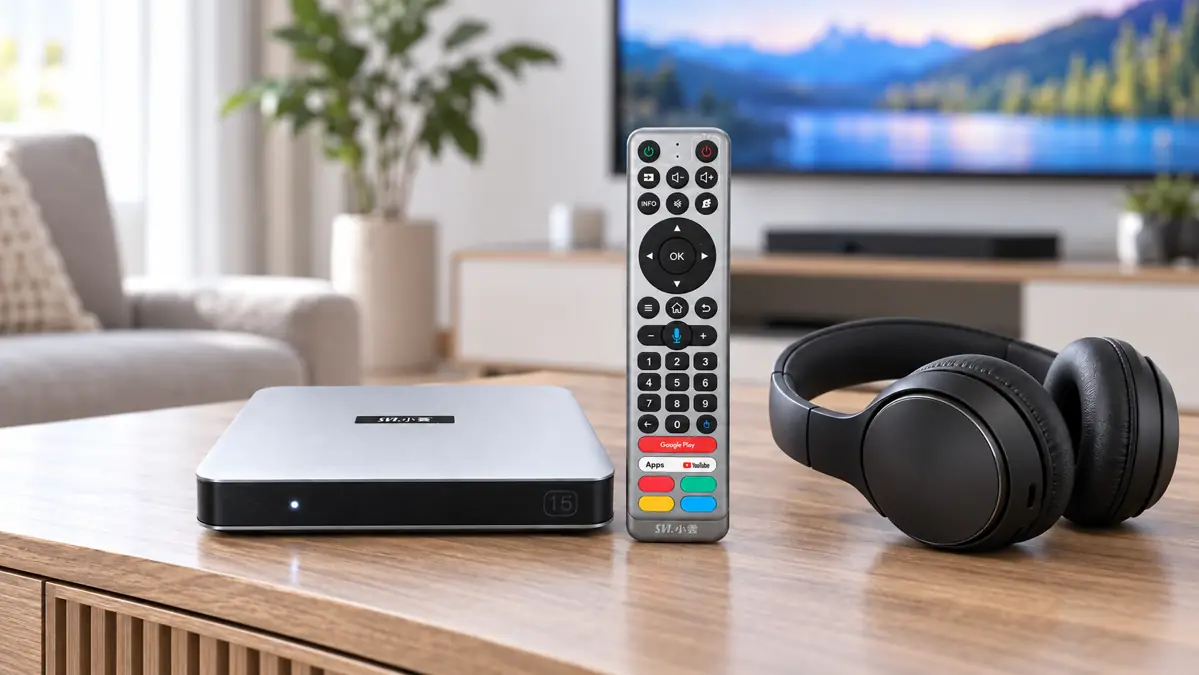
Late-night viewing is easier when the television does not have to fill the room with sound. The SviCloud 15P TV Box lists Bluetooth 5.4 and describes compatible Bluetooth headphones as an option for private listening. If you are exploring the wider SviCloud TV box range, that feature may matter as much as picture specifications. The practical question is whether your particular headphones connect cleanly, stay connected, and sound right with the apps you use.
This guide separates what the 15P product listing confirms from what depends on your headphones, television and viewing setup. It also gives you a careful pairing sequence without pretending that every software version shows identical menu labels.
Contents
Can the SviCloud 15P use Bluetooth headphones?
Yes, with compatible headphones. The current SviCloud 15P product listing specifies Bluetooth 5.4 and mentions private listening with compatible Bluetooth headphones. It does not promise that every headset, codec or app behaves identically. Pairing, range and sound timing depend on the accessory and the room.
That distinction matters when shopping for an Android TV box. A Bluetooth version number tells you the wireless feature exists; it does not tell you how quickly a particular headset reconnects or whether its microphone will work in a particular app. If your household relies on one exact headset, test that combination during your return period rather than buying on the version number alone.
When private listening makes a difference
Imagine someone watching a drama after the children have gone to bed, or a parent following a news program while another person works nearby. Headphones let that viewer set a comfortable listening level without asking everyone else to hear the television. They can also make dialogue easier to follow in a noisy home, although the result depends on the headset and the source audio.
The 15P is a shared-screen device, so it is worth planning how your household will switch between headphones and normal TV sound. Do not assume the box will play through both at once, or that two Bluetooth headsets can listen simultaneously; confirm the behavior with your own TV and connected accessories. For a household buying its first box, the SviCloud 15P first-time setup guide covers the basic television, power and network connections before you add audio accessories.
Check these details before pairing
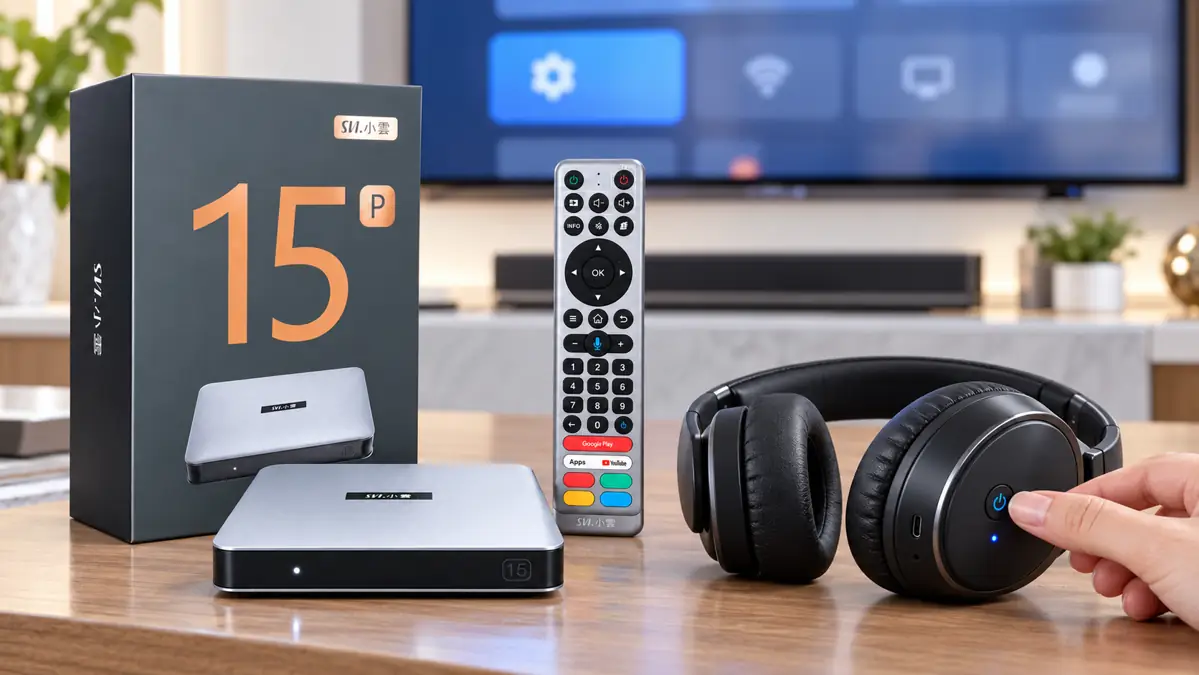
Start with a headset that supports ordinary Bluetooth audio pairing. Charge it, place it close to the box, and learn how its manufacturer puts it into pairing mode. Some headphones reconnect immediately to a phone they already know; if the phone takes the connection first, disconnect or turn off Bluetooth on that phone while you pair the TV box.
- Know the headset name. The name shown in the accessory list may be a model code rather than the brand printed on the earcups.
- Use the correct remote. Navigate the 15P with its supplied remote; if you are still learning the controls, the SviCloud 15P remote-control guide explains the remote’s separate functions.
- Keep other audio paths in mind. A soundbar or television may have its own Bluetooth feature. Pairing headphones with the TV is a different route from pairing them with the SviCloud box.
- Pick a short test clip. A familiar video with spoken dialogue makes it easier to notice silence, low volume or lip-sync delay after connecting.
A stable internet connection is still needed for online programs; Bluetooth only carries the short-range audio connection to the headphones. If the picture stops to load, follow the 15P Wi-Fi versus Ethernet guide before blaming the headset. If the picture continues smoothly but the sound briefly drops, focus on the Bluetooth accessory and its surroundings instead.
How to connect Bluetooth headphones to the SviCloud 15P
The precise on-screen wording can vary by software version and home-screen layout. Use these as navigation checkpoints rather than a claim that every SviCloud 15P displays the same labels:
- Turn on the 15P and confirm that its picture is visible on the television.
- Put the headphones into the pairing mode described by their manufacturer. A steady power light alone may mean they are on but not discoverable.
- Open the box’s Settings and look for a Bluetooth, accessory or connected-device section. The location and label may differ.
- Start a search for a new accessory, then choose the headset’s name when it appears.
- Accept any pairing prompt. Play a short video and check the headset volume as well as the volume controlled by the box or app.
If you do not see a Bluetooth or accessory option where expected, do not follow an unrelated Google TV screenshot blindly. Return to the 15P home screen, inspect the available settings categories, and check your current system software or ask the seller’s support team for the route shown on your box. Avoid a factory reset for a first pairing attempt.
What to try if the headphones connect but audio is wrong
A successful pairing message is only the first check. The most useful next step is to describe the symptom precisely: no sound, intermittent sound, delay, or a headset that disappears from the accessory list. Each points to a different part of the setup.
| What you notice | First checks |
|---|---|
| No sound | Confirm the headset is connected to the 15P rather than a phone or TV. Check headset volume, box volume and any app mute setting. Try another video. |
| Sound cuts out | Charge the headset and move closer to the box. Remove large obstacles, then test with other nearby Bluetooth accessories temporarily disconnected. |
| Dialogue feels late | Try another app or video first. Check whether your TV or audio equipment offers an audio-sync adjustment; available controls vary by setup. |
| Headset is missing | Re-enter the headset’s pairing mode. Disconnect it from a phone and search again from the 15P. If needed, forget the old pairing on both devices before retrying. |
Do not confuse an app problem with a Bluetooth problem. If only one streaming service is silent, test another service and a local media file. The 15P apps and installation guide explains why app availability and behavior can vary by provider. If you keep films on USB storage, the local-media organization guide offers another playback route for comparison. Use content you own or are authorized to play.
Keep expectations realistic: the 15P product listing confirms Bluetooth headphone support with compatible devices. It does not specify a universal latency figure, guaranteed range, simultaneous TV-speaker output or support for every headset microphone. Those details should be tested in your own setup.
Is the SviCloud 15P the right fit for private listening?
If your main goal is a convenient living-room box that also offers a private listening option, the 15P gives you a documented Bluetooth 5.4 feature and a supplied remote. Its other published features may make it useful beyond this one accessory. Still, do not buy any smart TV box solely because its specification sheet says Bluetooth. Consider your headphones, the TV’s audio options, the apps your family uses, and how often you need to switch listeners.
Where your television already pairs reliably with headphones, you may prefer to leave that audio connection at the TV level. Where the TV lacks that option, pairing a compatible headset directly with the box is worth trying. Neither route is automatically better for every home. Compare the complete SviCloud entertainment-box lineup and choose the arrangement that feels simplest for the people who will use it every evening.
Frequently asked questions
Does the SviCloud 15P include Bluetooth headphones?
The product listing describes Bluetooth headphone compatibility, but do not assume headphones are included in the standard box. Check the current package contents and any offer details before ordering.
Will any Bluetooth headset work?
Not necessarily. The store describes support for compatible Bluetooth headphones. Pairing behavior, range and audio timing depend on the accessory and local conditions, so test your specific model.
Can I pair the remote and headphones at the same time?
The 15P listing describes a supplied remote and Bluetooth headphone use, but it does not state every connection combination or accessory limit. Test the devices you plan to use together and ask support if your setup depends on a particular combination.
Why does a video buffer while the headphones are connected?
Bluetooth headphones handle audio; online video still relies on the network and the app. Test another video and check Wi-Fi or Ethernet before assuming the headset is causing the loading pause.
Make the listening setup fit your home
The best result is a quiet, repeatable routine: turn on the box, connect the headset you actually own, and confirm the sound before settling in. The 15P’s Bluetooth feature makes that possible with compatible headphones, while careful setup keeps an accessory problem from being mistaken for a box or app fault. If private listening is one of several reasons the 15P fits your household, review the current model details and seller terms before ordering.