
An app that closes the moment you open it feels like a broken TV box. Often the box is still working: the failure may belong to one app, a particular stream, the internet connection, or the app’s own service. If your SviCloud 15P app keeps closing, identify which of those is happening before you erase settings or reinstall everything.
The SviCloud TV box range includes an Android-based entertainment model with both built-in and compatible third-party apps. Check the current SviCloud 15P TV Box details if you are diagnosing a recently purchased unit; this guide is for the 15P, and on-screen menus can vary with software updates.
In this guide
Quick answer: If only one app fails, start with that app. If several apps fail together, check the network, available storage, and whether the box itself remains responsive. Restart the app and box before clearing its cache. Clearing app data or resetting the whole box can remove saved information, so leave those steps until you understand the consequence.
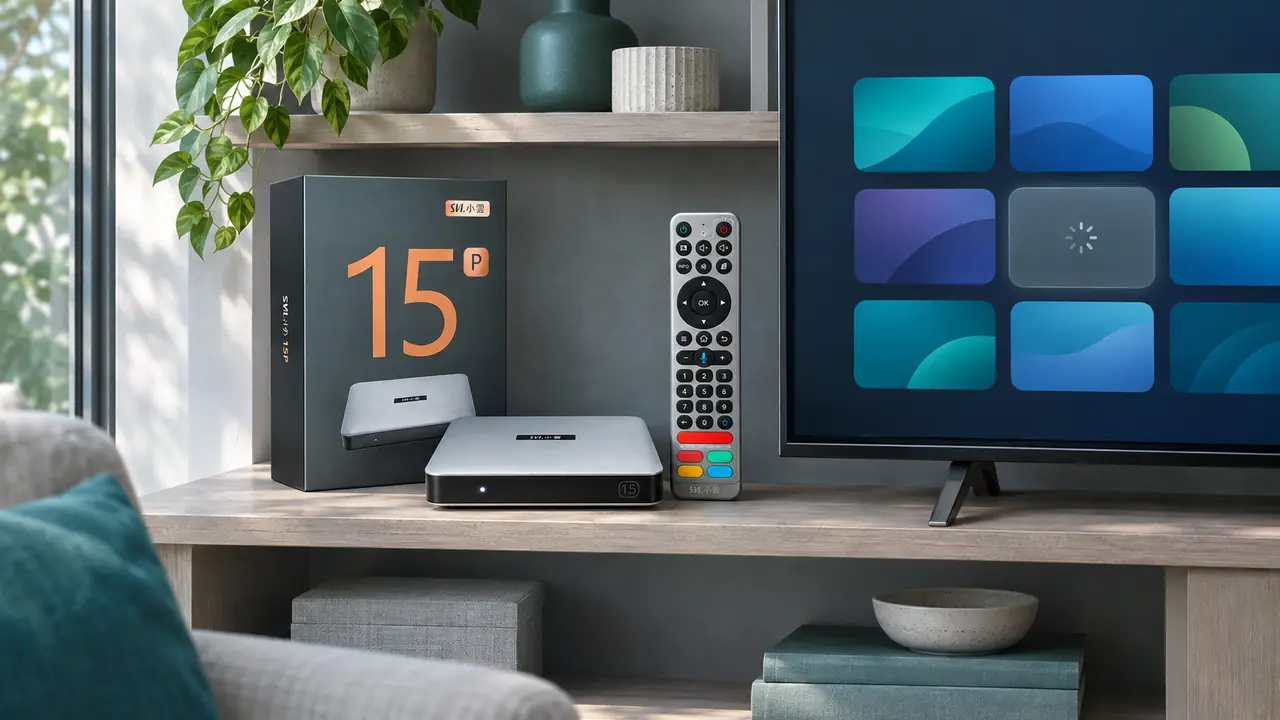
SviCloud 15P app keeps closing: identify the pattern
“SviCloud 15P not working” can describe several different problems. The first useful test is to return to the home screen and open a second app. Does the second app respond normally? Can you navigate Settings with the remote? A working home screen and a failing single app point toward that app or its service. A home screen that also freezes points toward a wider device or connection issue.
| What you observe | Most useful next check |
|---|---|
| One app closes immediately | Restart that app, then check its update source and cache. |
| App opens but exits when a video starts | Try another title in the same app and another streaming app. |
| Several apps fail but menus work | Test internet access and available storage before reinstalling apps. |
| Home screen and menus also stop responding | Restart the box and document whether the issue returns. |
Write down the app name, when the failure began, and whether it occurs at launch, sign-in, or playback. That detail is much more useful to support than “the box is broken.” If the television shows “No Signal” or goes completely black before the home screen appears, follow the separate SviCloud 15P black-screen checks; an HDMI issue cannot be fixed by clearing an app cache.
Try the low-risk fixes in order
Close the problem app and reopen it once. If it exits again, restart the SviCloud 15P using the on-screen power menu when available. If the interface is unresponsive, use the supplied power connection to turn it off, wait briefly, and start it again. Give the home screen time to load before testing the same app. A restart can clear a temporary software state without removing accounts or downloaded applications.
Next, look for that app in the device’s Apps settings. If your installed interface offers Force stop, use it and reopen the app. If it offers Clear cache, try that next. Cache is temporary app data; removing it is less disruptive than wiping the app’s full data. Menu names and paths depend on the firmware and the app, so follow the labels displayed on your own screen rather than assuming every Android TV menu is identical.
Do not confuse Clear cache with Clear data or Clear storage. The latter can remove an app’s login, preferences, and downloaded content. Check that you know the account credentials before using it. The broader SviCloud TV box troubleshooting guide covers device-wide symptoms; use it when this is no longer limited to one app.
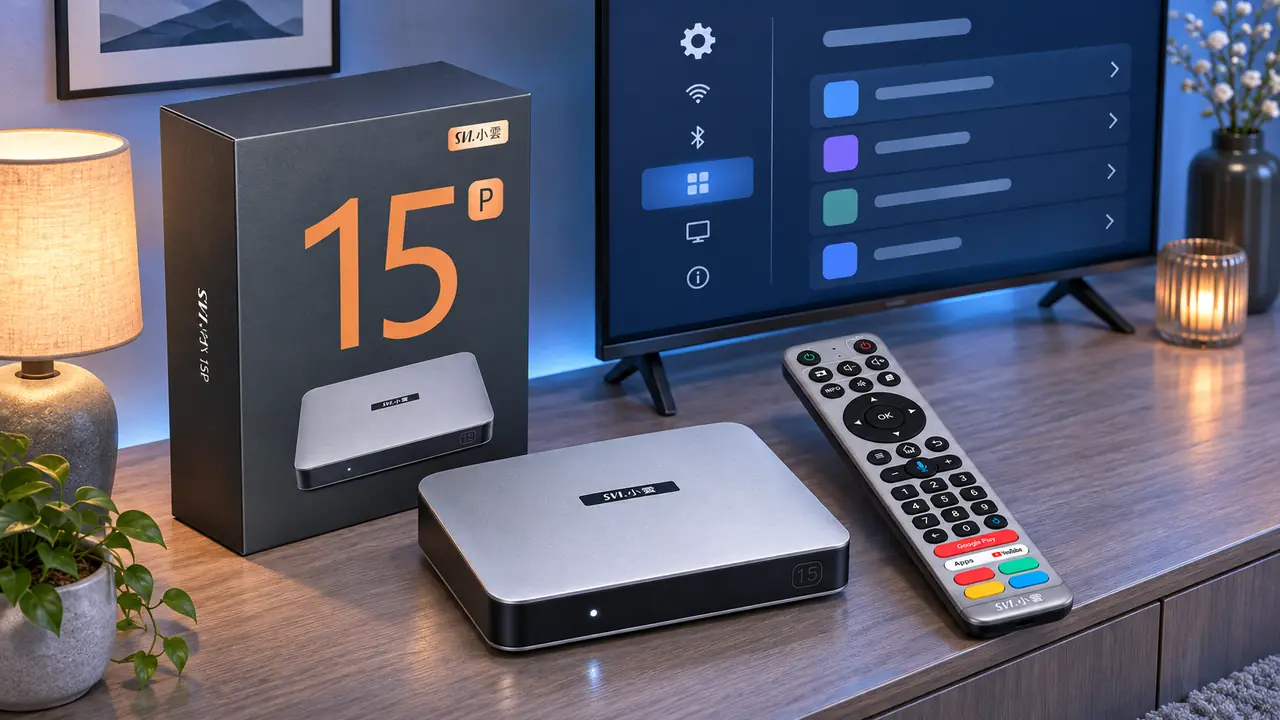
Is the app crashing, or is content failing to load?
An app can open normally yet stop when you select a programme. That is a different symptom from an app that closes at launch. Try another title in the same app, then open a different online app. If both services struggle to load video, check whether the box is still connected to your network and whether another device in the room can use that connection.
The SviCloud 15P supports dual-band Wi-Fi and Ethernet according to its current product listing. If your router is nearby, a temporary wired test can help separate an unstable wireless link from an app problem. Do not assume every pause or exit is caused by Wi-Fi: a service outage, account restriction, or a single unavailable video can produce a similar experience. Keep the test narrow so you know which change made a difference.
If only one service fails while other online apps work, check that service’s account and availability. A third-party subscription or sign-in is managed by its provider, even when the app runs on a SviCloud TV box. The site’s Google account and app sign-in guide explains why an account prompt can belong to the app rather than to the device.
When an app update or reinstall makes sense
If a single app still closes after a restart and cache check, find out where you installed it. SviCloud’s current 15P app installation guide describes the Orz download route for its core entertainment apps and compatible third-party choices. Return to the same trusted source to check for a newer version. For an app installed through another legitimate store, use that store’s update process. Avoid random APK sites and similarly named packages because a different build may create new compatibility or security problems.
Before removing an app, confirm that you can reinstall it and recover its sign-in. Uninstalling may remove stored settings or downloaded material. After reinstalling, test the app before changing other settings. If its own provider reports an outage or a regional restriction, reinstalling the box cannot restore that remote service.
Check the device’s available storage if multiple apps update poorly or the interface reports that space is low. The 15P listing states 64GB of storage, but installed apps, downloads, and system files consume part of it. Remove files you recognize and no longer need; do not delete unknown system items. If several apps close and the box also runs unusually hot, use the separate SviCloud 15P overheating checks to inspect placement and ventilation. Heat is one possible clue, not proof that it caused the app failure.
When to contact support
Ask for help when the same app keeps closing after a careful restart, cache check, and update from its trusted source, or when several apps fail together. Send the model name, app name, exact symptom, time it began, and the checks you have already tried. A photo or short video of an on-screen error may help. If you bought from this store, the SviCloud support team can review the device and order details; a third-party app provider may need to investigate a service-specific fault.
A factory reset is a last resort, not a routine app fix. It can remove accounts, settings, and installed apps, and it will not repair a remote server outage. Before taking that step, back up anything important and make sure you understand the reset instructions for your exact software version.
Frequently asked questions
Why does one SviCloud 15P app close while the others work?
The difference suggests a problem tied to that app, its version, saved data, account, or service. Restart it, check its trusted update source, and clear its cache before changing device-wide settings.
Will clearing cache delete my apps?
Clearing an individual app’s cache normally removes temporary files rather than uninstalling the app. Do not select “Clear data” or “Clear storage” unless you are prepared to sign in and restore that app’s settings.
Should I factory-reset the SviCloud 15P if an app freezes?
Not as a first step. Test another app, restart the problem app and box, check the connection, and update from a trusted source. Reset only after less disruptive checks and after protecting important data.
Can a network issue make an app look broken?
Yes. If the app opens but video never starts, compare a second title and a second online service. That helps distinguish a connection issue from an app that actually crashes at launch.
Conclusion: follow the symptom, not the panic
When a SviCloud 15P app keeps closing, the most efficient order is to identify whether one app or the whole box is affected, restart, check cache and the trusted update source, then test the network if playback is the trigger. Record what changes. This protects your accounts and preferences while giving support a clear picture if the problem remains.
For a new device, compare the current SviCloud TV boxes and confirm the model’s app environment before ordering. If the SviCloud 15P fits the way your household watches, review its current details below.