
A SviCloud 15P projector setup can turn a blank wall into a family cinema, but the projector itself does not decide what you watch. If you already enjoy the SviCloud TV box lineup, pairing a media box with a projector may let you use a familiar interface on a much larger image. The important question is whether the projector, sound system, and room can support the experience you expect.
SviCloud 15P TV Box connects to a display over HDMI and is advertised with 4K HDR10 output, dual-band WiFi 6, Ethernet, Bluetooth 5.4, and local media features. Those specifications give projector owners several ways to build a viewing setup. They do not mean that every projector will display 4K, accept HDR, or play audio the same way. Here is a practical checklist for choosing and setting up the right combination.
Contents
Will the SviCloud 15P work with your projector?
Start with the projector’s input panel, not its marketing headline. A projector with a working HDMI input is the simplest match for an HDMI media box. Connect the SviCloud 15P to that input, supply power to both devices, and select the exact HDMI source on the projector. The box’s own power adapter is still required; an HDMI cable does not power it.
If your projector has no HDMI input, an adapter may be needed, but that adds compatibility and audio questions. Check the projector manual for its supported video inputs and resolutions before buying accessories. For a projector with multiple HDMI ports, note which one you use. That tiny detail can save a long search through menus later.
Keep the box somewhere reachable and ventilated. Projector installations often put the projector on a ceiling or at the back of the room; the media box does not have to sit beside the lens. It only needs a sensible cable route to the projector or to compatible equipment in between. Long or complicated HDMI runs can be harder to diagnose than a short, direct connection, so test with a short cable first.
Picture quality: what 4K HDR10 does and does not promise
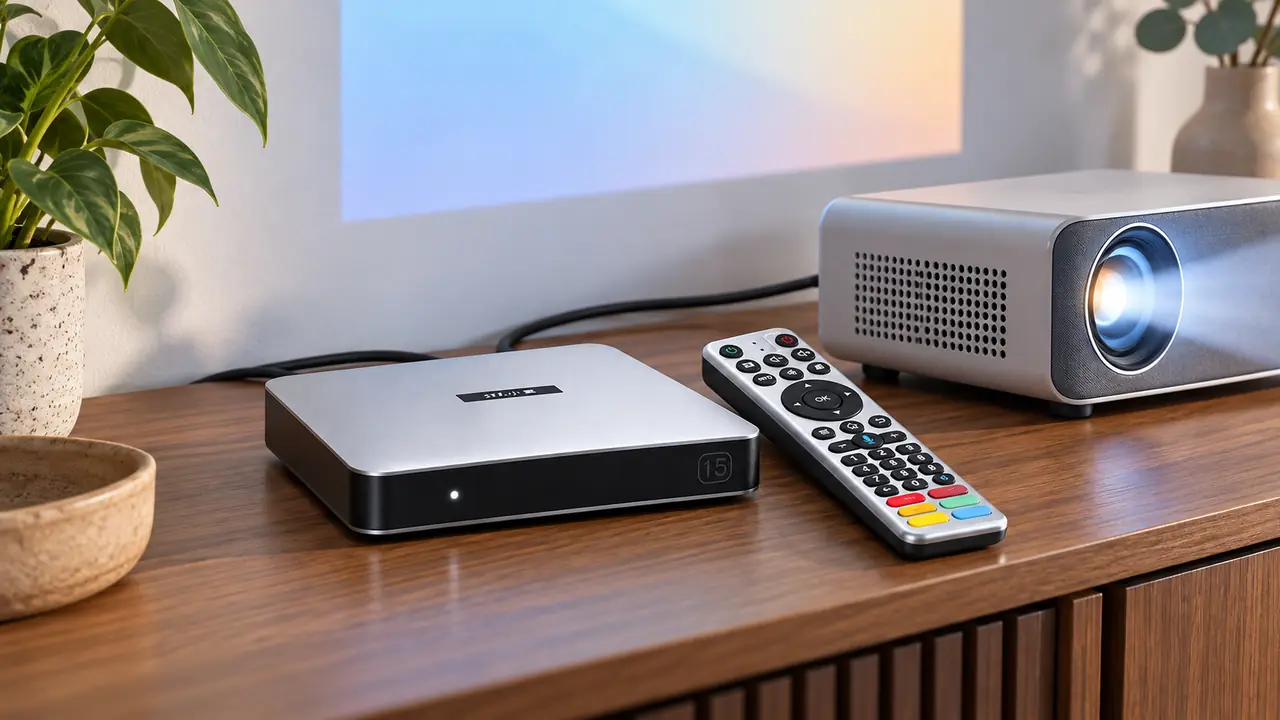
The 15P product listing specifies 4K HDR10 output. That describes a capability of the SviCloud 15P Android TV Box; it does not upgrade an HD projector into a native 4K projector. The visible result depends on the projector’s resolution, whether its HDMI input accepts the chosen signal, the source video, your screen, and light in the room.
Many projectors accept a higher-resolution signal and then display it at their own native resolution. Likewise, HDR support in a source box is useful only if the rest of the chain handles it well. A bright, washed-out wall in daylight can look less impressive than a carefully set up HD projector in a dark room. Before paying extra for a headline specification, look at your projector’s native resolution, supported HDMI formats, brightness, and placement requirements.
For a first test, select a video you know well and view it with the projector’s standard picture mode. If the image seems wrong, check the projector’s aspect ratio and the box’s available display settings one at a time. Avoid changing several settings together; you want to know which adjustment actually helped.
Buying check: Confirm the projector has an HDMI input and check the resolution and audio formats it accepts. Then compare those limits with the signal settings you plan to use. Treat “4K support” and “native 4K projection” as different claims.
Plan the sound before movie night
Projector speakers are often an afterthought in a home cinema plan. Some projectors have built-in speakers, some provide audio output to external speakers, and some rely on other equipment. Choose your sound route before mounting anything. The simplest starting test is the SviCloud 15P connected directly to the projector over HDMI, using the projector’s speaker if it has one.
If you prefer a soundbar or receiver, check your specific projector and audio equipment for compatible inputs, outputs, and supported formats. Do not assume every projector has HDMI ARC or a usable headphone jack. For private listening, the SviCloud 15P listing also specifies Bluetooth 5.4; compatible headphones may be an option, although pairing and audio behavior depend on the accessory and setup.
If you see a picture but hear nothing, try a different video, inspect mute and volume on every device, and test the direct connection before troubleshooting a receiver or soundbar. The site’s SviCloud 15P no-sound checklist gives a symptom-by-symptom path that is useful with a projector too.
Choose the right internet connection for the room
The device supports dual-band WiFi 6 and Ethernet, but the best connection is the one that works at the box’s actual location. A projector room may be far from the router or separated by thick walls. If the router is nearby, try 5GHz for a strong wireless link. If the box is farther away, 2.4GHz may hold a connection more reliably. Ethernet is a practical first test when a cable route is available and wireless performance varies.
Network quality matters for online viewing; it does not change the projector’s native image resolution. If a video pauses while local files play normally, focus on the connection, service, or app rather than the screen. The site’s WiFi 6, 2.4GHz, 5GHz, and Ethernet guide explains when each option makes sense without assuming the most expensive broadband plan is the answer.
If your household stores its own films and home videos, local playback may also suit a projector night. The SviCloud product information lists Filmax and compatible personal media formats, but file compatibility still depends on codec, audio track, and storage condition. For a tidy library and pre-show file checks, use the SviCloud 15P local media guide.
A sensible setup order
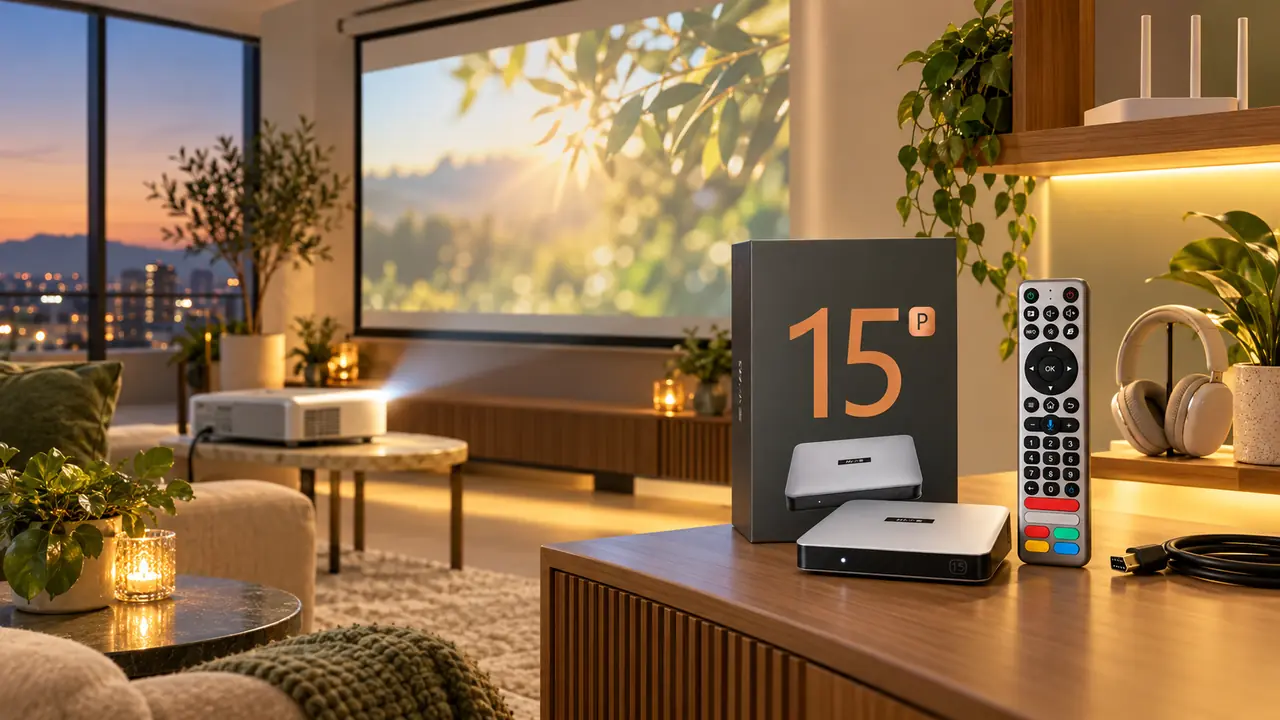
- Check the projector. Confirm an HDMI input, supported picture modes, and how it handles sound.
- Make a short direct connection. Connect the 15P to the projector with a known-good HDMI cable. Use the supplied power adapter for the box.
- Select the correct source. Turn on the projector and choose the HDMI port you actually connected.
- Complete the box’s on-screen setup. Choose language and network settings; follow the displayed remote-pairing steps if prompted.
- Test picture and sound separately. Play one familiar video and confirm both before adding a soundbar, switch, or extended cable run.
- Set up the room. Adjust projector focus, screen position, room light, and comfortable volume.
These steps deliberately use the projector and box as a simple pair first. The detailed SviCloud 15P first-time setup guide covers the box’s initial HDMI, power, remote, and network steps. Follow your projector’s own manual for ceiling mounting, focus, keystone adjustment, and its input menu, because those controls vary greatly by model.
If the picture or sound fails
A “No Signal” message usually calls for a physical-path check before any software reset. Confirm the projector is on the correct HDMI input, reseat the cable, test another HDMI input if available, and verify that the box has power. Temporarily remove an HDMI switch or receiver to isolate the problem. If possible, try the same box and cable on a television; that can help identify whether the projector chain is the issue.
If the image appears and then disappears, consider a display-mode or HDMI handshake mismatch. Start again with a direct connection and a known-good cable. The SviCloud 15P no-signal and black-screen guide goes further through input, cable, power, and display checks. A factory reset should not be the first response to a wrong projector input.
For sound, test the projector’s own speaker or the simplest available audio path first, then reconnect your external sound system. Keep notes on what changed. A clear picture plus silent audio is a different problem from a projector that never recognizes the HDMI signal.
Who should consider a SviCloud 15P projector setup?
This combination is attractive if you want one familiar Android TV box interface for a shared movie space and also value local media features, wireless networking choices, and flexible sound options. It is especially sensible when you already own a projector with HDMI and want a separate media source instead of depending on the projector’s built-in software.
It is less straightforward if your projector has only older analog inputs, your room has no workable cable route, or you expect every streaming service to behave identically on every projector. App availability, service subscriptions, regional rights, and individual file compatibility should be checked separately. A good media box cannot fix a dim room, poor projector focus, or an unsupported input format.
When comparing options, look at the entire SviCloud entertainment box range and choose around the projector you actually own. If the 15P matches your input, network, and viewing checklist, it can be a convenient centerpiece for a flexible home cinema.
FAQ
Can I connect the SviCloud 15P directly to a projector?
Yes, for a projector with a compatible HDMI input, use a direct HDMI connection and select that input on the projector. Power the box separately with its appropriate adapter.
Will the SviCloud 15P make any projector display native 4K?
No. The box’s 4K HDR10 output capability does not change the projector’s native panel resolution or brightness. Check the projector’s specifications and the source material.
What if my projector shows a picture but has no sound?
Check projector and box volume, try another video, and confirm where audio is supposed to play. Test the projector’s own speaker or another simple sound route before adding external equipment.
Should I use WiFi or Ethernet for projector movie nights?
Use the connection that remains stable where the box sits. Ethernet is a good test when practical; strong 5GHz WiFi can work well nearby, while 2.4GHz may help at greater distance.
Conclusion
A SviCloud 15P projector setup can be a useful media source for home cinema, but the purchase decision should begin with the projector’s HDMI input, native resolution, sound route, and the room’s network conditions. Test the simple direct setup first, then add speakers and longer cable runs once picture and sound work. If that checklist fits your home cinema plan, review current 15P options before ordering.