
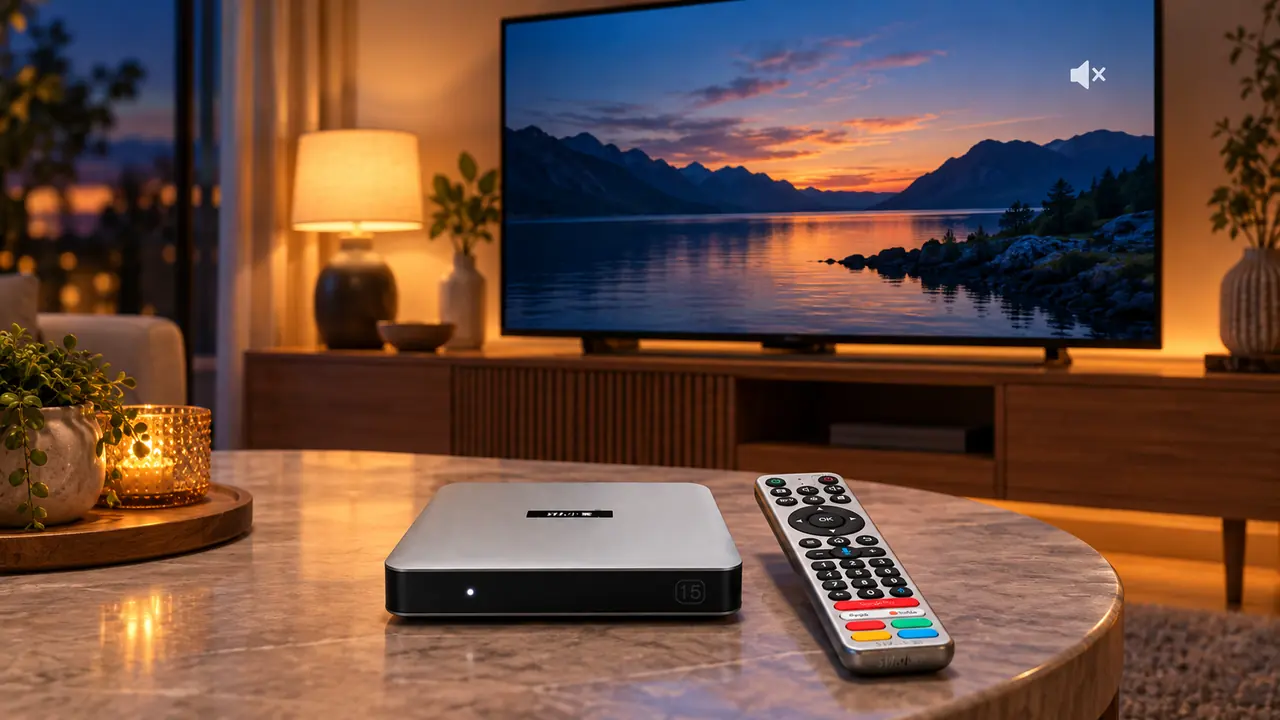
The picture looks fine, but the room is silent. Before changing settings on your SviCloud 15P TV Box, work out where the sound stops: at the television, in one app, in an HDMI sound system, or in a connected headset. This guide follows that path so you can fix a SviCloud 15P no sound problem without erasing your setup.
A SviCloud TV box sends video and audio into a wider home setup. The TV, soundbar, headphones and individual video sources all affect what you hear. A silent program does not by itself prove that the Android TV box is faulty.
Contents
The two-minute sound check
Start here: unmute the TV and the box, raise both volumes moderately, play a second video, and check whether headphones or a soundbar have taken over the audio output. If nothing changes, connect the 15P directly to the TV with a known-good HDMI cable and try again.
Use a familiar video with clear speech. Keep the volume at a moderate level while testing; a sudden return of sound can be startling. If you still see no picture, the problem is different. Work through the SviCloud 15P no-signal checks before investigating audio.
First, identify which sound problem you have
Do not treat every silent picture as the same fault. Switch to a TV channel or another input that normally makes sound, then return to the 15P. Next, try a second app or a different video on the box. Those comparisons tell you which device or source deserves attention.
| What you hear | Likely area to check first | Useful next test |
|---|---|---|
| The TV is silent on every input | TV mute, speaker selection or soundbar | Use the TV’s own menu or a known-good TV source. |
| Only the 15P input is silent | Box volume, HDMI connection or audio format | Connect the 15P directly to TV speakers. |
| One app is silent | That app or its video | Play a different video and another app. |
| Headphones work but TV speakers do not | Current audio destination | Disconnect headphones and recheck TV output. |
| One local movie is silent | Its audio track or file compatibility | Try another known-good file. |
Write down the result before changing anything else. It prevents a common troubleshooting mistake: altering several settings at once and then not knowing which change fixed the sound.
Check the television, SviCloud remote and active speakers
Use the TV remote to remove mute and raise its volume. If you use a soundbar or AV receiver, check that device separately and confirm it is on the input carrying the TV’s sound. Then use the SviCloud remote’s volume controls, if they are active in your setup. Some remotes can also control the television, so watch which on-screen volume indicator changes.
Think about what was last connected. A headset paired for late-night viewing can leave you expecting sound from the TV while audio goes elsewhere. A television may also be set to external speakers even when the soundbar is off. Open the TV’s sound settings and select its built-in speakers for a simple baseline test. Menu names vary by TV brand.
If the remote itself seems unresponsive, diagnose that separately with the 15P remote-control guide. An unresponsive volume key and a silent HDMI signal are not necessarily the same problem.
Test the HDMI audio path without the soundbar
The fastest isolation test is a direct connection: run the SviCloud 15P HDMI cable into the television, select that exact TV input, and use the TV’s built-in speakers. Temporarily remove an HDMI switch, AV receiver, capture device or soundbar pass-through from the path. This does not mean the intermediary is defective; it simply tells you whether it changes the result.
- Turn the box and television off before reseating cables.
- Reconnect the HDMI cable firmly at both ends. Do not force a damaged connector.
- Choose the matching HDMI input with the TV remote.
- Try a different TV HDMI port or a known-good cable if the picture or sound is intermittent.
- Play the same short test video with the TV speakers selected.
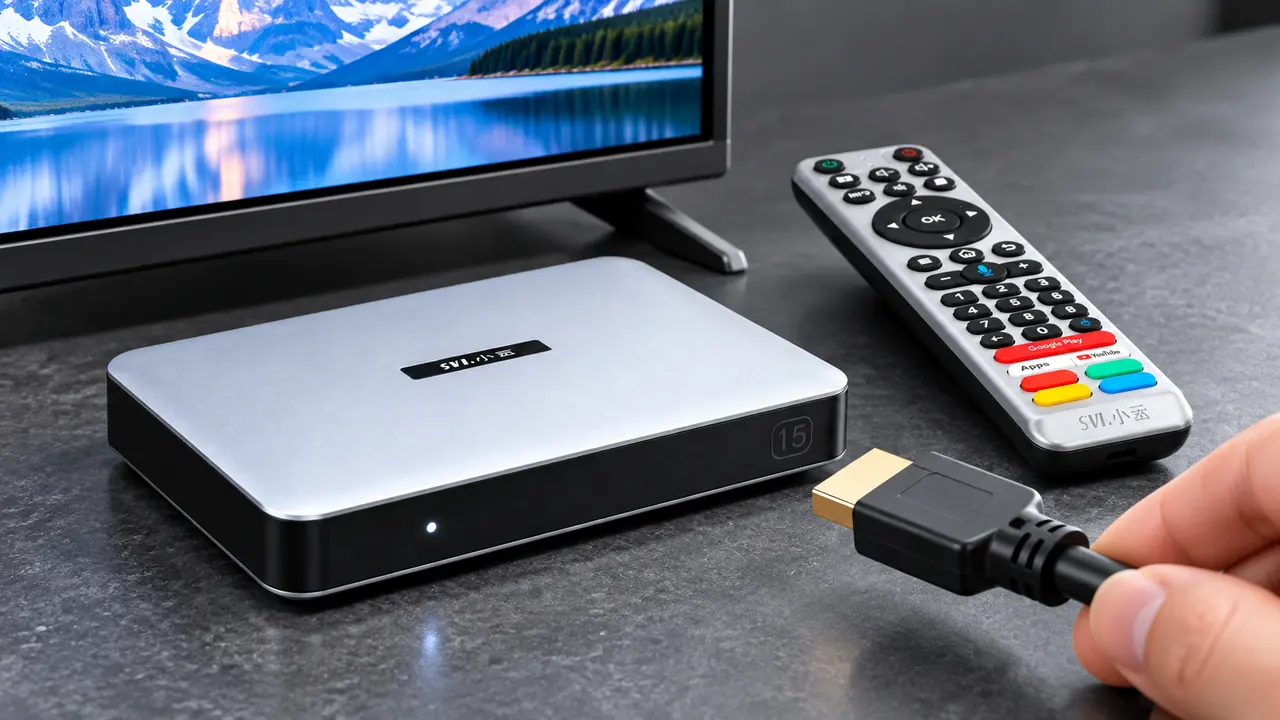
If direct TV audio works, reconnect the soundbar or receiver one piece at a time. Check its selected input and the television’s ARC or eARC configuration if that is how your audio system is wired. Those controls belong to the TV and sound system, and their labels differ by manufacturer. A broader SviCloud troubleshooting guide also uses a direct connection to isolate intermediary equipment.
Some televisions or audio systems cannot play every audio format sent by a source. If your TV or soundbar manual recommends a basic stereo or PCM setting for troubleshooting, try the compatible option available on your equipment and test again. Do not assume that every 15P software build exposes the same audio-format menu or that changing a format is needed when the direct TV connection already works.
Could Bluetooth headphones be receiving the audio?
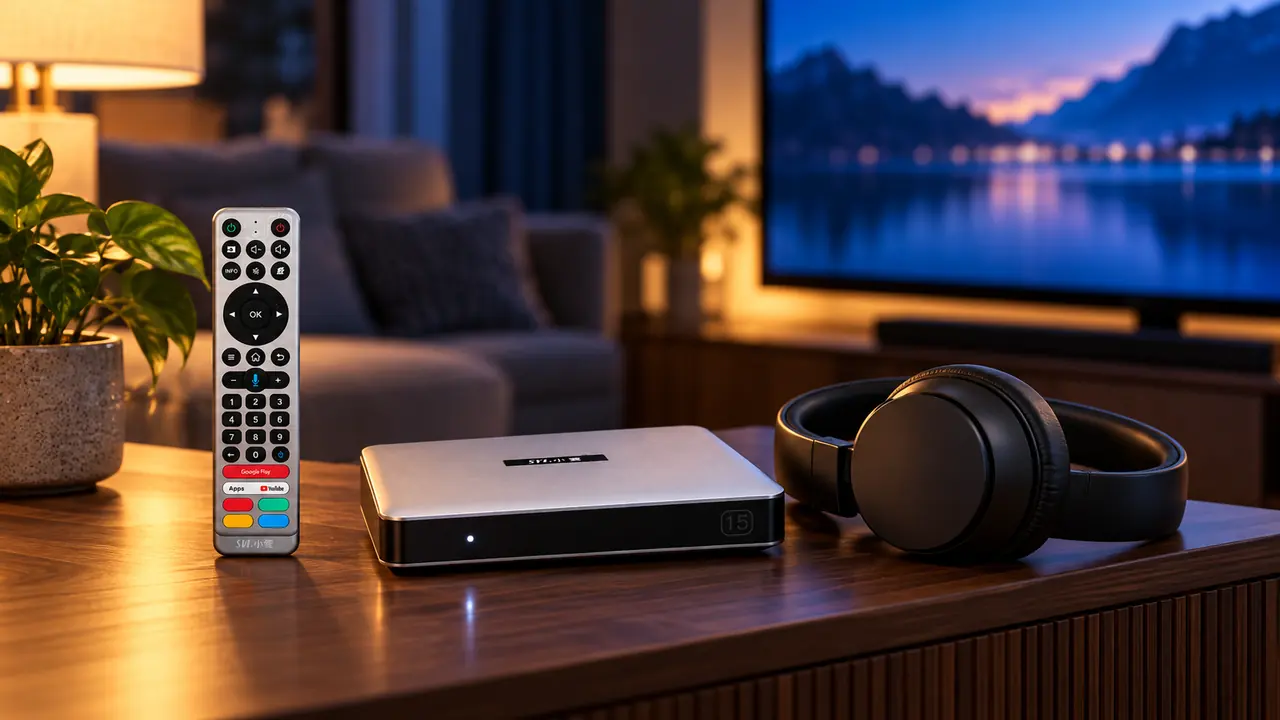
The current SviCloud 15P listing confirms Bluetooth 5.4 and private listening with compatible headphones. If you recently used a headset, check whether it is still connected to the box or television. Turn the headset off or disconnect it temporarily, then retest the TV speakers. Bluetooth headphone pairing with the TV is a different audio path from pairing with the 15P.
If the headset is supposed to be the output but stays silent, charge it, confirm it is actually connected rather than merely powered on, and raise its own volume. Try a second video. Some headsets reconnect to a nearby phone first; disconnect that phone while testing. Do not assume that the TV speakers and headset will play simultaneously, because that behavior depends on the connected devices.
When only one app or local movie has no sound
If the home screen and most videos have audio, the HDMI path is probably carrying sound. Focus on the silent source. Try a different episode or title in the same app, then compare another app. Look for an in-player mute, audio-language or audio-track control. A particular video may have an unsupported track or a source-side issue even when other programs play normally.
The SviCloud 15P apps guide explains that available apps and behavior depend on the provider and region. If one service is affected, closing and reopening it is a reasonable first check. Avoid reinstalling every app or resetting the entire box because one title is quiet.
For files stored on USB or another personal source, test a known-good file and, if the player offers it, select another available audio track. A file container name alone does not guarantee that every audio track inside is playable. The 15P local-media guide covers organizing compatible files and tracks for easier playback.
Restart only after the simple checks
When every video on the 15P remains silent through the TV’s own speakers, restart the box and TV normally. Allow them to finish starting before replaying the same test clip. If you recently changed any audio setting, restore the last setting that worked rather than trying random combinations. Keep a note of whether direct HDMI, another cable, another TV input and another video made any difference.
A factory reset is a last resort, not the first sound fix: it can remove saved settings and app data while leaving a faulty cable or muted TV untouched. If no sound returns after the direct-connection tests, contact SviCloud support with your 15P model, TV and soundbar models, connection path, and the results of those tests. That gives support a useful starting point.
FAQ
Why does my SviCloud 15P have a picture but no sound?
First compare TV mute, box volume and the active speaker or headset. If only the 15P input is silent, try a direct HDMI connection to TV speakers and a second video. The result helps isolate a cable, sound system, source or box setting.
Should I change the 15P to PCM?
Only when your TV or sound-system documentation suggests a compatible stereo/PCM format and you can identify the relevant audio setting. Exact 15P menu names can vary; begin with the direct TV-speaker test rather than changing an unfamiliar option.
Why does one movie have no audio when others work?
That points more toward the particular file, track or app than a general HDMI failure. Try another title and check the player’s available audio tracks. Playback still depends on the source’s encoding and your connected equipment.
Will a factory reset fix silent audio?
Not when the television is muted, the wrong speakers are selected, or an HDMI cable or intermediary is causing the problem. Exhaust the non-destructive checks first and ask support before resetting.
Get the sound back before changing the whole setup
Most useful audio tests are reversible: compare sources, remove mute, choose TV speakers, bypass the soundbar and test a known-good cable. The result matters more than the number of settings you change. If you are planning a new entertainment setup, compare the current SviCloud TV box range against your television and audio equipment before ordering.
The latest SviCloud 15P model supports HDMI-connected home viewing and compatible Bluetooth headphones, but the final audio experience still depends on the TV, source and accessories you use. If its features suit your home, review the current listing and included accessories before purchase.