
SviCloud 15P karaoke works best when the television handles the song screen and everyone can hear both the backing track and the singers. Our SviCloud 15P TV Box can be the entertainment source: its WeFun / 閤家歡 app is designed for karaoke, while the box sends the picture and program audio to your TV over HDMI. The microphones and speakers are a separate part of the setup. This guide shows how to put those pieces together without assuming a microphone plugs directly into the box.
If you are new to our SviCloud entertainment lineup, begin with the equipment you already own. A TV and the included remote are enough to explore the app. Add an external karaoke microphone system when you want amplified voices alongside the music.
Quick answer: what does the 15P do for karaoke?
The SviCloud 15P supplies the on-screen karaoke experience through WeFun / 閤家歡 and sends video and audio to your television. Your TV, sound system or external karaoke equipment plays the accompaniment. A microphone receiver or mixer handles the singers’ voices. For a proper mix of voice and music through the same speakers, choose external audio equipment that accepts both signals and follow its connection instructions.
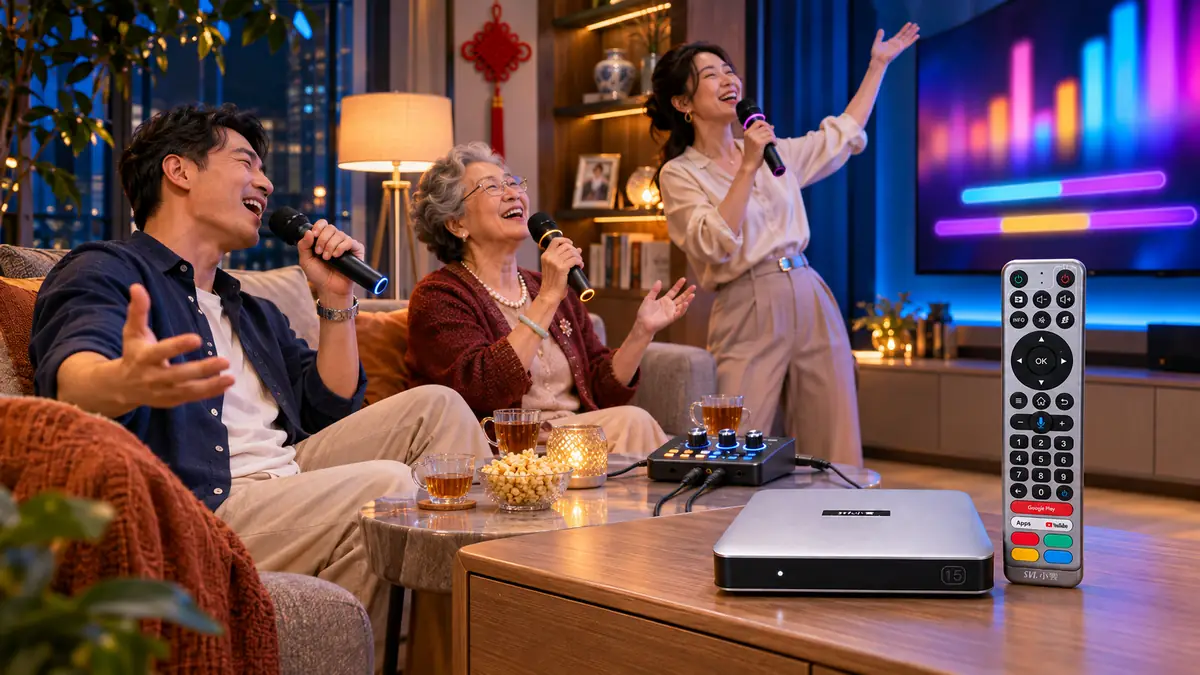
What you need before the first song
For your SviCloud 15P karaoke setup, start with the box, its power adapter, HDMI cable, remote and an HDMI television. Our current 15P specification lists Android 14, 4GB RAM, 64GB storage, dual-band Wi-Fi 6, Bluetooth 5.4 and an AI voice air-mouse remote. Those features make the box a flexible family entertainment player, but they do not replace the sound equipment needed to amplify a live voice.
WeFun / 閤家歡 is one of the apps described in our SviCloud 15P app guide. Check the Apps area on your box first. If the app needs installing, follow that guide’s current Orz-based download steps instead of downloading a similarly named APK from an unknown listing.
Keep the remote nearby for searching and navigating; our 15P remote-control guide covers its buttons and voice functions in more detail.
For amplified singing, choose a microphone kit with its own receiver and an audio path into powered speakers or a karaoke mixer. A pair of handheld microphones is convenient for duets. Check the receiver’s output, the mixer’s music input and the speaker’s input before buying cables: a connector that looks familiar is not proof that two devices accept the same signal. Some complete karaoke systems combine receiver, mixer and speaker in one unit; follow that unit’s manual.
| Setup | What you hear | Best for |
|---|---|---|
| 15P → TV speakers | Song audio from the TV; voices remain natural room sound | Trying WeFun before buying microphones |
| 15P → TV → soundbar, plus separate mic speaker | Music on the soundbar and amplified voice on a separate system | Using equipment already in the room |
| 15P → TV; TV audio + mic receiver → mixer → powered speakers | Music and voices mixed in one speaker system | A fuller karaoke-night arrangement |
Choose the audio path that matches your equipment
Option 1: start with the TV
Connect the 15P to an HDMI input on the television, select that input and open WeFun. The TV should show the song interface and play the app’s audio through its own speakers. You can sing along without a microphone system while you learn the app and decide whether the family wants a bigger setup. This is also the simplest baseline when you later troubleshoot an audio chain.
Option 2: let the TV feed a soundbar
If your TV and soundbar already use HDMI ARC/eARC or another supported TV-audio output, keep the 15P connected to the TV and let the TV send the backing track to the soundbar. Match the TV’s audio-output setting to the connection you actually use. The microphone still needs an appropriate receiver and speaker path; the soundbar does not automatically mix a wireless microphone with the TV soundtrack. The soundbar and TV manuals determine the exact ports and settings.
Option 3: mix accompaniment and voices
A dedicated karaoke mixer can combine a music feed from the TV or another supported output with microphone audio, then send the result to powered speakers. Connect the 15P to the TV for the picture first. Next, check which audio output your TV provides and which music input the mixer accepts. Finally, connect the microphone receiver to the mixer’s microphone input and the mixer output to the powered speakers. Set every device to its corresponding input before raising volume.
This is the cleanest way to have both music and voices controlled together. It also avoids a common expectation mismatch: Bluetooth 5.4 on the 15P supports compatible accessories, but it is not a promise that any wireless karaoke microphone will pair with the box or that the box itself mixes live vocals. Think of the 15P as the song and display source, and of the mixer as the voice-and-music hub.
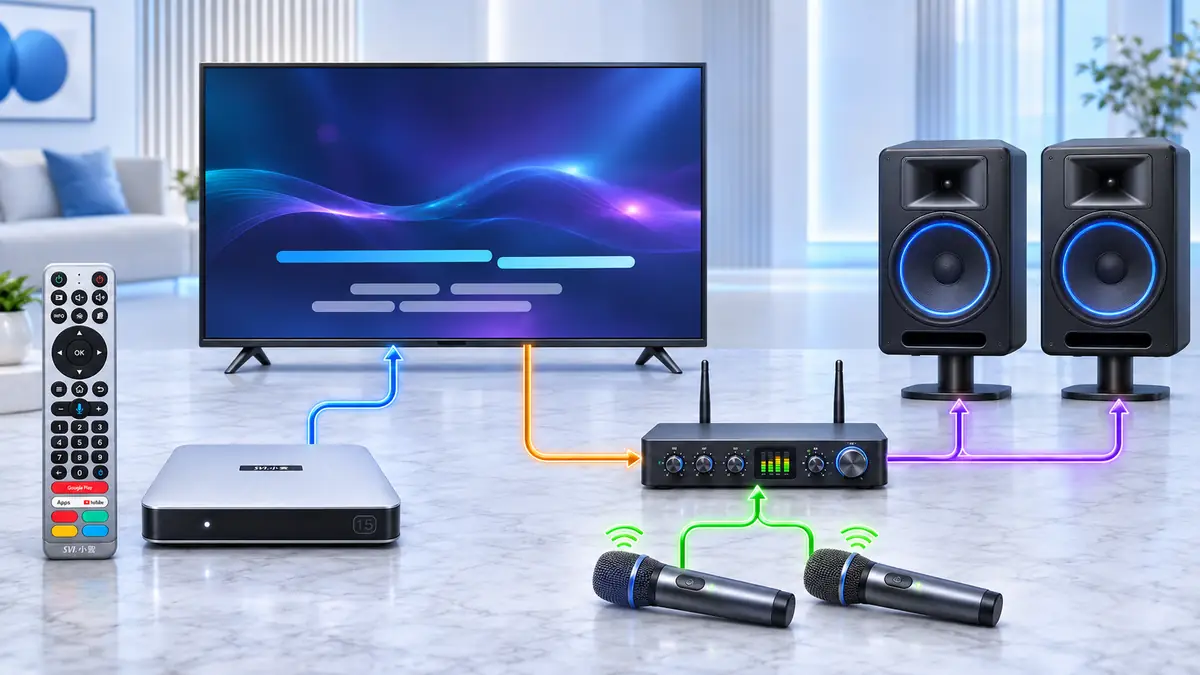
Set up a SviCloud 15P karaoke night step by step
- Place the screen where the group can see it. Leave space around the TV box and put the microphones and receiver where the singers can move comfortably.
- Connect and start the 15P. Use its power adapter and HDMI connection, then select the correct TV input. Our SviCloud 15P setup walkthrough covers the initial TV and network steps if the box is not already ready to use.
- Open WeFun / 閤家歡. Browse a familiar song and start playback. Check the on-screen controls that are present in your app version; available titles and functions can change.
- Test the music before adding voices. Play a short song section through the TV or soundbar. Adjust to a comfortable level.
- Turn on the microphones and external audio unit. Use the mic system’s own pairing or channel procedure. Begin with its master volume low, then raise the voice level gradually.
- Balance the mix. Aim for clear speech and song vocals without drowning out the backing track. Move the microphone away from the speaker if you hear feedback, and avoid pointing it straight at a speaker.
If the picture or soundtrack disappears when you add an AV receiver or soundbar, return to a direct 15P-to-TV connection and test again. Our 15P audio-check guide helps isolate the TV input, HDMI cable and selected speaker without resetting the box.
For a large-screen party, the same source can feed a compatible projector; our 15P projector checklist explains the extra display and audio decisions.
Make the evening feel easy for everyone
Build a short queue before guests arrive, beginning with songs several generations know. Keep the remote on the same table as the microphones so someone can find the next selection quickly. A compact keyboard can make longer searches faster if your setup supports one, but the included remote remains the simplest way to move through on-screen menus.
Use the first song as a sound check. Walk around the seating area, listen for delay between your voice and the backing track, and adjust the external mixer or speaker settings if that equipment offers a low-latency mode. Keep the box, TV and audio unit at comfortable volume rather than maxing out one control and compensating at another. If you are hosting children as well as adults, take turns with one song each; a predictable queue does more for the party than a complicated speaker upgrade.
At the end of your SviCloud 15P karaoke session, turn down the speaker or mixer before switching sources. Then the same box can return to movies, family viewing or personal media without rewiring the box. That is the value of treating karaoke as one enjoyable use of a versatile smart TV box, rather than building a separate TV system for a single occasion.
SviCloud 15P karaoke FAQ
Does the SviCloud 15P have a karaoke app?
Yes. WeFun / 閤家歡 is listed among the SviCloud entertainment apps and is designed for karaoke. Open the box’s Apps area to see what is installed on your unit.
Can I plug a microphone straight into the 15P?
Plan on a separate microphone receiver or karaoke mixer and speaker system. The 15P provides the song screen and audio source; choose the microphone path according to the external equipment’s documented inputs.
Can I use my existing soundbar?
Yes, as a playback route when your TV and soundbar support a matching audio connection. For amplified live vocals, use a microphone system that has its own supported speaker or mixer path.
What if the song plays but I cannot hear the microphones?
Check the microphone batteries, receiver power, mixer input, speaker selection and muted channels. Test the music and microphone signals separately, then bring them together at low volume.
Ready for the first chorus?
Start small: connect the 15P to your television, open WeFun, and make sure the song plays clearly. If the family enjoys it, add a microphone system whose inputs match your TV audio path. For help selecting the right box, browse our SviCloud TV boxes and compare the current 15P package before planning extra audio accessories.